Designing for the decisions you make without thinking
What UX research says about defaults, choices and alarms, and how we put it to work in the eclean 1.4 redesign.
Most of the decisions you make on a PC take a second or two. Which box to tick, which button to press, whether a warning is worth reading. Software can make those moments easy, or it can quietly take advantage of them.
Most PC utilities are built to keep you a little worried. They open on a red score, count hundreds of “issues” and save the details for after you’ve paid. We’ve written about that in PC health scores are a sales tactic.
We wanted the opposite, a tool you can understand in a few seconds and then close.
Good PC software tells you where you stand, does what it says it will and only interrupts you when something matters.
eclean 1.4 is the biggest update since 1.0, and we redrew almost every page with that in mind. By the end of this post, you’ll have five questions you can put to any PC tool, eclean included.
What makes a page feel obvious
Whenever you use something, you cross two gaps that Don Norman describes in The Design of Everyday Things. First you work out how to do what you want, which he calls the gulf of execution. Then you work out whether it worked, the gulf of evaluation. His diagram labels them with the questions people actually ask, “How do I work this?” and “What happened?”
Bad software leaves both gaps wide. You face a grid of options with no obvious starting point, press something, and get a spinner and a percentage that tell you nothing about what changed. A good page closes both gaps before you’ve had to think about them.
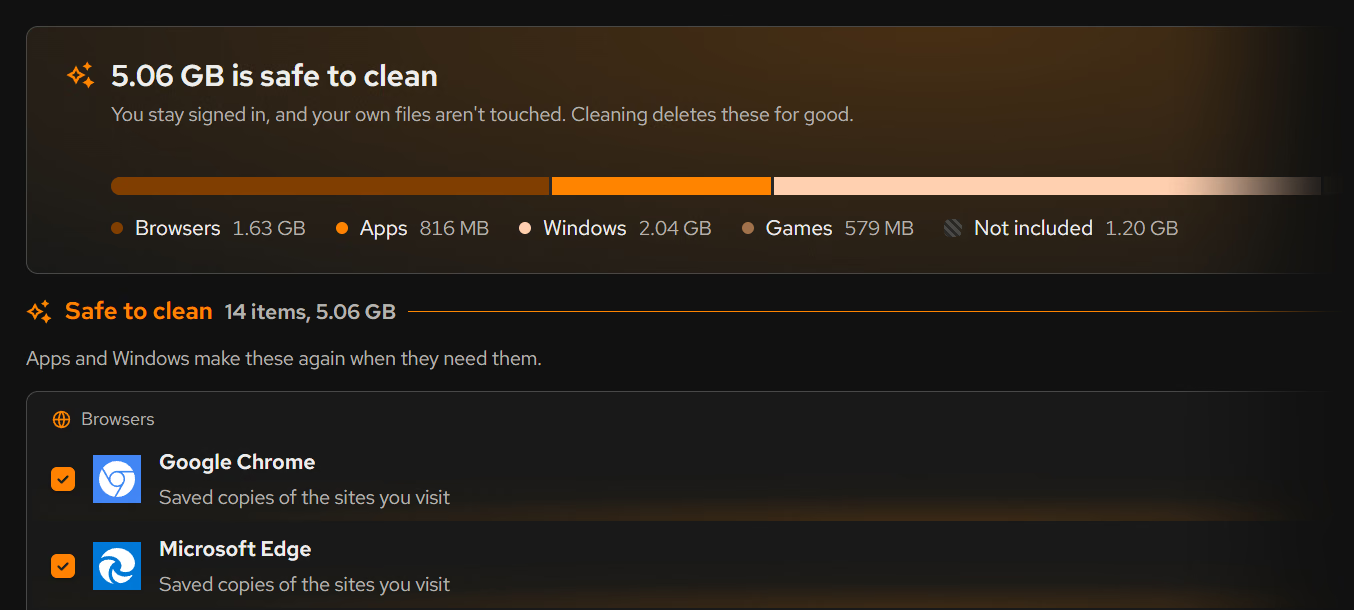
The Optimizer, Junk cleaner, Large files, Desktop apps and Store apps now share the same three parts for that reason. A summary card at the top says where you stand in one line, like how much space is safe to clean. One button in the footer does the obvious next thing. Every row in between opens to explain itself.
Fewer decisions, in a better order
In 1.3 the Optimizer was three tabs of switches. Every option on a screen makes a choice a little slower. In 1952 William Hick timed people choosing between up to ten lamps, and the time it took them grew with every lamp that might light. Forty switches with equal weight leave you to work out which ones matter.
1.4 puts every tweak on one page and sorts them by how far they go. Recommended comes first, and nothing in it turns off anything you use. Trade-offs, Advanced and Expert follow. One button gathers the recommended changes you haven’t made yet, already ticked, and applies them in two presses.
Reading the first section and stopping is a perfectly good way to use the Optimizer.
Detail waits until you ask for it. Open a row and it says what the tweak is good for, what it changes, when it takes effect and what turning it off does. Designers call this progressive disclosure.
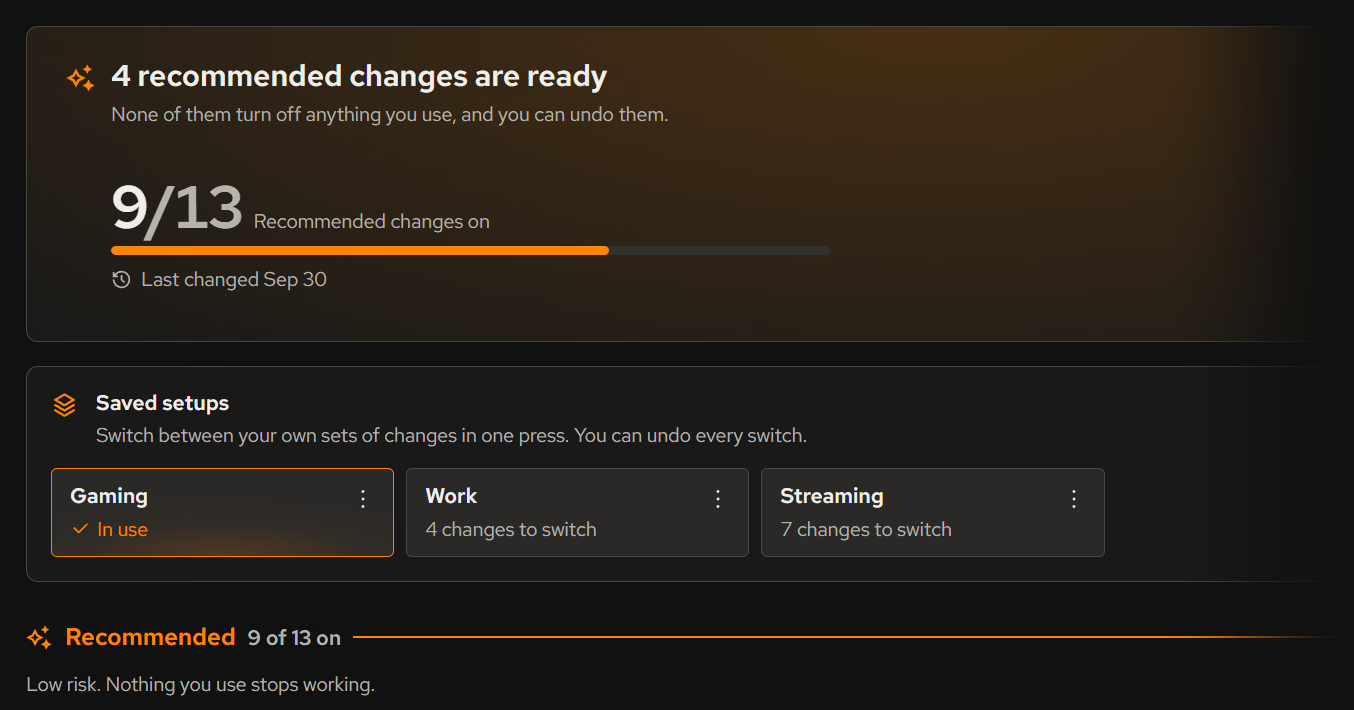
Pro adds two things here. Saved setups keep a set of changes under a name, like one for gaming and one for work, and switching between them takes one press that can be undone. Expert tweaks sit at the bottom for people who want deeper CPU, timer and power changes, and each one says what you give up.
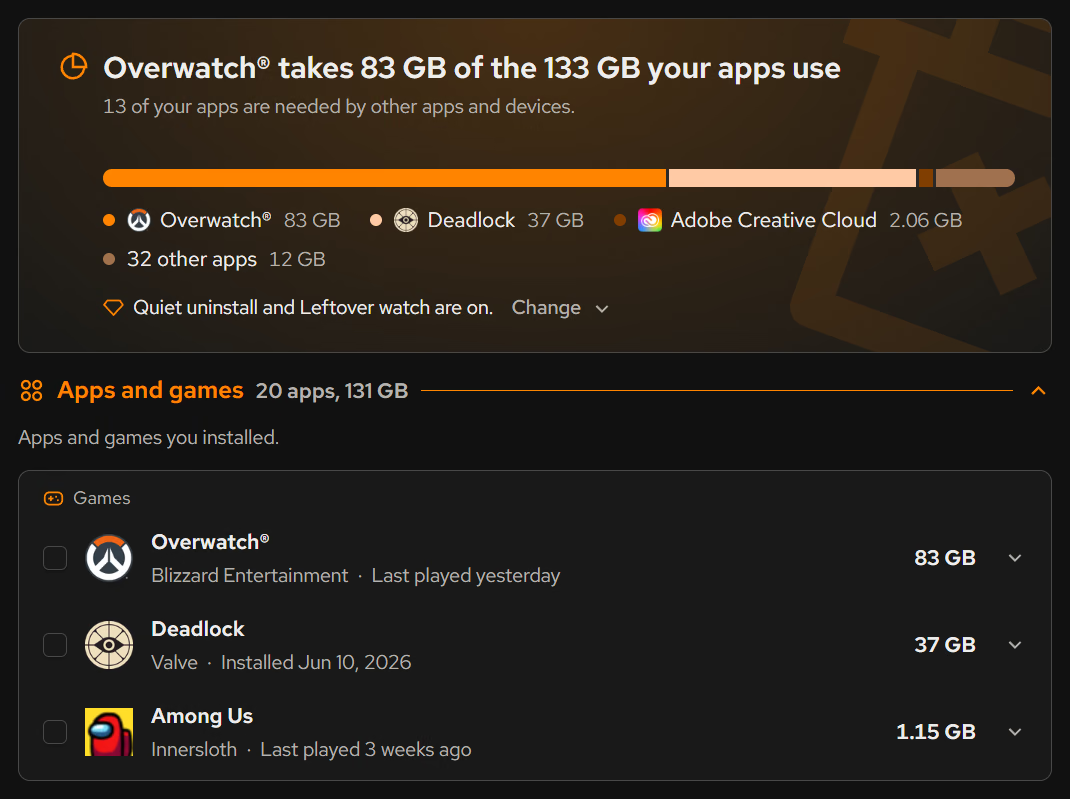
The Uninstaller had its own pile of decisions. Removing five apps can mean clicking Next through five wizards. Quiet uninstall, also in Pro, runs the uninstallers eclean recognizes with their default choices and asks them not to restart your PC. The plan shows which apps will go quietly before anything runs, and you can change any of them.
Defaults are decisions
Think about the last time you clicked Next through an installer. You probably didn’t read every screen, and whatever was already ticked is what you got.
Most people keep whatever they’re given to start with, and the effect shows up in decisions far bigger than software. Organ donation is the well-known example. When Eric Johnson and Daniel Goldstein compared countries in 2003, the ones that counted everyone as a donor unless they opted out had far higher consent rates than the ones that asked people to sign up.
A pre-ticked box in a cleaner works the same way, which is why the Optimizer’s one button only ever gathers recommended changes.
What a cleaner ticks for you tells you more about it than its feature list.
The Junk cleaner in 1.4 ticks one of its four sections, the one for files that apps and Windows make again when they need them. The other three, for things you might notice, your personal data and what Windows keeps, start unticked, and every row in them says what you’d give up. The cleaning rules changed to match. A default clean no longer signs you out of the apps you use, and browser sync data is opt-in.
Lead with what could go wrong
People feel a loss more sharply than a gain of the same size. Daniel Kahneman and Amos Tversky built prospect theory on that observation in 1979. Anyone who has been signed out of every website by a “PC cleaner” knew it already.
Freeing 3 GB is nice. Losing every login ruins an evening.
The Junk cleaner’s summary says you’ll stay signed in, right after how much it can free. Open any row and it tells you what the files are, what happens if you clean them and how you get them back.
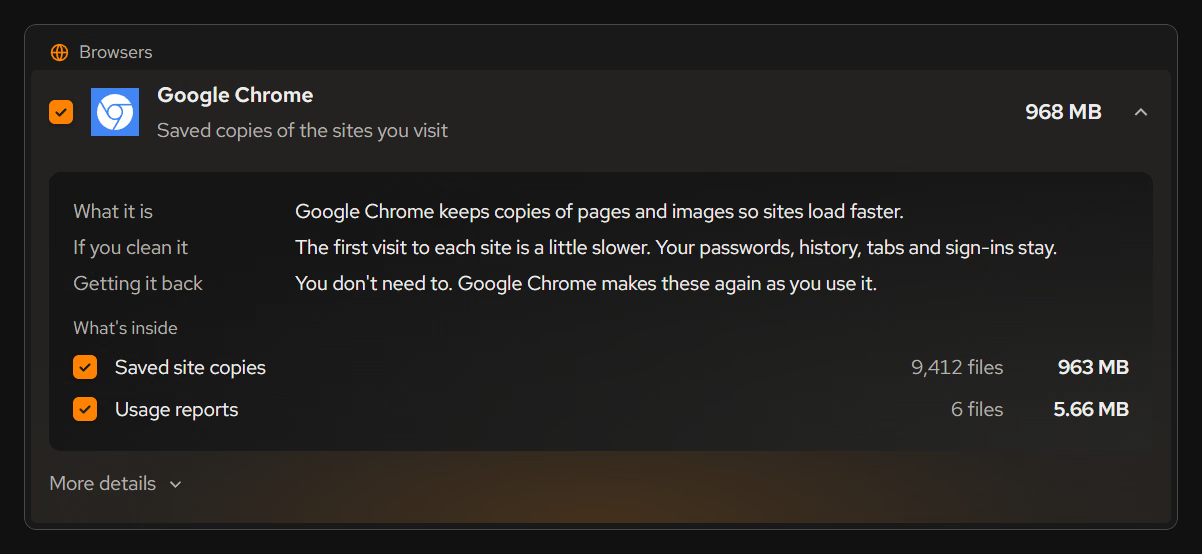
A change you can take back is an easy change to make.
Optimizer changes apply as one batch you can undo from the footer. Files you delete in Large files go to the Recycle Bin, as do uninstall leftovers, so both can be put back.
Automation has to earn its place
Most of what’s new in Pro runs on its own.
Software that acts without asking should be easy to check, every time.
Human factors researchers have studied the ways automation goes wrong for decades, mostly in cockpits and control rooms. Raja Parasuraman and Victor Riley named two that matter here. Misuse is trusting automation more than it deserves. Disuse is ignoring it, often because it has raised too many false alarms.
Each automatic feature in 1.4 guards against misuse the same way. It says what it’s about to do, does it at a sensible moment and tells you what it did.
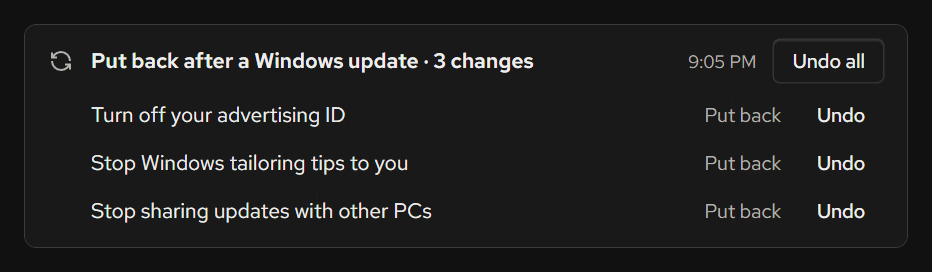
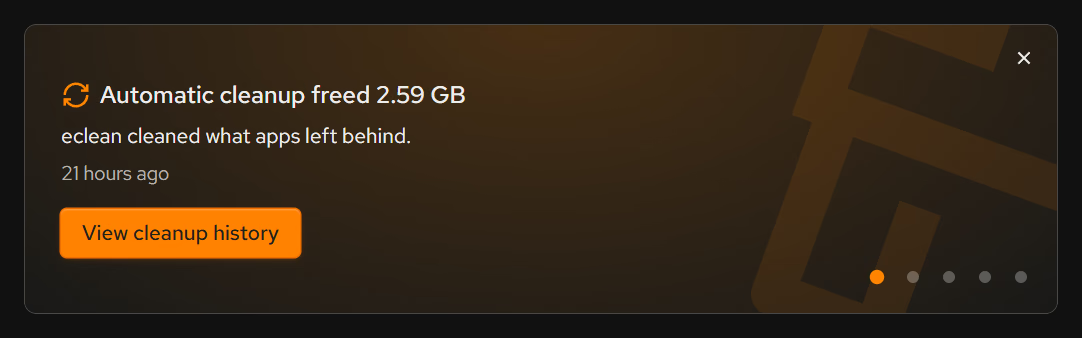
Automatic cleanup posts a notification before it starts, showing what it’s about to clean, and gives you two minutes to run it now, snooze it or skip it. Every run is logged in the app’s history. After a Windows update, Stay optimized puts your Optimizer changes back and lists each repair with its own undo.
Leftover watch notices when an app is removed outside eclean and tells you within minutes, so you can check what it left behind.
Pick the moment
A correct notification at the wrong moment is still an interruption. Piotr Adamczyk and Brian Bailey tested this by interrupting people at different points in a task. Interruptions that landed between subtasks caused less annoyance, frustration and time pressure than ones in the middle of a subtask.
Our background features wait for a gap. Automatic cleanup waits until you’ve been signed in for three minutes, and it holds off while a full-screen game, app or presentation is in front of you. If you stay busy for two hours, it skips that run.
Quiet is a feature
A monitor that warns about everything teaches you to ignore it. That’s Parasuraman and Riley’s disuse again, and hospitals know it as alarm fatigue.
Space watch, new in Pro, measures your drives about once a week while eclean is open or in the tray. It speaks up when one is getting full and names the folder that grew.
Most days, the best news a monitor can give you is that nothing happened.
The DNS alert, free for everyone, follows the same rule. Once it’s on, the only time it speaks is when your lookups fail.
Differences you can feel
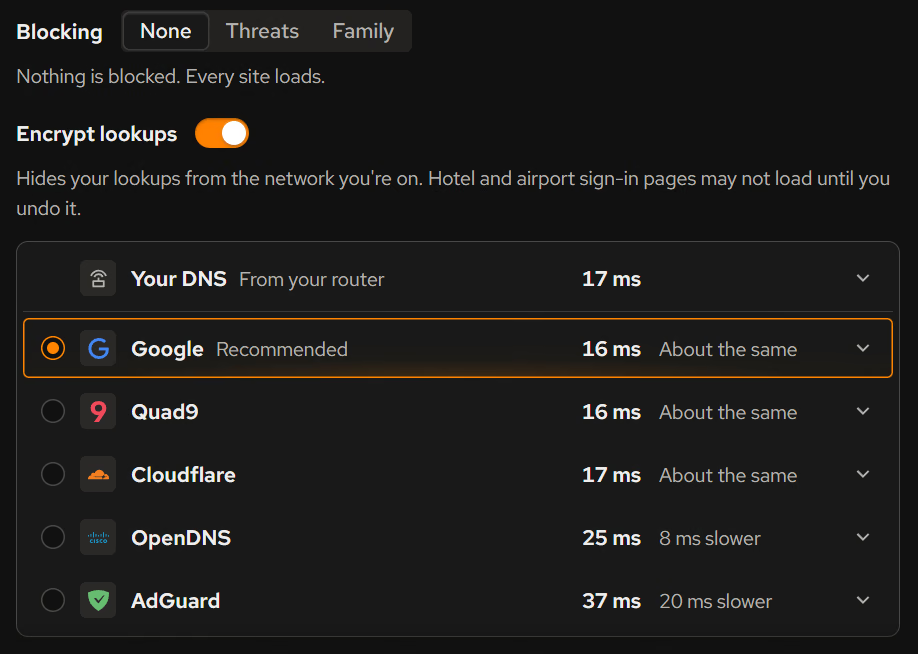
We don’t think a tool should recommend a change you couldn’t notice. The DNS Optimizer times providers on your own connection. Ranked by raw milliseconds, a provider 1 ms faster than yours would come out on top, and the next check could just as easily flip the order.
In 1.4, a gap has to reach 5 ms, 15% of how long your current DNS takes, or the spread of your own lookup times, whichever is largest. Anything smaller counts as a tie. The percentage part has the same shape as Weber’s law, the old finding that the smallest change you can notice grows with the size of what you’re comparing.
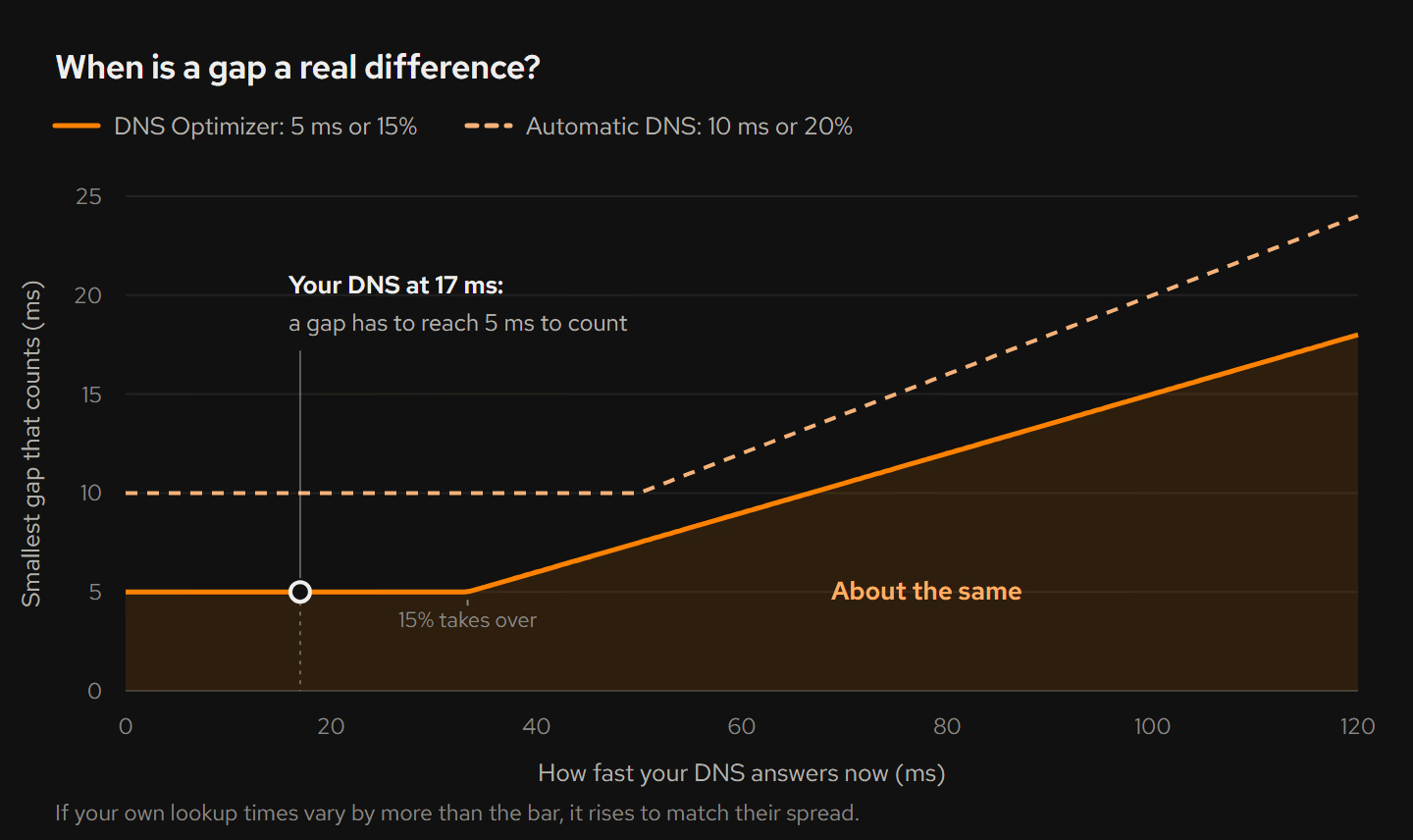
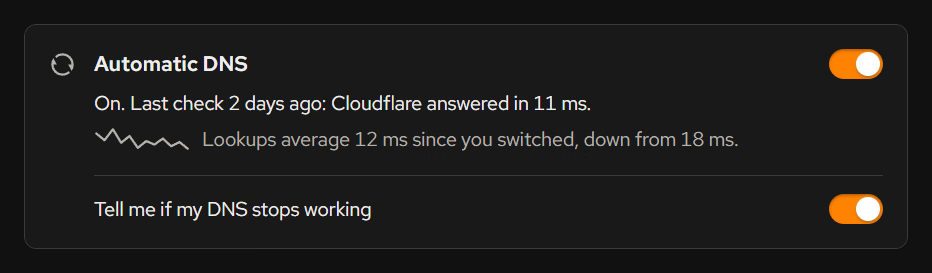
Automatic DNS holds a stricter bar of 10 ms or 20%. While it’s on, the page uses that bar too, so it never recommends a switch Automatic DNS would refuse. Automatic DNS only switches when another provider clears it, and it shows when it last checked and how your lookups have done since.
The cost is that eclean will sometimes call a real 4 ms gain a tie. We think that’s the right mistake to make.
When nothing beats what you have, the page tells you your DNS is already fast and leaves it there. The exception is when you’ve asked eclean to encrypt your lookups and your current DNS isn’t encrypted yet. Then it suggests an equally fast provider that can, as in the list below.
Numbers you can trust
1.3’s Home screen claimed that users saw a 4% system-wide performance increase on average. We couldn’t back that number up, so 1.4 removes it. If a PC tool promises you a percentage speed-up, it’s fair to ask how it measured that on your PC.
Home now counts something real, the recommended optimizations you’ve applied. If a Windows update turns some of them back, Home says how many and offers to put them back in one step.
The first of Jakob Nielsen’s ten usability heuristics is visibility of system status, and it applies to work in progress as much as to numbers. The DNS check fills in each provider as it’s timed, and an uninstalled app leaves the list right away while the rescan carries on in the background.
Polish that tells you something
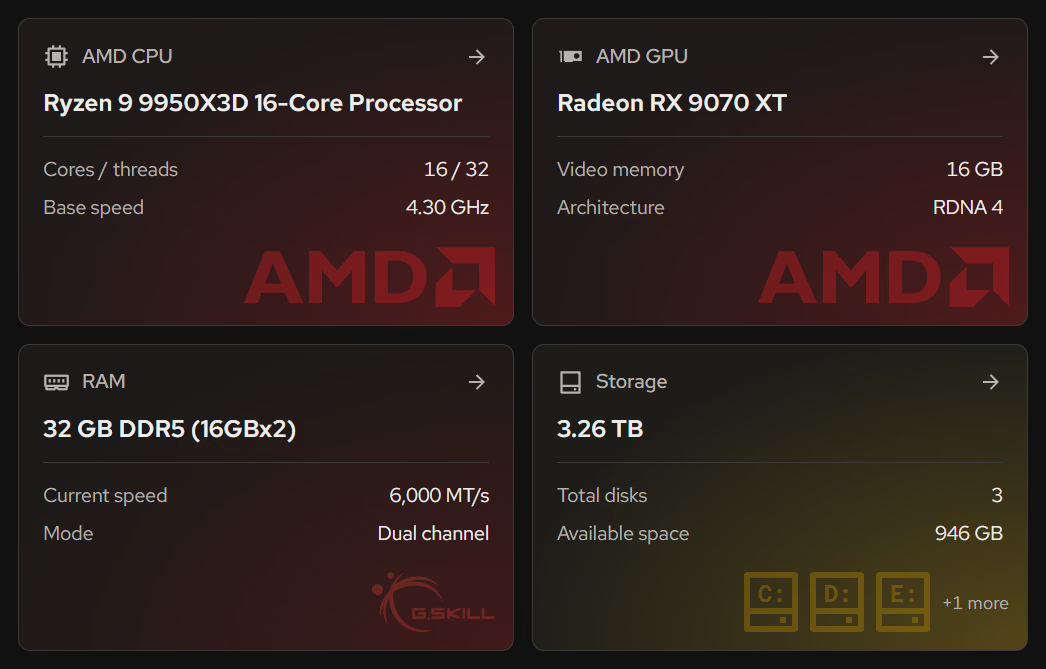
We like good-looking software, but polish is easy to abuse. A beautiful screen gets forgiven for things it shouldn’t. In 1.4, most of the decoration carries information. Hardware cards wear their makers’ logos, the Junk cleaner’s bar shows where the space went, and Large files gives every drive a bar of its own.
Pro’s three themes and the burst of confetti the first time your account has Pro carry no information at all. We kept them anyway.
Five questions for any PC tool
You don’t need to read Norman or Nielsen to judge the software on your PC. Ask it these five questions.
- Does it only tick what’s safe to remove?
- Does it say what you’d lose before you clean?
- Can you see everything it did without asking you?
- Does it stay quiet when nothing is wrong?
- Can it tell you how it measured any number it promises?
None of these ideas are new. Norman, Nielsen and the researchers above worked most of them out decades ago. They’re rare in PC software because a worried user is easier to sell to.
eclean 1.4 is our attempt to answer yes to all five. If anything in it still makes you feel nagged or unsure, tell us through the feedback option in the app or in a live chat with support. We treat that kind of report as a bug.
Get eclean 1.4
eclean 1.4 is a free download. Pro adds the features that look after your PC on their own, and your first subscription starts with a free trial. Download eclean, compare Free and Pro or read the 1.4.0 changelog.
Sources
- Norman (2013), The Design of Everyday Things
- Nielsen (1994), 10 usability heuristics for user interface design
- Hick (1952), On the rate of gain of information
- Johnson & Goldstein (2003), Do defaults save lives?
- Kahneman & Tversky (1979), Prospect theory
- Parasuraman & Riley (1997), Humans and automation
- Adamczyk & Bailey (2004), If not now, when?
- APA Dictionary of Psychology, Weber's law