
Your PC
eclean vs AIDA64
AIDA64 is the paid hardware suite for sensors, benchmarks, and stress tests. Here is how eclean compares on knowing your PC and keeping it in shape.
Last checked

WinUtil is the popular open-source script for debloating and tweaking Windows. Here is how eclean compares on tweaks, undo, and day-to-day upkeep.
WinUtil is a popular free tool for setting up a fresh Windows install. It installs your apps through WinGet, applies a tweak preset, adjusts Windows Update, and can build a debloated Windows 11 ISO, all from open-source PowerShell. It is a setup tool you run when you need it. eclean is an app you keep, with each tweak explained, a history per change, and cleaning, startup control, and an uninstaller for the months after setup.
Free · Windows 10 and 11
Stay with WinUtil if…If this list sounds like you, WinUtil is a fine choice.
The same jobs, done two ways.
With eclean
eclean stays installed and looks after the PC over time. With Pro, Stay optimized reapplies your changes when a Windows update undoes them.
With WinUtil
You launch WinUtil from PowerShell, it runs its tasks, and you close it. Each launch downloads the current script from the project's server.
With eclean
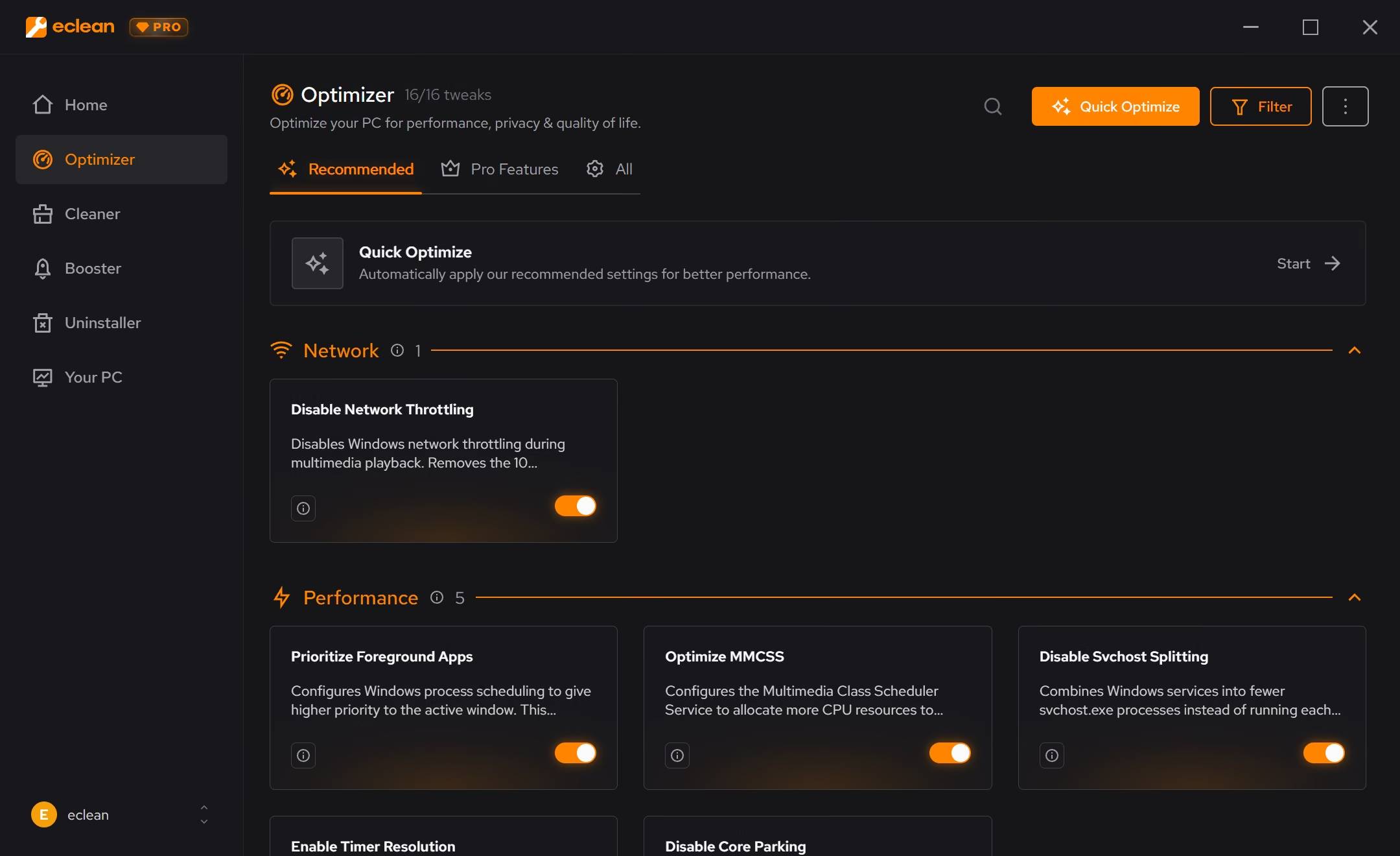
Every change says what it is good for, when it takes effect, and what turning it off does, sorted from Recommended to Expert by how far it goes (Expert comes with Pro).
With WinUtil
Tweaks are split into Essential and Advanced, with Advanced marked caution. Descriptions are short, and the docs explain each one in more depth.
With eclean
Each change keeps its own history of when it was turned on, off, or reapplied, and supported changes undo from the same place.
With WinUtil
Undo Selected Tweaks reverts many tweaks, and a restore point tweak is offered first. Temp file cleanup and app removals have no undo.
With eclean
Cleaning with previews, startup and services, an uninstaller with leftover scans, DNS benchmarking, and a hardware view.
With WinUtil
App installs and upgrades through WinGet or Chocolatey, Windows Update controls, optional features like WSL and Hyper-V, and a Windows 11 ISO builder.
WinUtil is a free, open-source PowerShell tool for installing apps, applying Windows tweaks, fixing common problems, and building custom Windows 11 ISOs. Here is how the two line up, feature by feature.
| Capability | eclean Free, or Pro at $59.99/year | WinUtil Free and open source |
|---|---|---|
| Tweaking Windows | ||
| Privacy and performance tweaks | ||
| Plain-language explanation for each change | Short, more in the docs | |
| Risk levels shown before you apply | Four levels | Essential and Advanced |
| Undo for applied changes | Supported changes, with history | Undo Selected Tweaks, partial |
| Reapplies tweaks after Windows updates | Stay optimized, with Pro | |
| Presets you can reuse | Saved setups, with Pro | Presets and config files |
| Setup and repair | ||
| Install and upgrade apps in bulk | WinGet or Chocolatey | |
| Windows Update controls | ||
| Build a custom Windows 11 ISO | ||
| Network reset and common fixes | ||
| Ongoing upkeep | ||
| Junk cleaning with previews and large files | Temp file cleanup tweak | |
| Startup apps, services, and scheduled tasks | Services set to manual | |
| Uninstaller with leftover scans | ||
| Hardware view and live activity | ||
| Open source | MIT | |
Checked by William Hallin. Last checked . Spot something out of date? Tell us and we'll fix it.
Sources: WinUtil on GitHub (checked 10 Nov 2026)WinUtil documentation and FAQWinUtil known issuesWinUtil guides, including undoing tweaks
Free on Windows 10 and 11, no trial timer.
Download freeEverything WinUtil does here lives in 2 modules of the same free download.


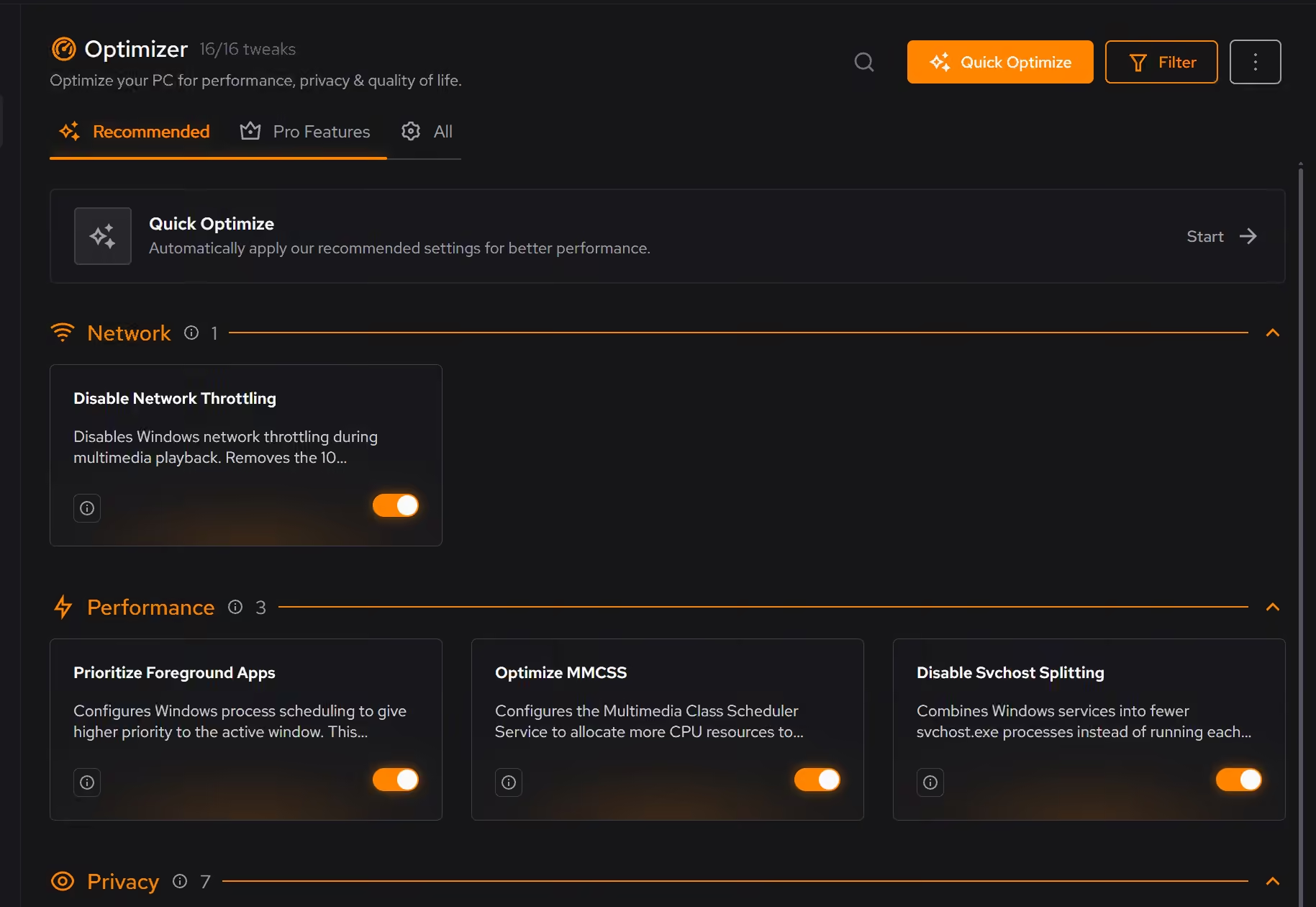


Every recommendation says what it changes and why before you commit to it.
Supported changes keep an undo history, so trying something is never a commitment.
Scans and cleaning run locally. eclean does not upload your files, documents or installed-program list.
WinUtil has earned its following. It is open source under the MIT license, actively maintained (the 28 October 2026 release included a security fix for importing remote configs), and it does a lot from one window. It installs your usual apps through WinGet, applies a tweak preset, switches Windows Update to security-only, turns on WSL or Hyper-V, and can build a debloated Windows 11 ISO.
You run it by pasting a PowerShell command, which downloads the latest script from the project's server and runs it with admin rights. That is convenient, and it means you trust the server every time. Get it only from the official command in the project's docs, since look-alike sites have copied the name.
eclean's Optimizer is built for the months after setup. Every change explains what it is good for and what turning it off does, and changes are sorted from Recommended to Expert by how far they go, with Expert in Pro. Each one keeps a history of when it was turned on, off, or reapplied, and supported changes undo from the same place. With Pro, Stay optimized puts your changes back when a Windows update resets them.
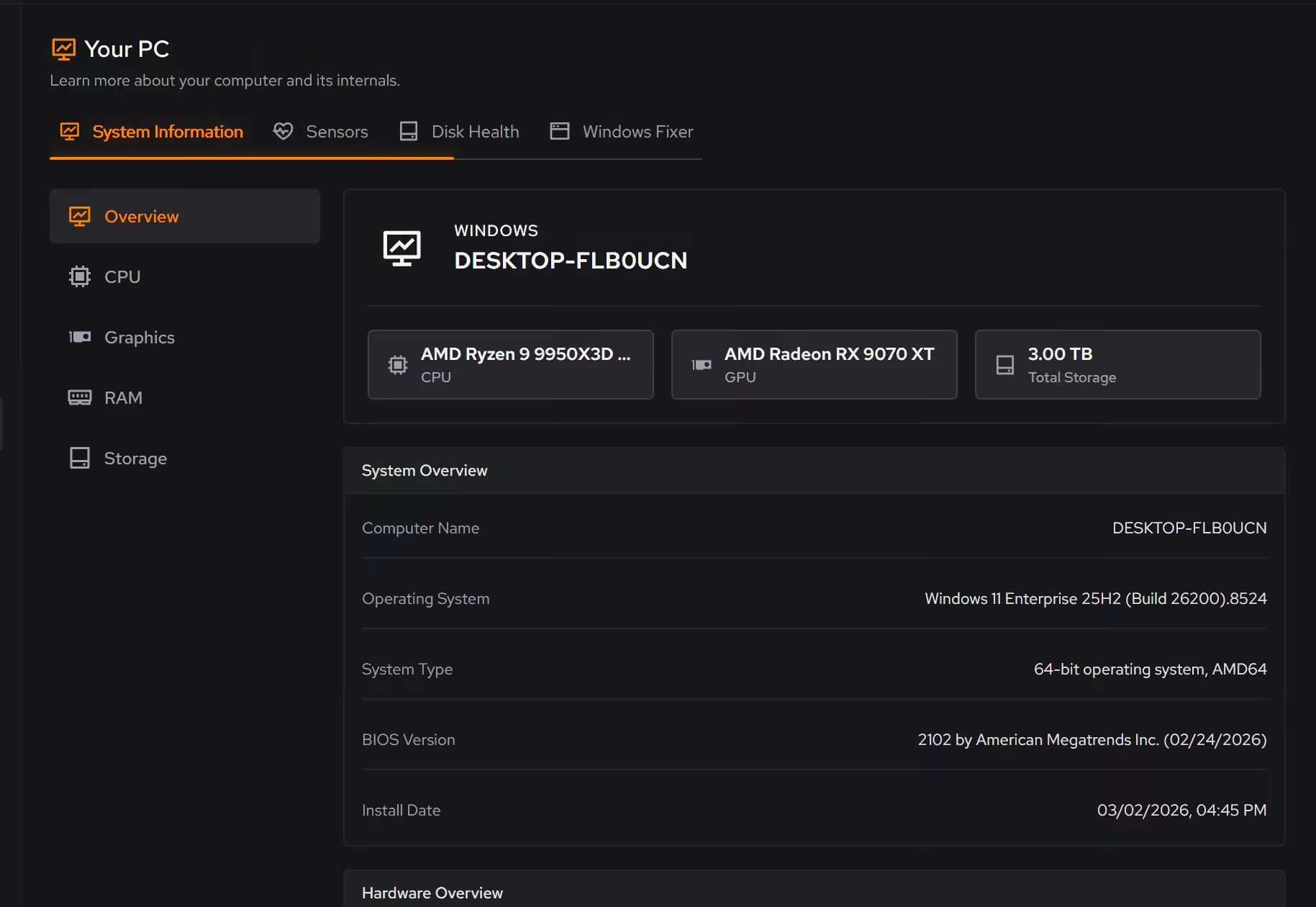
Around Optimizer sit the jobs a setup script does not cover. Cleaner previews what it removes, Booster shows startup apps, services, and scheduled tasks as one background load, the uninstaller checks for leftovers, and Your PC shows your hardware and what it is doing.
The two fit together well. Use WinUtil on day one to install your apps and set up a clean Windows. Use eclean every day after that to keep it tidy and explained, with a route back for supported changes.
Your PC
AIDA64 is the paid hardware suite for sensors, benchmarks, and stress tests. Here is how eclean compares on knowing your PC and keeping it in shape.
Your PC
Need more than a CPU-Z spec sheet? Compare hardware detail, plain-language inventory, and live monitoring, and see when CPU-Z is still the right tool.
Optimizer · Cleaner
A free Glary Utilities alternative? Compare 1-Click Maintenance, registry repair, explained changes, and price, and see what Glary still does better.
5.0 out of 5 on Trustpilot from 11 reviews
“Easy to use. Great support. And it really helped me clean my computer. When you are uncertain which files you could delete, the program solves that for you. I don't even need to think, that's great. =)”