
Cleaner · Booster
eclean vs Advanced SystemCare
Advanced SystemCare grades your PC and fixes everything in one click. Here is how eclean compares on cleaning, speed-up claims, and upsell pressure.
Last checked

Glary Utilities packs 20+ tools behind 1-Click Maintenance. Here is how eclean compares on cleaning, explained changes, and the registry question.
Glary Utilities gives you a lot of surface area for the money, and it has earned its longevity. But the daily routine runs through 1-Click Maintenance, where registry repair supplies most of the urgency, and the tools mostly list items rather than explain them. eclean covers the jobs you actually repeat (cleaning, startup, Windows tweaks) with each change explained first and a history with a route back, and skips the registry cleaner on purpose.
Free · Windows 10 and 11
Stay with Glary Utilities if…If this list sounds like you, Glary Utilities is a fine choice.
The same jobs, done two ways.
With eclean
Five modules built around the jobs that recur (cleaning, startup and background work, Windows tweaks, uninstalling, and knowing your hardware). Each one explains itself.
With Glary Utilities
More than 20 utilities from duplicate finder to file splitter. Breadth is the pitch, but most tools are visited once, and the daily loop is the 1-Click scan.
With eclean
eclean does not ship a registry cleaner. Cleaning registry keys does not make a modern Windows PC faster, and we would rather skip a feature than sell a placebo.
With Glary Utilities
Registry repair sits at the heart of 1-Click Maintenance and produces most of its issue count. It is the least consequential work in the suite, presented as the most urgent.
With eclean
Every recommendation describes what it changes and why before you apply it, and applied changes keep a history with a supported route back.
With Glary Utilities
Tools list found items and fix them in batches, with registry backups as the safety net. What changed and whether it helped is left for you to guess.
With eclean
The free tier is the product (cleaning, startup and services, DNS tools, and the hardware view), with no nags. Pro adds scheduling and depth on top.
With Glary Utilities
Free covers the essentials, with upgrade prompts along the way. Automatic care, deeper scans, and priority support sit behind Pro.
Glary Utilities is a long-running Windows utility suite with more than 20 tools behind a 1-Click Maintenance scan, registry repair included. Here is how the two line up, feature by feature.
| Capability | eclean Free, or Pro at $45.99 USD/year | Glary Utilities Free, or $39.95/year |
|---|---|---|
| Cleaning | ||
| Preview files before they are removed | ||
| Clutter grouped by browsers, apps, Windows, and games | Mixed, tool by tool | |
| Large file finder | Disk Space Analyzer | |
| Secure file shredder | Secure overwrite with Pro | |
| Registry cleaner | No, on purpose | Core of the 1-Click scan |
| Tune-up | ||
| Startup, services, and scheduled tasks together | Startup manager | |
| Every change explained before it is applied | Batch repairs | |
| Undo history for applied changes | Registry backups | |
| DNS benchmarking and encrypted DNS | ||
| How it treats you | ||
| Issue counts designed to alarm | None | Hundreds per scan |
| Upgrade prompts inside the free app | None | Present |
| Hardware inventory and live sensors | Basic system info | |
| Uninstaller that looks for leftovers | Uninstall list | |
Checked by Jack Holmes. Last checked . Spot something out of date? Tell us and we'll fix it.
Sources: Glary Utilities Pro product page
Everything Glary Utilities does here lives in 2 modules of the same free download.


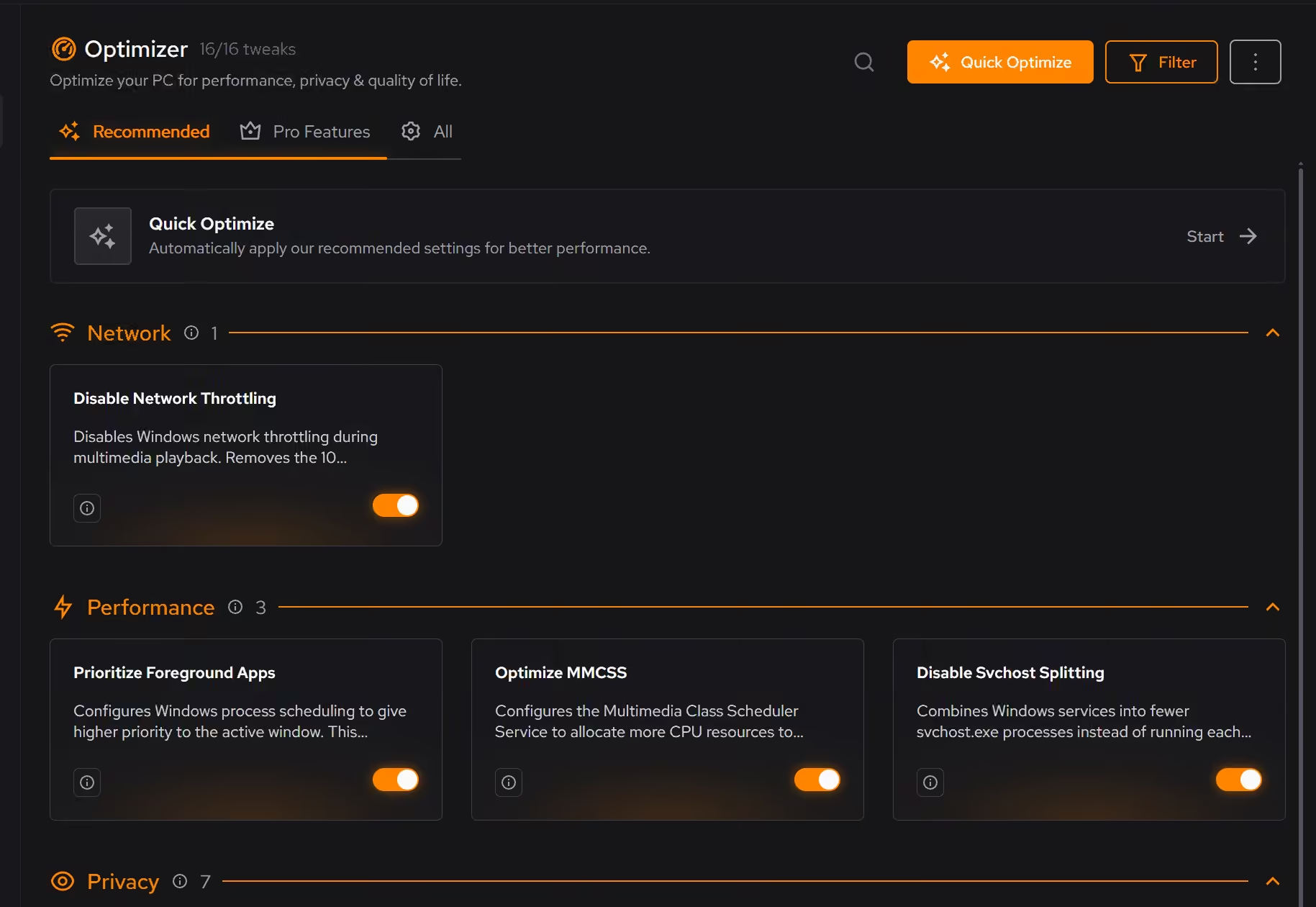



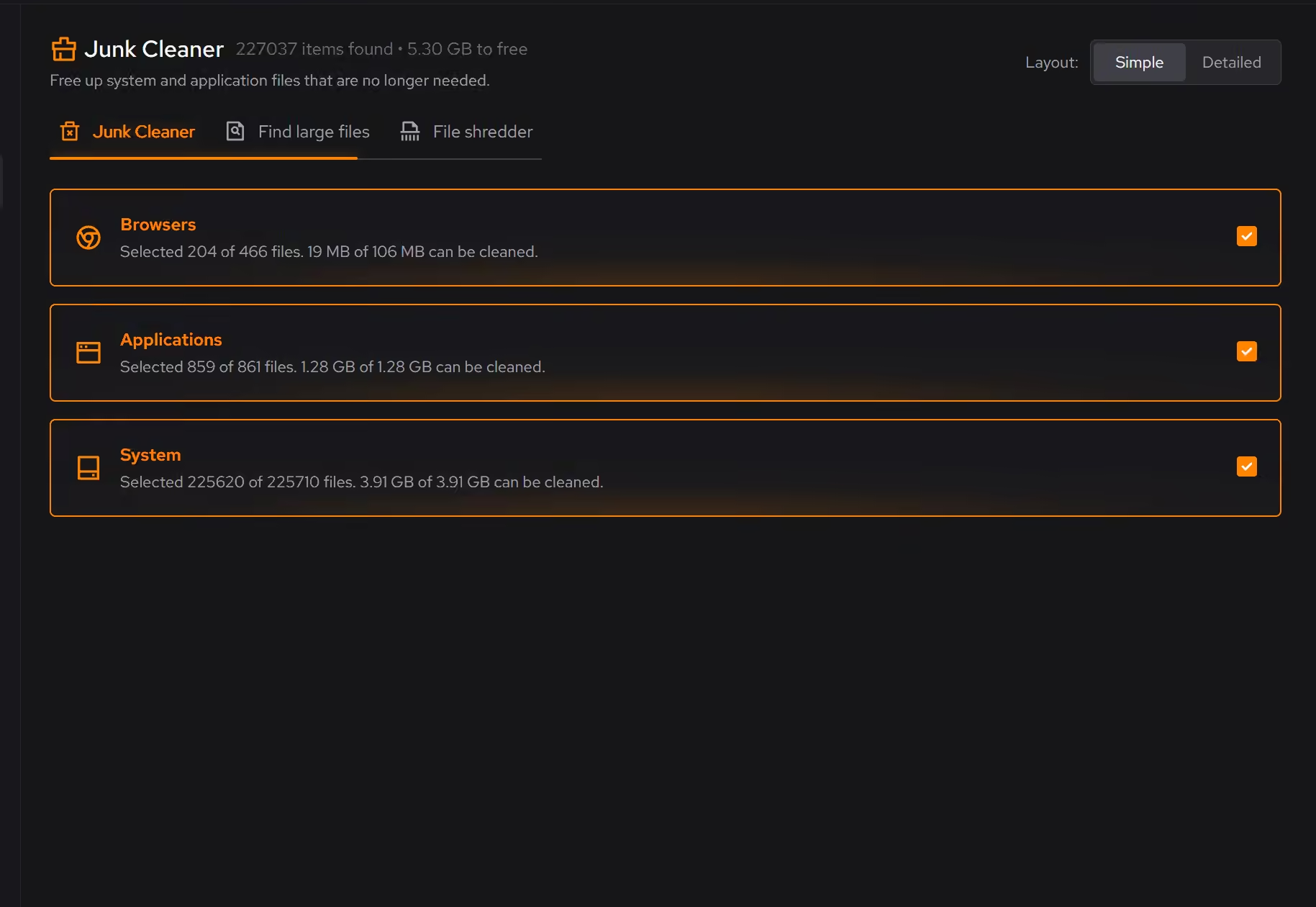
Every recommendation says what it changes and why before you commit to it.
Supported changes keep an undo history, so trying something is never a commitment.
Scans and cleaning run locally. The contents of your files never leave your machine.
“yeah seems to be good so far”
R M
Glary Utilities has been around for a long time, and the pitch has stayed the same: one download, more than twenty tools, one click to run the important ones. The price is fair, a license covers several PCs, and somewhere in the list is a utility for almost any odd job, from splitting files to finding empty folders.
Breadth is real value when you need it. The question is what you use weekly, and for almost everyone the answer is the 1-Click Maintenance scan, which is where the suite is weakest: registry repair supplies most of the issue count, and the fixes land in batches you approve as a number rather than read as a list.
eclean's position is the same here as it is with CCleaner: no registry cleaner, on purpose. Removing leftover registry keys does not make a modern Windows PC measurably faster, which is why the alarming issue counts never translate into a PC that feels different. A tool that charges for placebo work loses the right to be trusted about the rest, so eclean skips the feature entirely rather than shipping it with a disclaimer.
eclean covers the jobs that actually recur, and shows its work in each one. Cleaning previews what will be removed, grouped by where it came from. Optimizer explains each Windows tweak in plain language before you apply it, keeps a history, and offers a supported route back. Booster shows startup apps, services, and scheduled tasks as one background load. All of that is free without upgrade prompts, and Pro adds scheduling and depth rather than the basics. If the goal today is simply space, our guide to freeing up disk space covers the free steps first.
Cleaner · Booster
Advanced SystemCare grades your PC and fixes everything in one click. Here is how eclean compares on cleaning, speed-up claims, and upsell pressure.

Cleaner · Booster · Uninstaller
AVG TuneUp automates PC maintenance behind a subscription. Here is how eclean compares on background apps, cost over time, and vendor track record.
Cleaner
BleachBit is free, open source, and genuinely powerful. An honest look at where it wins and what eclean adds in explanation, coverage, and support.