When the fans never settle. See what is asking for the work.
Loud fans and a hot PC at idle or in games often mean something is working hard. Watch live CPU and graphics activity, then trim the background load.
Free · Windows 10 and 11
The problem.
The fans ramp up while you are only browsing, or the PC runs loud in a game it handled fine last year. Heat has more than one cause, and the first question is whether something is asking the hardware to work. Windows does not make that easy to see.
Fans get loud for one of two reasons. Either something is asking the hardware to work, or the hardware cannot shed the heat of the work it is already doing. Software can only help with the first, so it is worth finding out which one you have before spending an afternoon on settings.
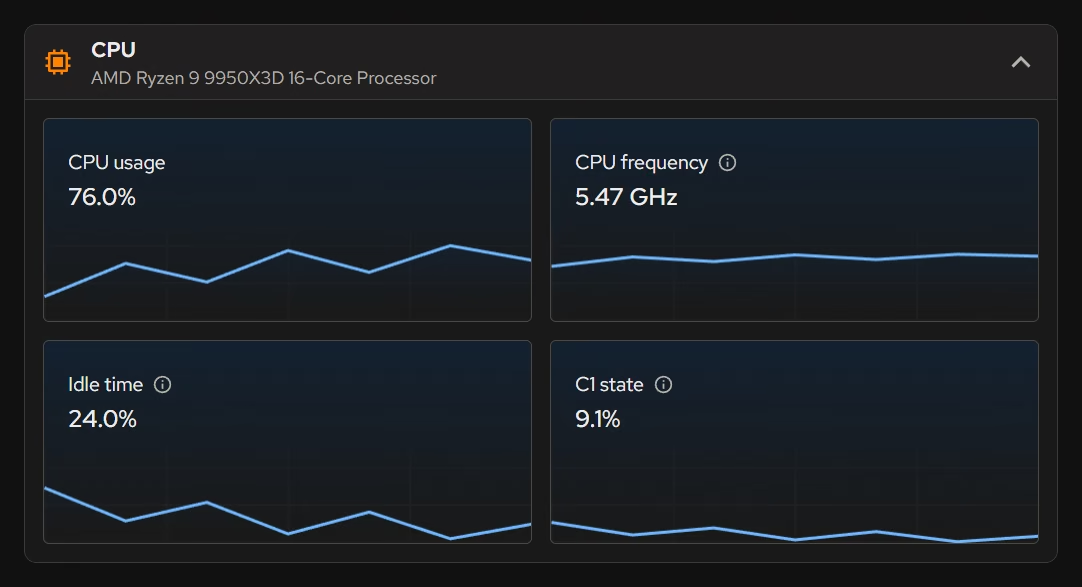
Your PC is the place to look. Its live views show processor usage, frequency, and idle time as they change, with graphics, memory, storage, and network activity alongside. If you sit at an idle desktop and the processor chart is busy, something is working, and that is a lead worth chasing. If the charts are calm and the fans are still loud, the problem is probably not a program, and that finding saves you the hunt.
When something is working, Booster is the next stop. It lists startup apps with their publishers, plus services and scheduled tasks, so a launcher or updater that began with Windows and never stopped can be switched off. The tweaks named further down cover Windows' own background activity. They turn off background apps, Widgets, the Game Bar and its recording, and Copilot, and each states its effect before you apply it. The linked guide goes deeper on idle processor load.
Be wary of anyone promising a temperature drop from a setting, and this page does not. Heat depends on the cooler, the case, the room, and what you run. eclean shows what the hardware is doing, and it does not change fan behavior.
If the charts are quiet and the PC is still loud, look at the machine itself. Dust on a heatsink, old thermal paste, and blocked vents are the usual causes, and a compressed air can or a service visit fixes what no tool in Windows will.
What eclean does here. In this order.
Watch what the hardware is being asked to do
Live processor views show usage, frequency, and idle time as they happen, with graphics, memory, and storage beside them. At idle, a busy chart tells you where to look.
In Your PC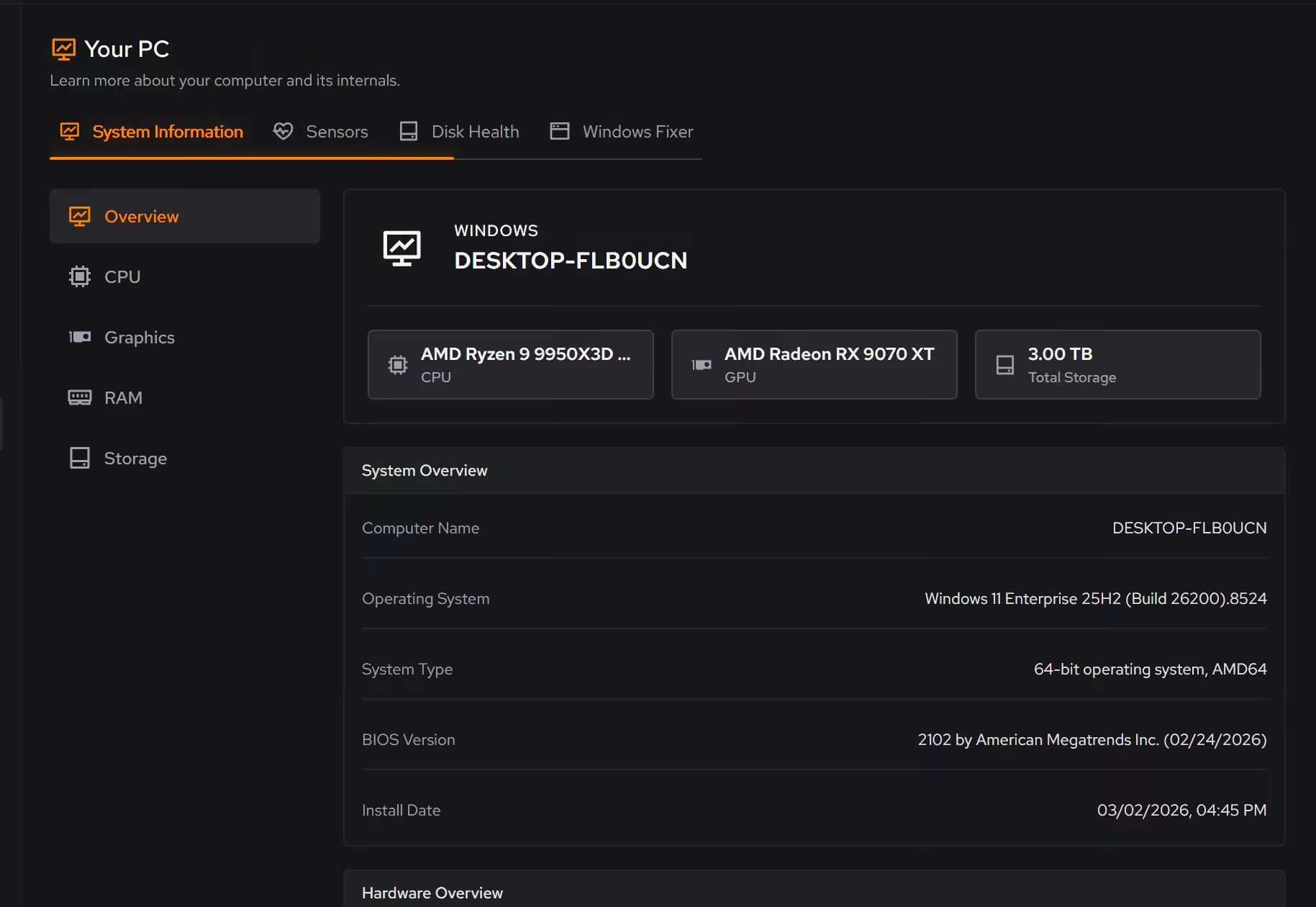
Find the background work
Booster lists startup apps, services, and scheduled tasks, so a program that starts with Windows and keeps working is something you can see and switch off.
In Booster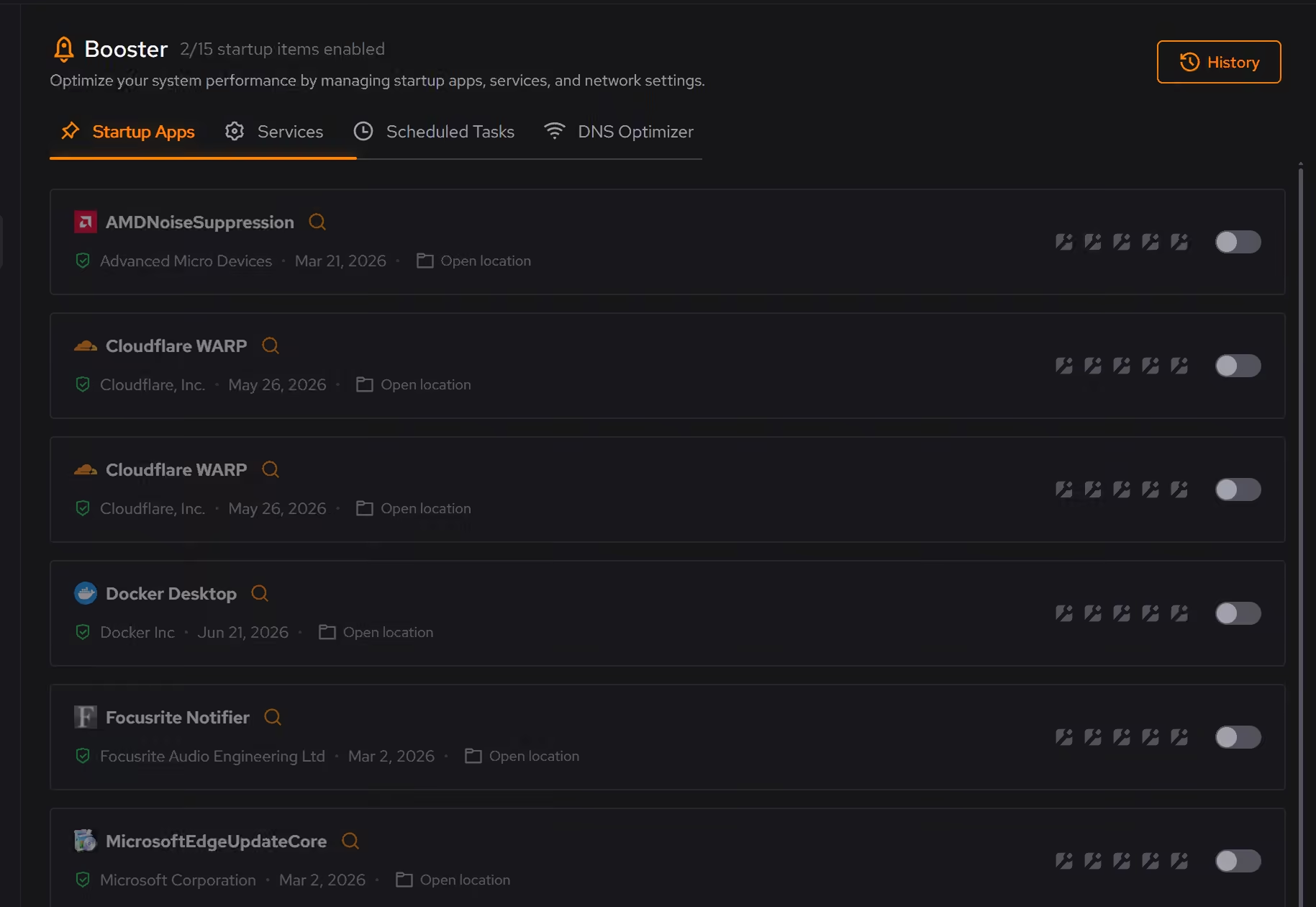
Trim what Windows runs for itself
Optimizer includes changes for background apps, Widgets, and the Game Bar. Each is explained before it applies, and supported changes can be undone from the history.
In Optimizer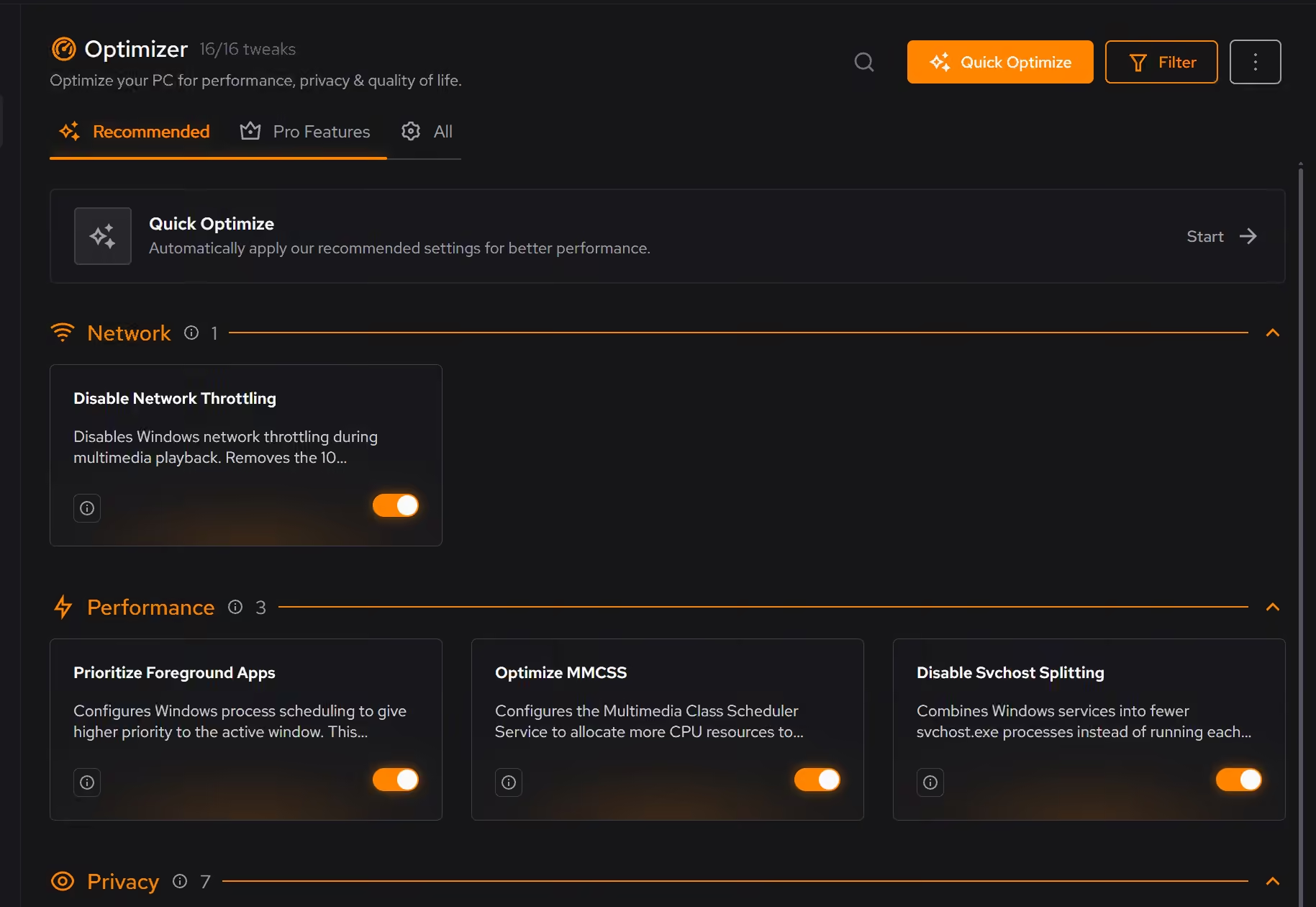
Free on Windows 10 and 11, no trial timer.
Download freeThe tweaks, by name. Each one explains itself before it runs.
Disable Background Apps
Prevents apps from running in the background when not actively in use. This reduces CPU and memory usage, extends battery life on laptops, and improves overall system responsiveness.
Disable Widgets
Turns off the Windows Widgets panel and, when possible, removes related components. This reduces background content fetching, memory usage, and taskbar clutter.
Disable Game Bar
Disables Xbox Game Bar, Game DVR, and background game recording features. This reduces CPU and memory overhead during gaming sessions and eliminates overlay-related performance impacts.
Disable Copilot
Turns off Windows Copilot, hides its taskbar button, and removes related components when Windows allows it.
Every tweak above changes Windows settings, and applied changes land in a history. See how Optimizer works
Proof, then limits.
What you can check
Your PC is free and shows live processor, graphics, memory, storage, and network activity.
In Your PCBooster shows startup apps, services, and scheduled tasks together, so the whole background load is visible in one place.
In Booster
Where eclean stops
eclean does not control fans or fan curves, and it does not cool anything. Use your maker's tools or the BIOS for that.
Heat from dust, dried thermal paste, a blocked vent, or a weak cooler is hardware. Clean and inspect it before you blame software.
If eclean steps over a line here, tell us and we'll fix it.
Still deciding? Fair questions, answered.
Will it break my PC?
It is designed not to. Every change is explained before it is applied, you decide what runs, and supported changes keep a route back inside the app, so nothing you try has to be permanent.
Is the free version actually useful?
Yes. The core of eclean, understanding your PC and keeping it tidy, is free without time limits or nagging. Pro adds the upkeep that runs on its own, like weekly cleanup.
What does my PC need to run it?
Very little. If your PC runs Windows 10 or 11 (64-bit), it runs eclean. The full spec sheet is one page long.