When Windows takes forever to settle. See what starts, decide what waits.
A PC that takes ages to be usable after login is loading too much at once. See every startup app, service and task, and trim what can wait, explained first.
Free · Windows 10 and 11
The problem.
You log in and the desktop appears, but the PC is not ready. The disk light stays on, the taskbar lags, and a dozen windows and tray icons arrive over the next minutes. Nothing is broken. Too much is starting at once, and Windows does not show you who asked.
A slow startup is a queue. Every app that registers itself to launch with Windows joins it, along with services and scheduled tasks you never saw, and the PC works through all of them while you wait to use it. After a few years of installing launchers, updaters, chat clients, and helpers, the queue gets long.
The fix starts with seeing it. Booster lists startup apps with their publishers and a switch on each, and puts services and scheduled tasks in the same place. Turning an entry off does not uninstall the app, it only stops it launching with Windows, so the cost of a wrong guess is opening the app yourself. The linked guide explains how to judge which entries are safe to leave off.
Some entries are not worth keeping at all. Uninstaller lists everything installed, including Store apps and browser extensions, with size and install date. Removing an app there also checks for the files and registry entries it left behind, which standard uninstalling often misses.
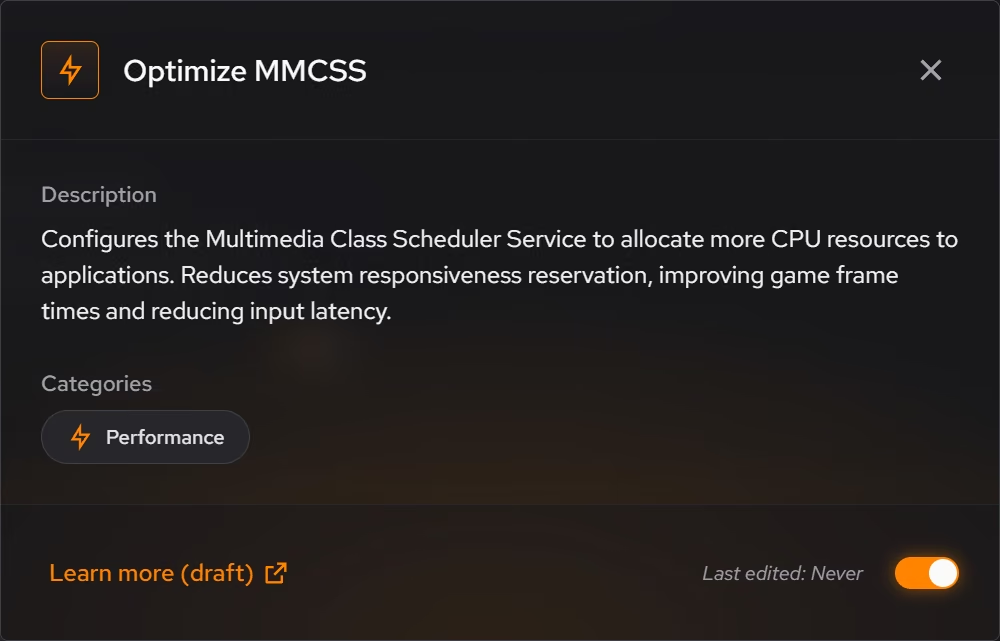
Windows adds some of its own load, and the tweaks named further down address the usual parts. One turns off background apps, one disables Widgets and the content it fetches, one turns off Copilot and hides its button, and one stops suggested app installs. Another prevents Windows from archiving rarely used Store apps, which keeps them installed so they do not download again at the next launch. Each tweak describes its effect first and keeps a history.
Expect honesty about the ceiling. If the PC boots from a mechanical hard drive, an SSD will change more than any switch in any tool. If it already runs from an SSD, trimming the queue is where the remaining time is, and the live views in Your PC can confirm that disk and processor activity settle sooner afterward.
What eclean does here. In this order.
Every startup app, with a switch
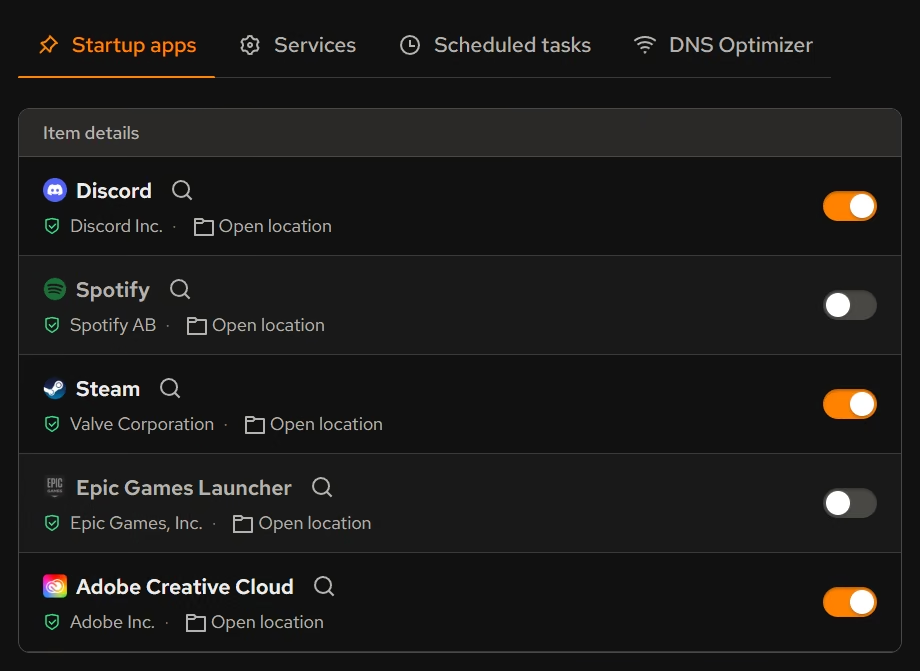
Booster lists the apps that start with Windows with their publishers, so the ones that can wait are easy to spot. Services and scheduled tasks sit in the same view.
In Booster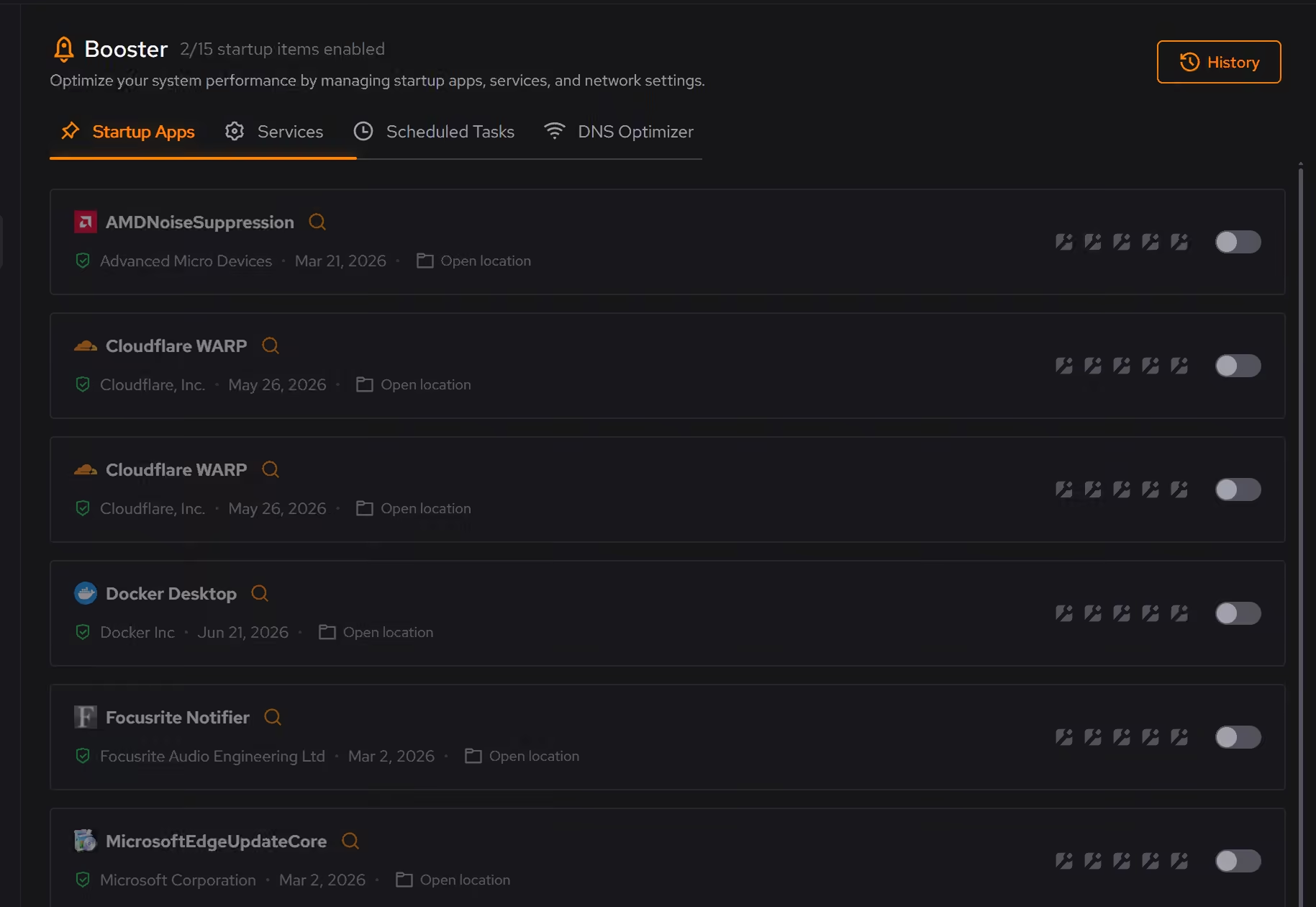
Remove the ones you never open
Some startup entries belong to software you forgot you installed. Uninstaller lists desktop apps, Store apps, and browser extensions by size and install date, and checks for leftovers after removal.
In Uninstaller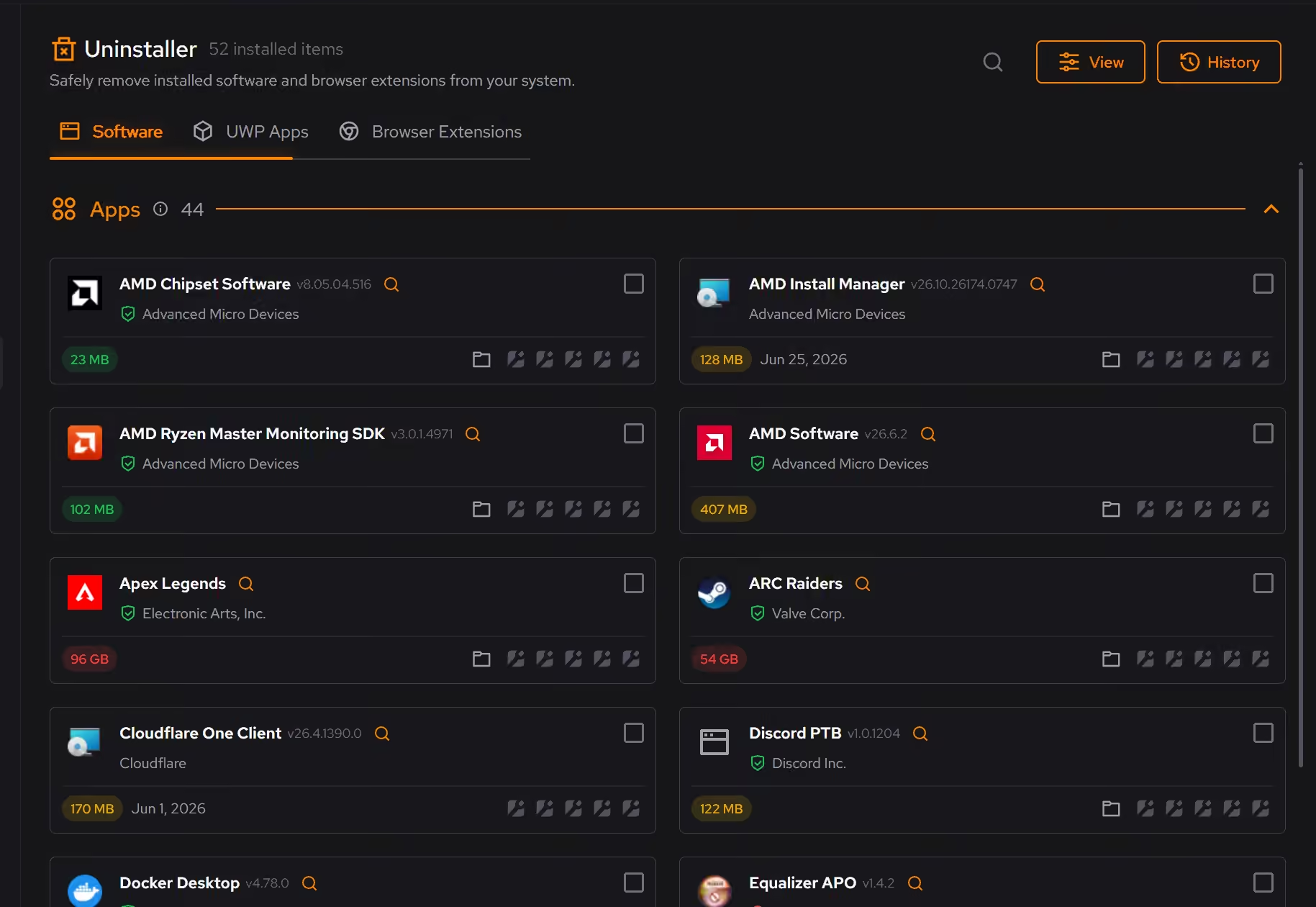
Trim what Windows adds on its own
Optimizer includes changes for background apps, Widgets, and Copilot, each explained before it applies. A history keeps a route back for supported changes.
In Optimizer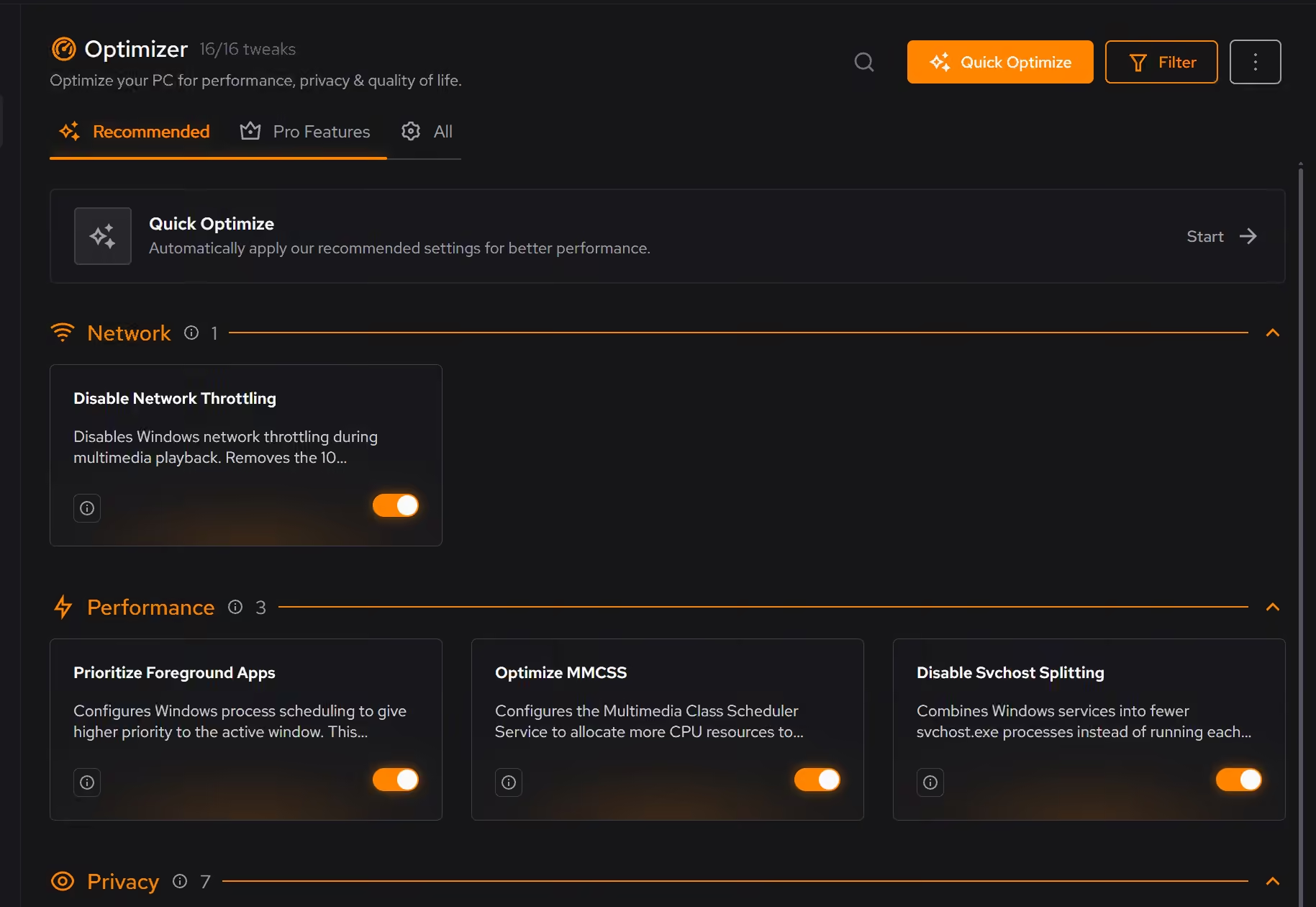
Free on Windows 10 and 11, no trial timer.
Download freeThe tweaks, by name. Each one explains itself before it runs.
Disable Background Apps
Prevents apps from running in the background when not actively in use. This reduces CPU and memory usage, extends battery life on laptops, and improves overall system responsiveness.
Disable Widgets
Turns off the Windows Widgets panel and, when possible, removes related components. This reduces background content fetching, memory usage, and taskbar clutter.
Disable Copilot
Turns off Windows Copilot, hides its taskbar button, and removes related components when Windows allows it.
Disable Content Delivery
Stops Windows from automatically installing suggested apps, showing app recommendations in the Start menu, and displaying tips and advertisements throughout the system.
Disable Automatic App Archiving
Prevents Windows from automatically archiving rarely used UWP apps. Apps stay installed and do not need to be downloaded again on the next launch.
Every tweak above changes Windows settings, and applied changes land in a history. See how Optimizer works
Proof, then limits.
What you can check
Booster shows startup apps, services, and scheduled tasks together, so the whole background load is visible in one place.
In BoosterUninstaller checks for files and registry entries an app leaves behind after every removal.
In Uninstaller
Where eclean stops
eclean does not promise a boot time. How long startup takes depends on your drive, your processor, and what you choose to keep.
A mechanical hard drive limits startup more than any setting. An SSD is the honest fix there.
If eclean steps over a line here, tell us and we'll fix it.
Still deciding? Fair questions, answered.
Will it break my PC?
It is designed not to. Every change is explained before it is applied, you decide what runs, and supported changes keep a route back inside the app, so nothing you try has to be permanent.
Is the free version actually useful?
Yes. The core of eclean, understanding your PC and keeping it tidy, is free without time limits or nagging. Pro adds the upkeep that runs on its own, like weekly cleanup.
Is eclean safe to download?
Yes. The installer is a single signed file from our own release server, with no bundled extras. While our signing certificate is new, Windows SmartScreen may ask you to confirm the publisher, which reads eclean Labs AB, the company that signs our Windows installer. What the app collects, and what it never touches, is documented in the trust center.