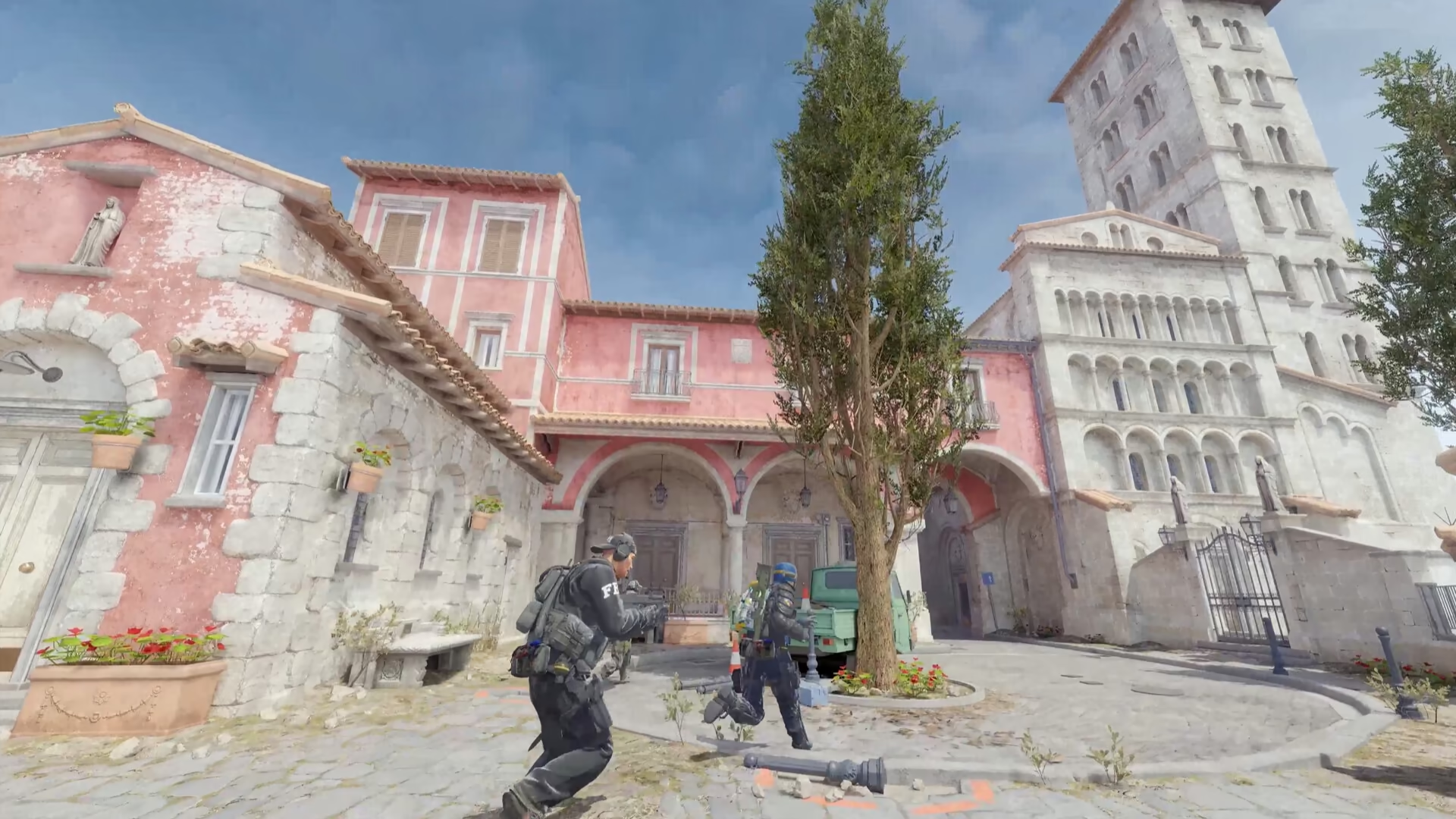
Windows out of the way of CS2. Tuned around the game, never inside it.
eclean tunes the Windows under CS2 with explained scheduler and background tweaks, shows the hardware live between matches, and never touches the game or VAC.
Free · Windows 10 and 11 · Never touches VAC
Every change explained, with a route back.
The problem.
In a game built on peeking angles, one late frame decides the duel. The usual advice is a config paste, a services purge, or a launch-option ritual nobody can explain, and half of it was written for a different game engine. The changes that actually help live in Windows, and they should be ones you can read before you run them.
Counter-Strike tuning folklore is older than most of its players, and it shows. Config pastes travel from forum to forum long after the engine they were written for is gone, services get purged in bulk on the word of a video, and every thread eventually warns about what VAC might make of it all. The result is players stacking changes they cannot explain onto the one machine they most need to behave.
eclean's answer is boring on purpose. It changes Windows and nothing else. The game's files, Steam, and VAC stay exactly as Valve shipped them, no process is touched while the game runs, and every change goes through Windows' own mechanisms. Each tweak describes what it changes and why it can help before you apply it, and supported changes revert from the history, so an experiment that did not help is undone in a click rather than remembered in a text file.
What Windows-side tuning buys in CS2 is consistency rather than a bigger number. The frames a duel turns on are the late ones, and lateness comes from interruption. The MMCSS tweak adjusts how much CPU the scheduler reserves away from multimedia applications and explains that effect on frame times before it runs. Foreground priority tells Windows the active window is the one that matters. Disabling Game Bar removes its background recording services entirely, and the network throttling tweak lifts a packet limit Windows applies during multimedia playback. Each of these is named and described further down this page in the same words the app uses.
The startup list deserves the same discipline, because a PC that games also accumulates launchers, and each assumes it should load with Windows. Booster shows startup apps, services, and scheduled tasks in one view, which turns the background into a list you have actually read. Between matches, the live hardware views close the loop. A hitch that came from a full drive or pinned memory looks completely different from a scheduling problem, and seeing which one you have beats applying another fix on faith.
The honest boundary holds at the hardware. Windows tuning cannot add frames your graphics card cannot draw, and eclean does not pretend otherwise. What it removes is the interference between the hardware you paid for and the game you are trying to hold angles in, with every change explained first and a route back kept for each one.
What eclean does here.
Scheduler tweaks that say what they do
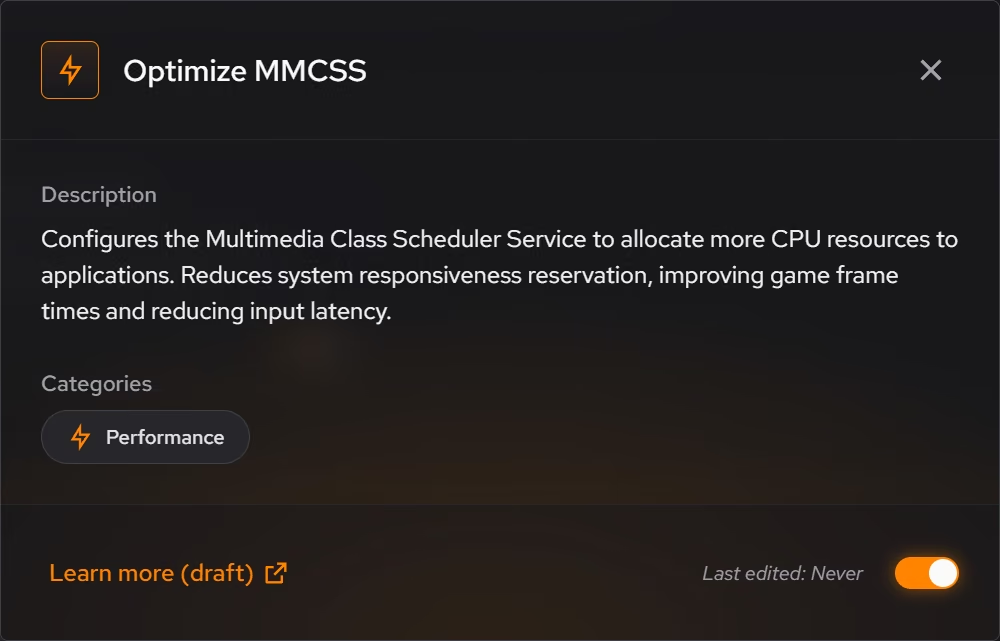
The tweaks that matter here shape how Windows schedules work while a match runs. MMCSS and foreground priority are explained in terms of frame times before you apply them, changes land in a history with a route back, and timer resolution and core parking are Pro.
Pro covers 2 PCs. Family covers 5.
In Optimizer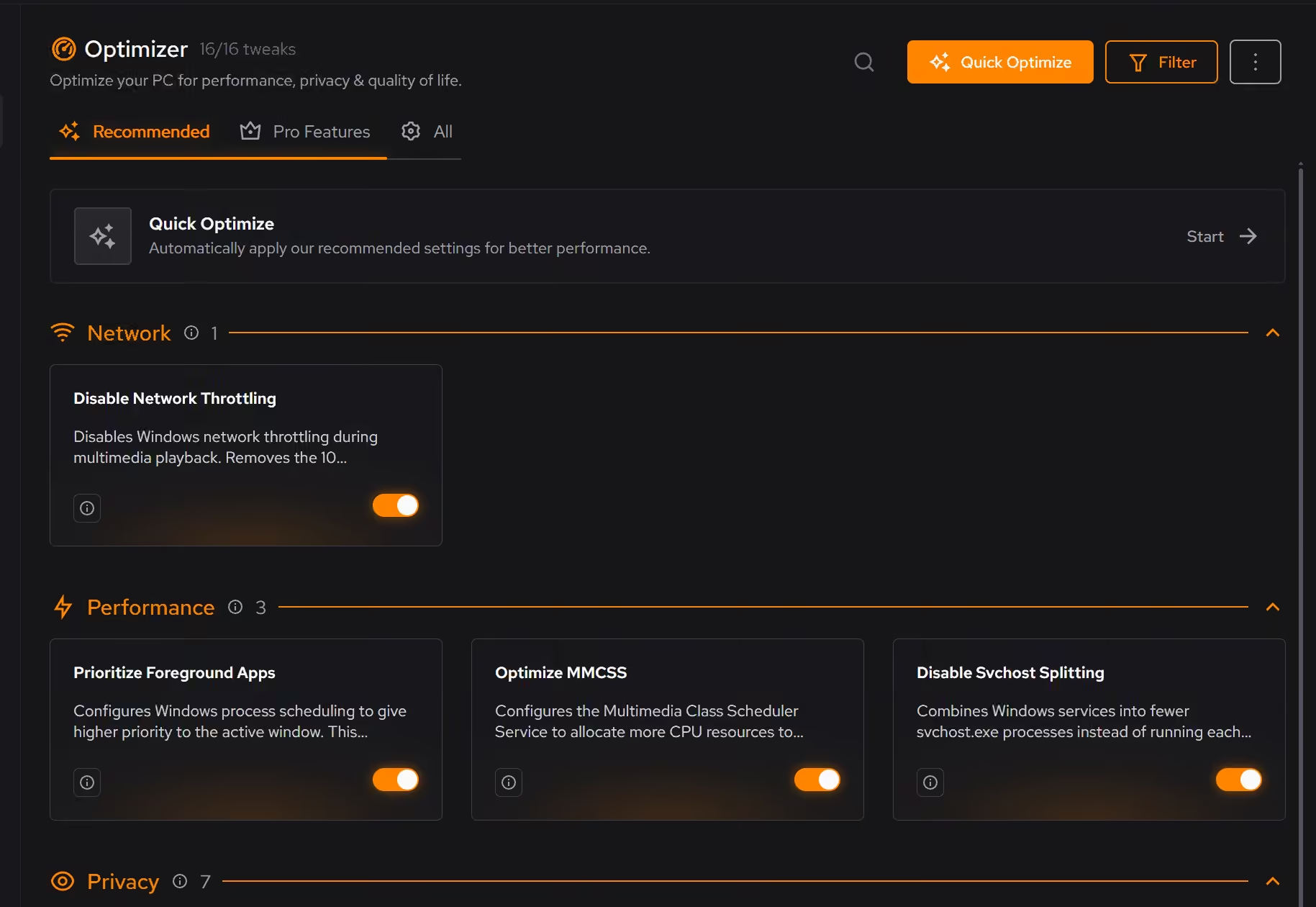
Nothing else running at round start
Launchers and updaters that start with Windows compete with the game at the worst moments. Booster lists startup apps, services, and scheduled tasks in one place, so what runs behind a match is a decision rather than an accumulation.
In Booster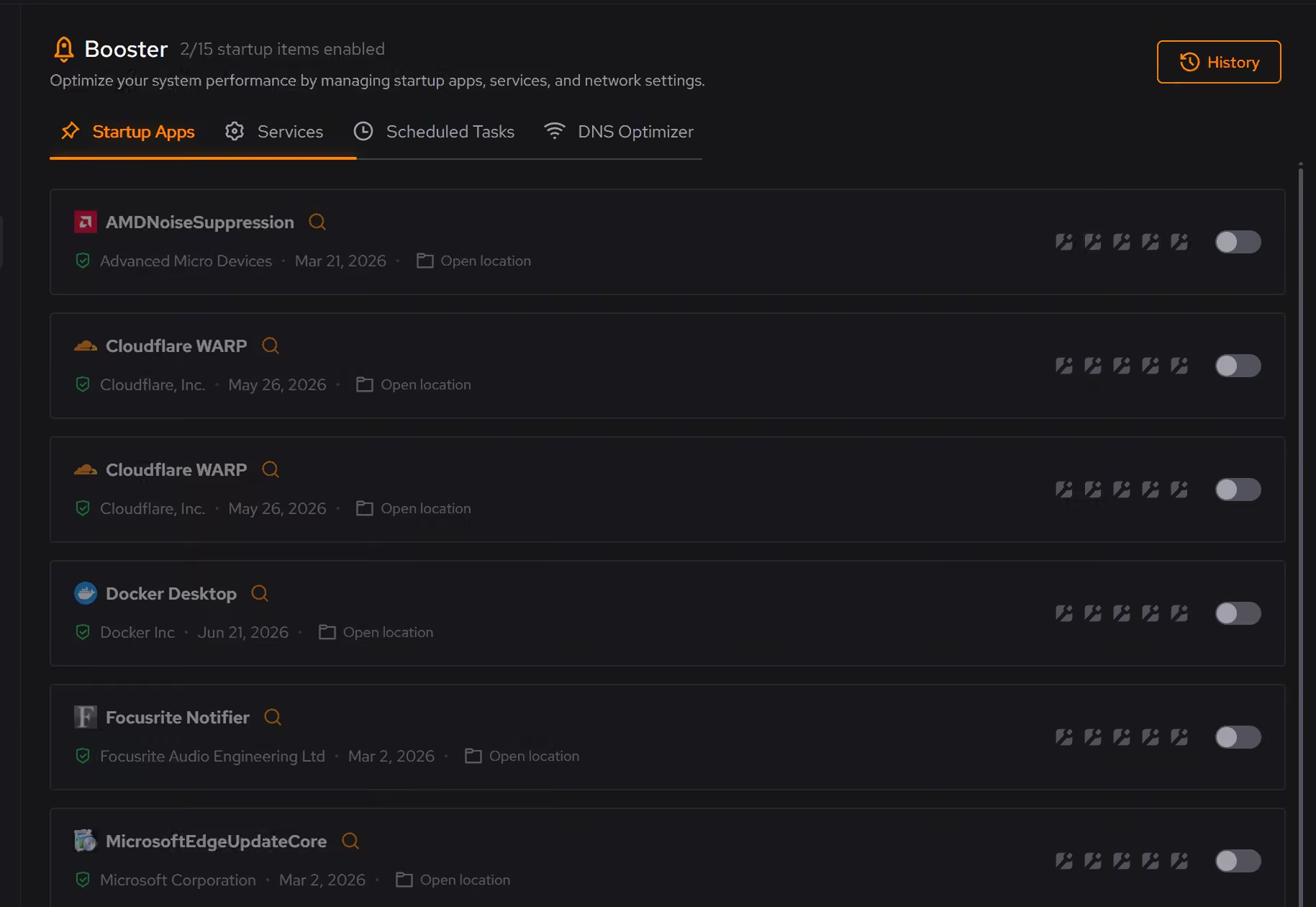
Check the hardware between matches
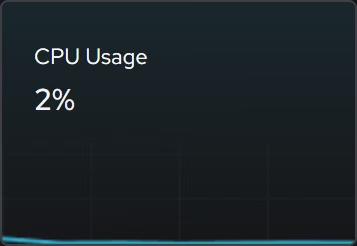
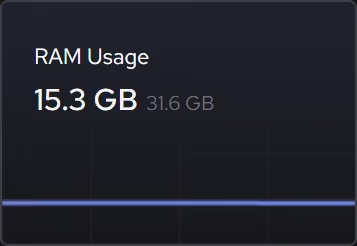
When a round hitches, the live CPU, graphics, memory, and storage views show what the hardware was doing at that moment, so you can rule out a busy drive or exhausted memory before changing another setting.
In Your PC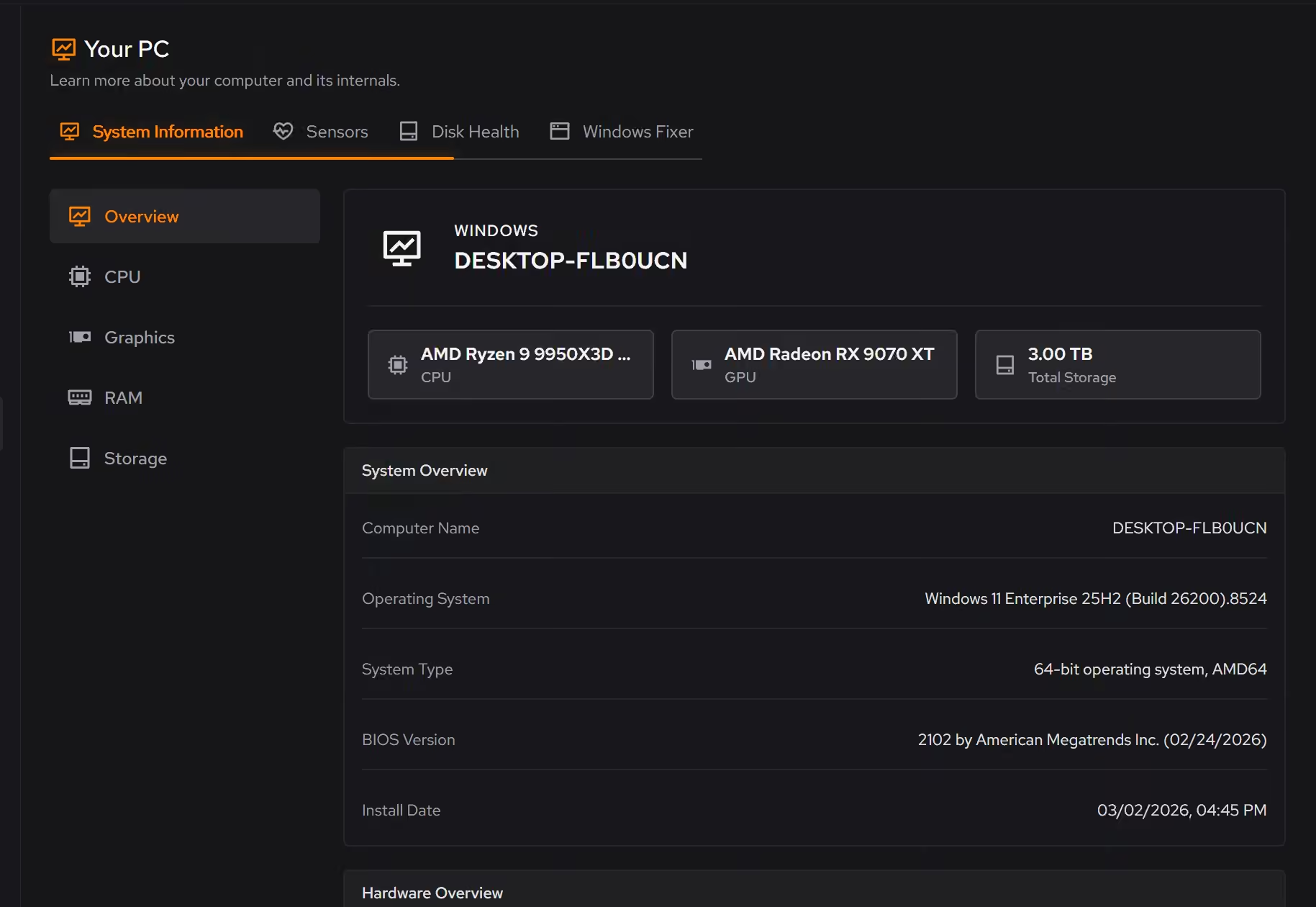
Free on Windows 10 and 11, no trial timer.
Download freeThe tweaks, by name. Each one explains itself before it runs.
Optimize MMCSS
Configures the Multimedia Class Scheduler Service to allocate more CPU resources to applications. Reduces system responsiveness reservation, improving game frame times and reducing input latency.
Prioritize Foreground Apps
Configures Windows process scheduling to give higher priority to the active window. This improves UI responsiveness, reduces input lag in games, and provides a smoother multitasking experience.
Disable Game Bar
Disables Xbox Game Bar, Game DVR, and background game recording features. This reduces CPU and memory overhead during gaming sessions and eliminates overlay-related performance impacts.
Disable Network Throttling
Disables Windows network throttling during multimedia playback. Removes the 10 packets/ms limit to improve network performance for gaming, streaming, and VoIP applications.
Disable Background Apps
Prevents apps from running in the background when not actively in use. This reduces CPU and memory usage, extends battery life on laptops, and improves overall system responsiveness.
Enable Timer Resolution Pro
Allows global timer resolution requests for lower latency in some apps. This is an advanced setting and can increase power use because the CPU wakes more often.
Disable Core Parking Pro
Keeps all CPU cores active instead of allowing Windows to park idle cores. Provides more consistent performance and eliminates micro-stutters from core wake-up latency, but increases power consumption.
Every tweak above changes Windows, never CS2 or VAC. See how Optimizer works
Proof, then limits.
What you can check
eclean changes Windows settings. It does not modify CS2, Steam, or VAC.
In OptimizerApplied tweaks land in a history, and supported ones can be reverted from the same place you enabled them.
In Optimizer
Where eclean stops
eclean does not modify CS2, Steam, or VAC, and it does not edit configs or launch options.
It promises no FPS numbers. Windows tuning helps frame consistency, and your hardware decides the rest.
If eclean steps over a line here, tell us and we'll fix it.
What Pro adds here.
These are the additions the modules on this page gate. Pro covers up to 2 PCs, and Family covers up to 5.
Advanced tweaks such as timer resolution, core parking, and modern standby
In Optimizer
Beta tweaks as they roll out
In Optimizer
Still deciding? Fair questions, answered.
Is eclean safe to download?
Yes. The installer is a single signed file from our own release server, with no bundled extras. While our signing certificate is new, Windows SmartScreen may ask you to confirm the publisher, which reads ECLEAN LIMITED, the company that signs our Windows installer. What the app collects, and what it never touches, is documented in the trust center.
Will it break my PC?
It is designed not to. Every change is explained before it is applied, you decide what runs, and supported changes keep a route back inside the app, so nothing you try has to be permanent.
Is the free version actually useful?
Yes. The core of eclean, understanding your PC and keeping it tidy, is free without time limits or nagging. Pro adds depth for people who want more control, not the basics held hostage.