Tuning for people who already tune. Every change explained, logged, reversible.
For tinkerers who hand-tune Windows. eclean explains each tweak, logs it, and supports undo. Expert tweaks for CPU, timers and power are Pro, costs stated.
Free · Windows 10 and 11
The problem.
You already know your way around the registry, services, and power plans. What you lack is a record. Months of hand edits, scripts from forums, and half-remembered tweaks leave a machine you cannot fully account for, and a feature update may have quietly reset some of them.
People who tune Windows by hand tend to distrust tools that promise a faster PC in one click, and they are right to. The usual failure is a pile of tweaks with no log, applied from five sources over three Windows versions. eclean is built by the team behind AtlasOS, the Windows playbook trusted by millions of enthusiasts, and the same habit runs through the app. Say what a change does, say what it costs, and keep a record.
Optimizer sorts changes by how far they go. Recommended ones are low risk and nothing you use stops working. Trade-offs turn off something some people rely on, Advanced lowers protection or suits special setups, and Expert goes furthest. Expert tweaks for CPU, timers, and power are part of Pro, and each states its cost. Timer resolution can raise power use because the CPU wakes more often, and Disable Core Parking keeps every core active at the price of higher power consumption.
Two tweaks on the list need a plain statement. Disable Core Isolation turns off Virtualization-based Security and Memory Integrity, which significantly reduces protection against kernel-level attacks. Disable CPU Mitigations, a Pro tweak, turns off Spectre and Meltdown mitigations and Control Flow Guard, and it significantly increases vulnerability to exploits. Some modern anti-cheat systems check for these protections too, so on a machine you play online with, leave both alone.
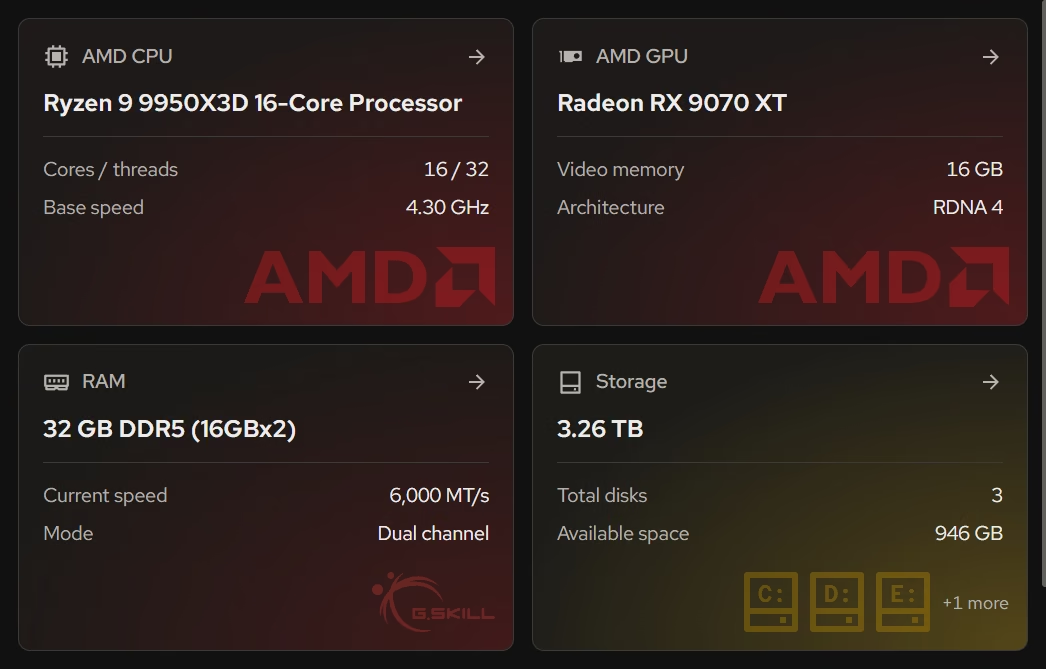
The scheduler and service tweaks sit at the milder end. Foreground priority, the multimedia scheduler setting, network throttling, and splitting service hosts each describe their effect, and the service host change says it trades some isolation for less memory. Live CPU, memory, storage, and network views in Your PC let you check whether a change did anything you can see.
Each change keeps a history of when it was turned on, turned off, or reapplied after an update, and supported ones can be undone from there. Pro adds Stay optimized, which reapplies your choices when Windows resets them and tells you what it fixed.
What eclean does here.
A tweak list that shows its work
Each change explains what it does, when it takes effect, and what turning it off restores. Expert tweaks for CPU, timers, and power are Pro, and each one states what it costs.
Pro covers 2 PCs. Family covers 5.
In Optimizer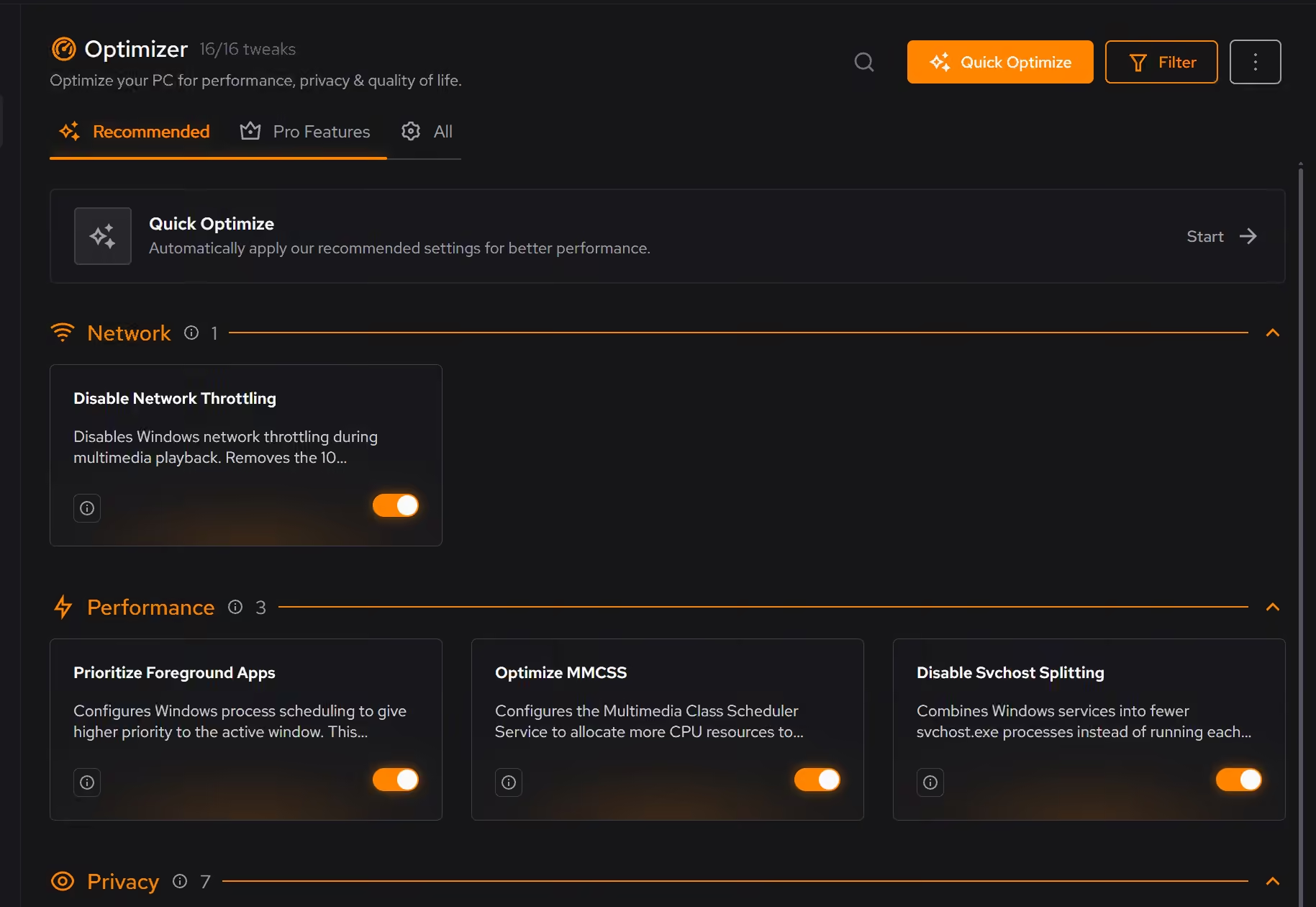
Live sensors beside the settings
Processor, graphics, memory, storage, and network activity in live views, plus the full hardware inventory, so a change can be checked against what the machine is doing.
In Your PC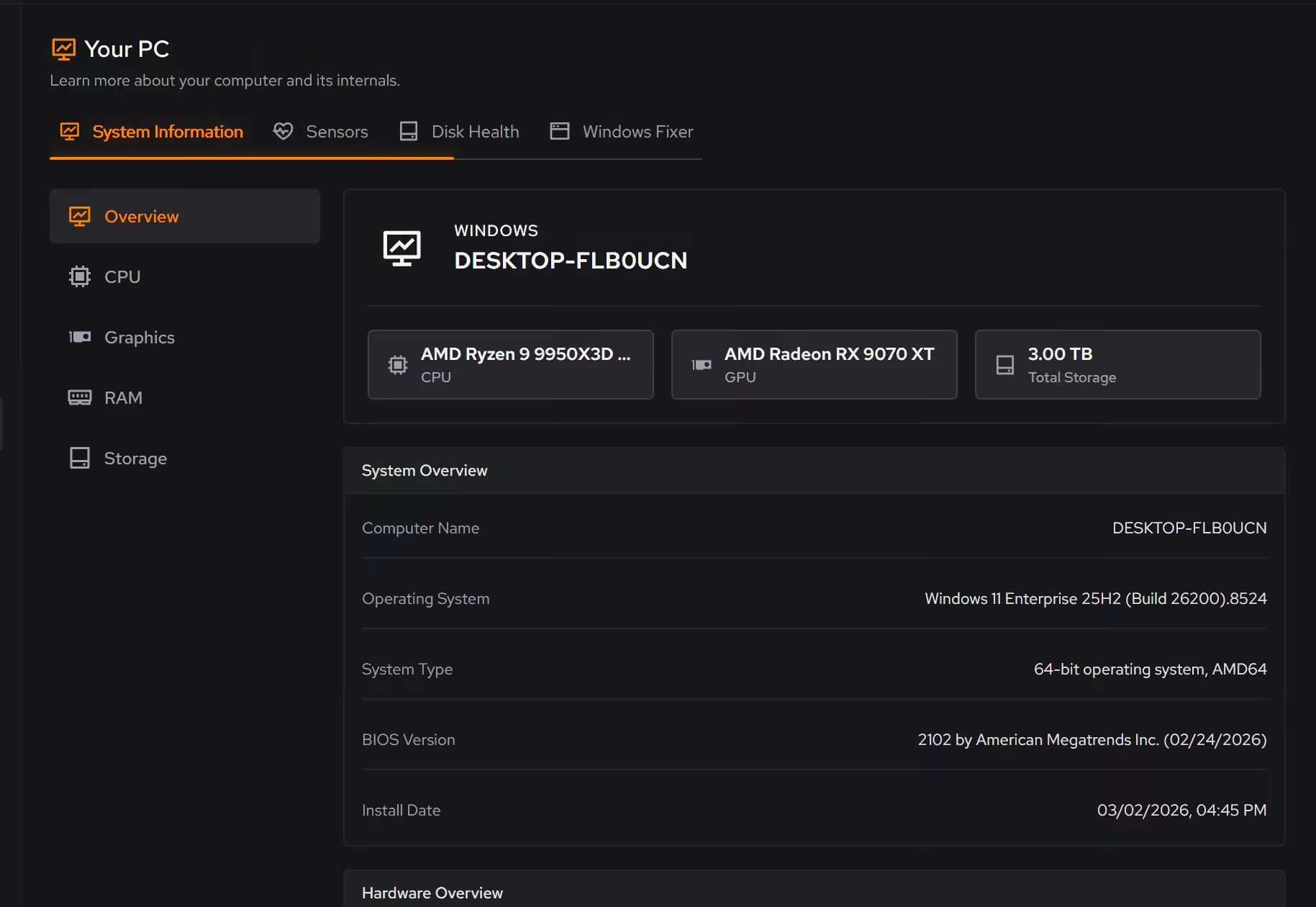
Know what is installed, and what it left
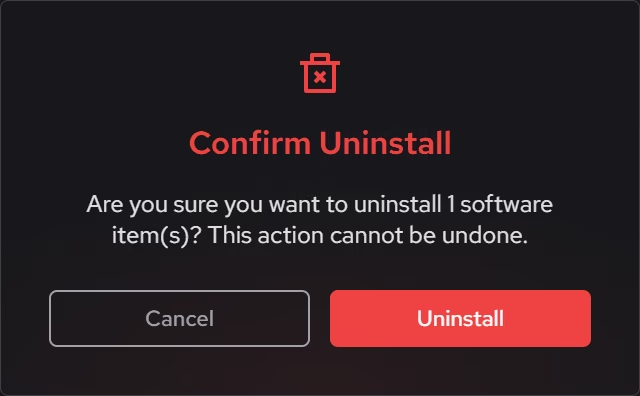
Desktop apps, Store apps, and browser extensions in one inventory with size and publisher, and a leftover check after every removal.
In Uninstaller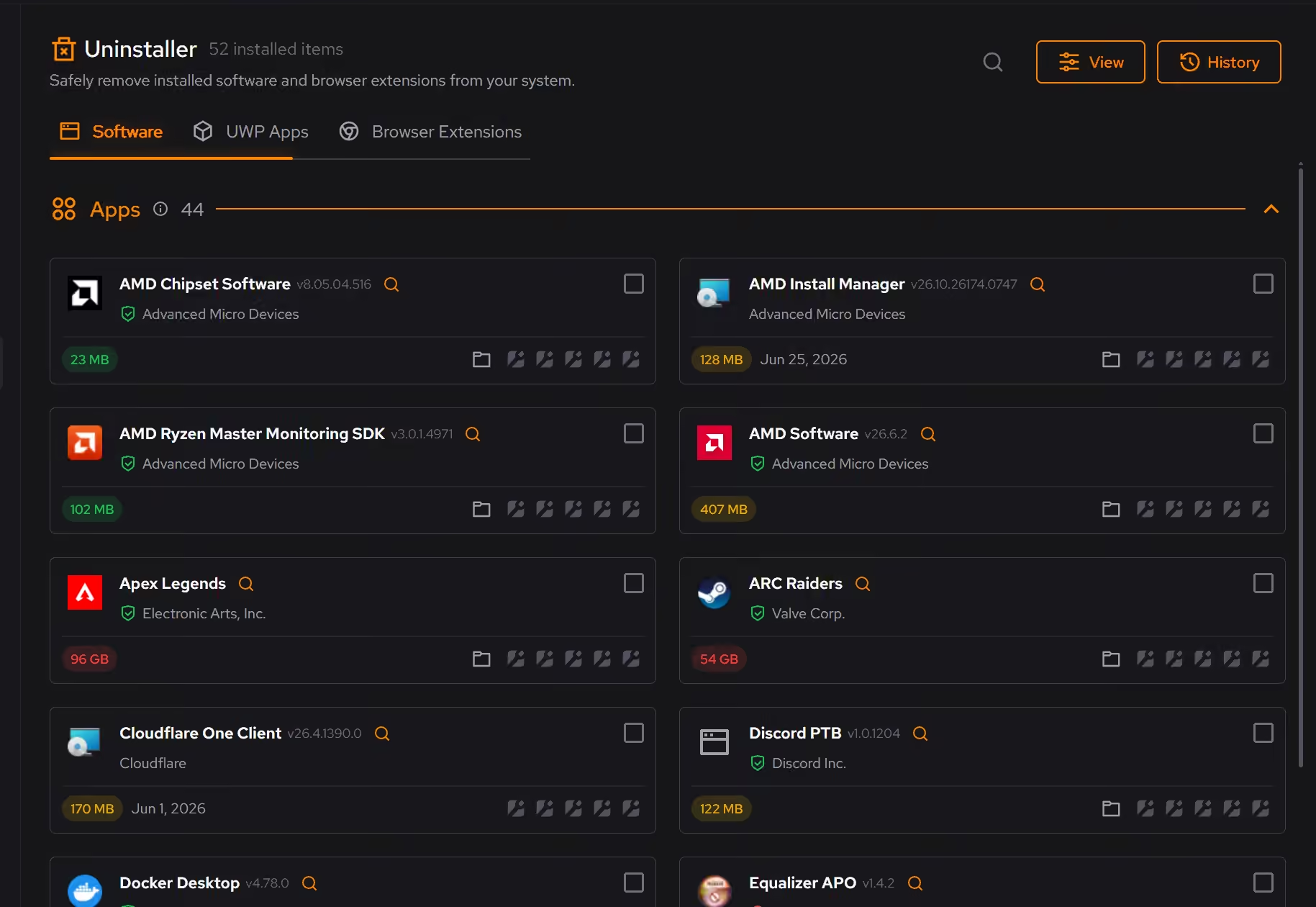
Free on Windows 10 and 11, no trial timer.
Download freeThe tweaks, by name. Each one explains itself before it runs.
Prioritize Foreground Apps
Configures Windows process scheduling to give higher priority to the active window. This improves UI responsiveness, reduces input lag in games, and provides a smoother multitasking experience.
Optimize MMCSS
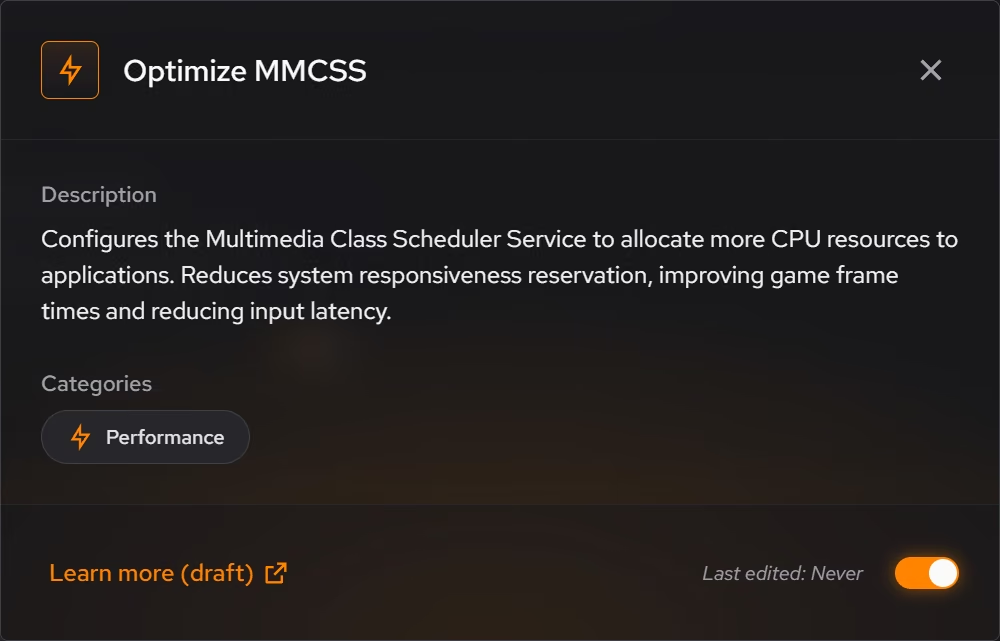
Configures the Multimedia Class Scheduler Service to allocate more CPU resources to applications. Reduces system responsiveness reservation, improving game frame times and reducing input latency.
Disable Svchost Splitting
Combines Windows services into fewer svchost.exe processes instead of running each separately. This can significantly reduce RAM usage, though it slightly decreases service isolation.
Disable Network Throttling
Disables Windows network throttling during multimedia playback. Removes the 10 packets/ms limit to improve network performance for gaming, streaming, and VoIP applications.
Enable Timer Resolution Pro
Allows global timer resolution requests for lower latency in some apps. This is an advanced setting and can increase power use because the CPU wakes more often.
Disable Core Parking Pro
Keeps all CPU cores active instead of allowing Windows to park idle cores. Provides more consistent performance and eliminates micro-stutters from core wake-up latency, but increases power consumption.
Disable Core Isolation
Disables Virtualization-based Security (VBS) and Memory Integrity features. Can improve gaming performance, but significantly reduces protection against kernel-level attacks.
Disable CPU Mitigations Pro
Disables Spectre/Meltdown mitigations, Control Flow Guard, and other CPU security features. Can provide noticeable performance gains but significantly increases vulnerability to security exploits.
Every tweak above changes Windows settings, and applied changes land in a history. See how Optimizer works
Proof, then limits.
What you can check
Every Optimizer change keeps a history, and supported changes can be undone from the same place.
In OptimizerYour PC is free and shows live processor, graphics, memory, storage, and network activity.
In Your PC
Where eclean stops
Undo covers supported changes, not all of them. Read the description of anything that lowers protection before you apply it.
eclean does not replace a benchmarking suite or a custom Windows build. It tunes the install you have.
If eclean steps over a line here, tell us and we'll fix it.
What Pro adds here.
These are the additions the modules on this page gate. Pro covers up to 2 PCs, and Family covers up to 5.
Stay optimized reapplies your changes when a Windows update undoes them, and tells you what it fixed
In Optimizer
Saved setups switch your PC between setups like Gaming or Work in one press
In Optimizer
Expert tweaks for CPU, timers, and power, and each one says what it costs
In Optimizer
Still deciding? Fair questions, answered.
Do I need AtlasOS to use eclean?
Not at all. eclean is a standalone app built for standard Windows 10 and 11, and it never expects, suggests, or requires AtlasOS. If you already run AtlasOS, eclean is fully supported there and is the tool we recommend for the ongoing upkeep.
Will it break my PC?
It is designed not to. Every change is explained before it is applied, you decide what runs, and supported changes keep a route back inside the app, so nothing you try has to be permanent.
What are the plans?
Free, Pro, and Family. Pro covers up to 2 PCs you personally use and adds upkeep that runs on its own, like weekly cleanup. Family shares Pro across up to 5 PCs in your household, each with their own account. Current prices are on the pricing page.