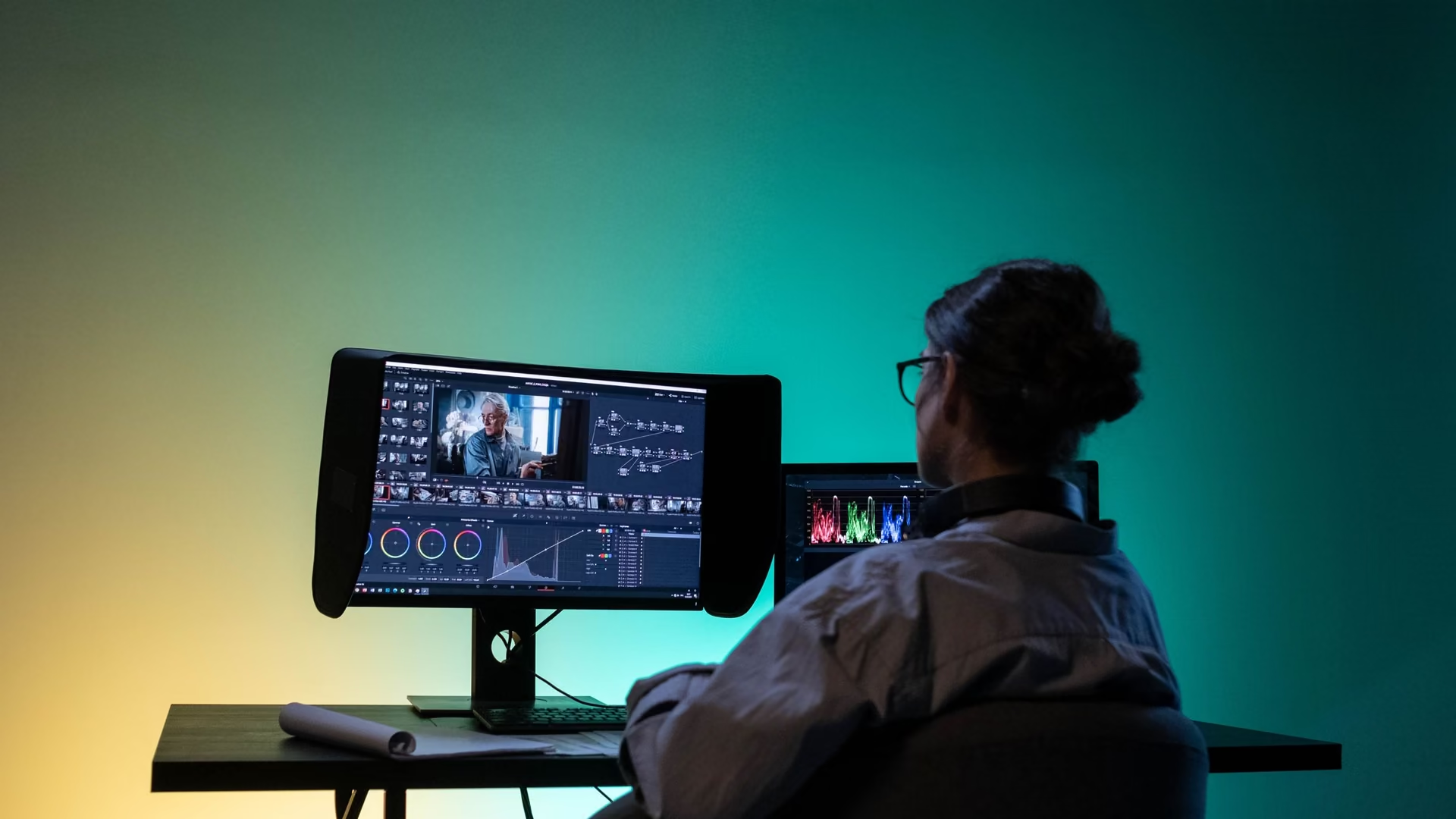
A machine that keeps up with the work. Projects grow. The PC should cope.
For editors, designers, and photographers. Watch memory during renders, clear project leftovers with a preview, and quiet the background while you work.
Free · Windows 10 and 11
Every change explained, with a route back.
The problem.
Creative work punishes a neglected PC harder than anything else you do. Exports crawl, brushes lag, the drive fills with renders and previews from projects that shipped months ago, and the deadline does not care which of those is the reason. The machine is a tool of the trade, and it is the one tool that never gets maintained.
A creative PC lives a harder life than a gaming one. Games are heavy but predictable, while an edit suite wants memory in surges, drive space in binges, and CPU exactly when the client is on the call. On top of that, project work generates its own weather. Every delivered job leaves renders, proxies, caches, and test exports behind, and the drive that felt bottomless in January is a source of anxiety by summer.
eclean's role in that life is the boring, load-bearing one. It keeps the Windows underneath the work clean, quiet, and understood, and it never crosses into the creative apps themselves. Your media cache, scratch disks, and plugin folders belong to the tools that made them, and eclean's own limits say so.
Space is the recurring emergency, so the space tools lead. The clutter scan handles the routine layer with a preview, and the large file finder does the real archaeology, sorting the drive's heaviest files by size with the modified date beside each. A 40 GB render last touched the week a project shipped identifies itself. Source footage for the job you are in does too, which is exactly why nothing is removed without you seeing it listed first.
Memory and background load decide how work feels between emergencies. The live views show what a render or a heavy timeline is actually hitting, which ends the guessing about whether the project is heavy or the PC is busy with something else. The tweaks named further down trim the something else, stopping background apps, favoring the active window, regrouping service processes to lower resident memory, and skipping Explorer's slow folder re-detection in directories full of media. Each explains itself before it runs.
None of it promises a render time, because eclean does not promise numbers anywhere. What it offers a working creative is leverage. The machine's load becomes visible, its accumulation becomes reversible, and its maintenance stops depending on the one free afternoon you never have.
What eclean does here.
Know what the render is hitting
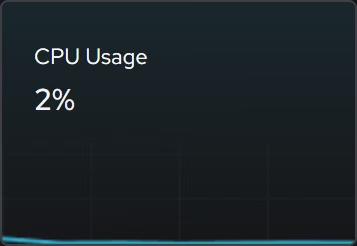
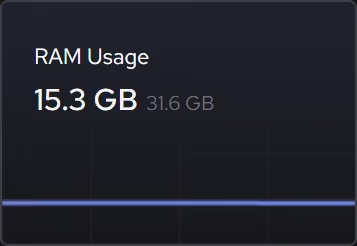
When an export crawls or a preview stutters, the live CPU, graphics, memory, and storage views show which resource is pinned right now, so the fix targets the actual constraint instead of folklore.
In Your PC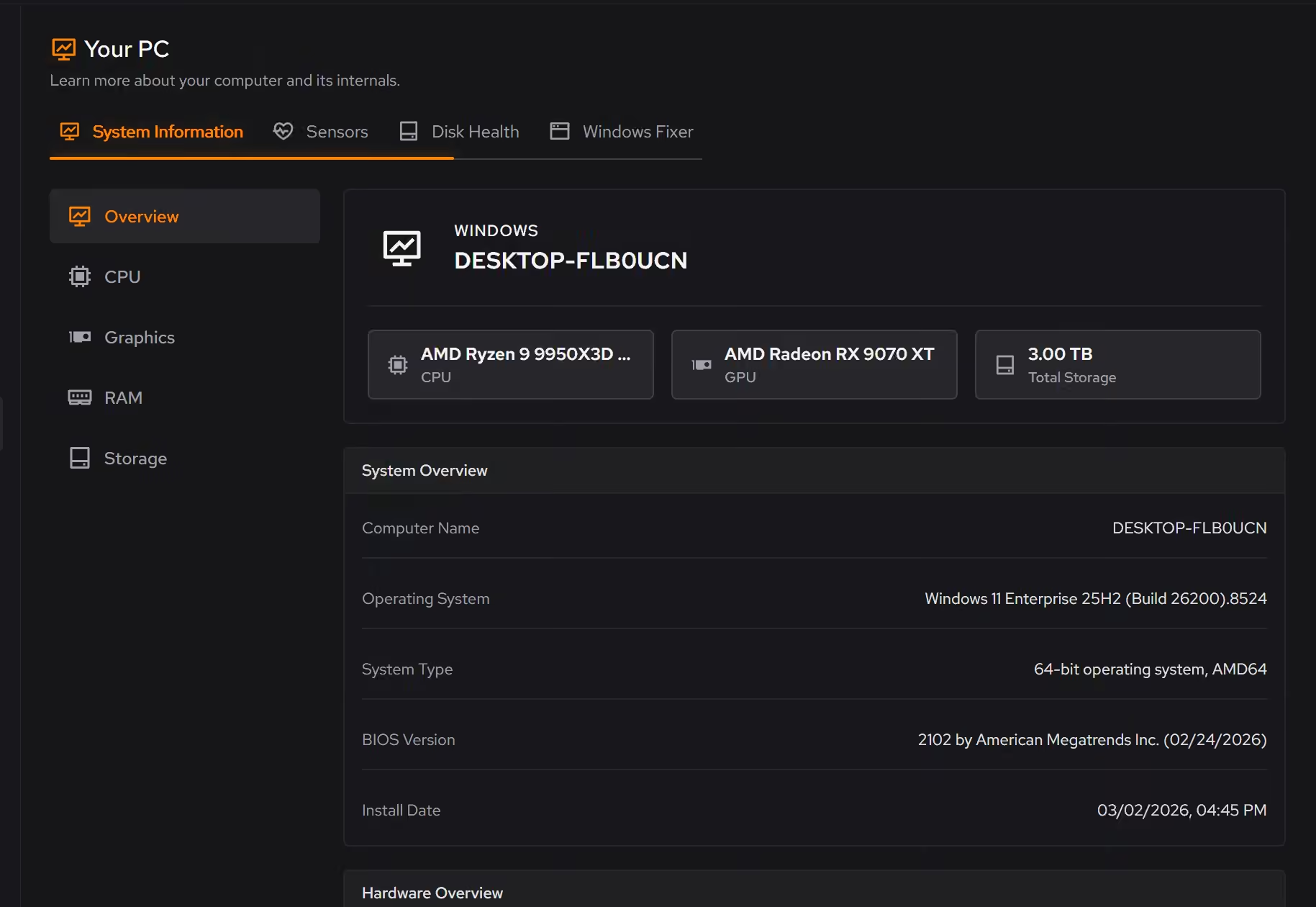
Project leftovers, found and shown
Old renders, test exports, and cache files hide among work that matters. Cleaner previews clutter by category, and the large file finder sorts the rest by size and modified date. Large file scans across all drives at once are Pro.
Pro covers 2 PCs. Family covers 5.
In Cleaner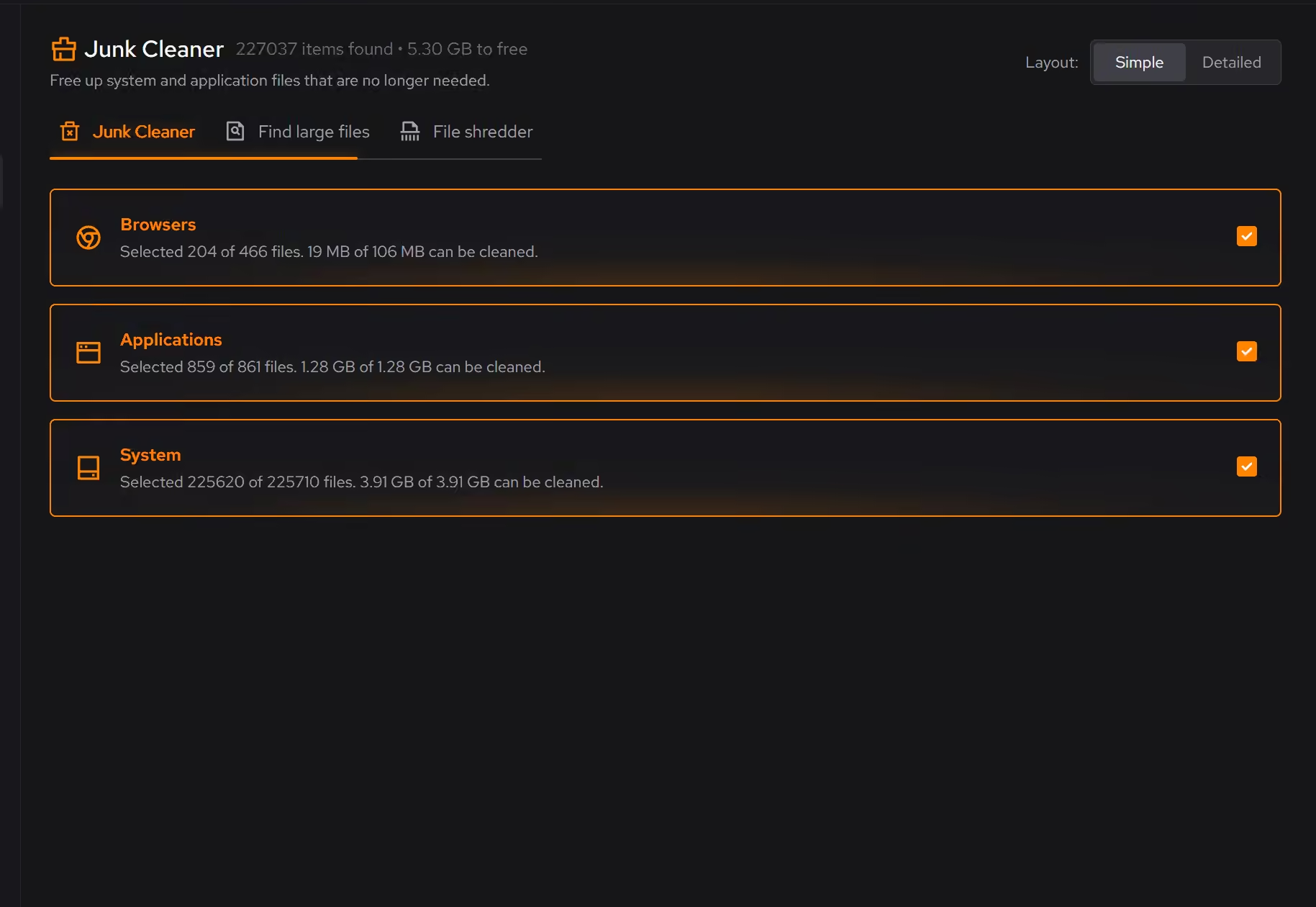
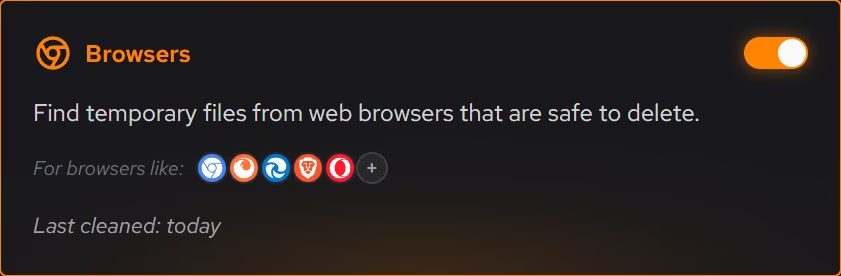
The background off your timeline
Sync clients, updaters, and helper apps compete with playback and renders. Booster lists startup apps, services, and scheduled tasks in one place, so what runs beside your work is a decision.
In Booster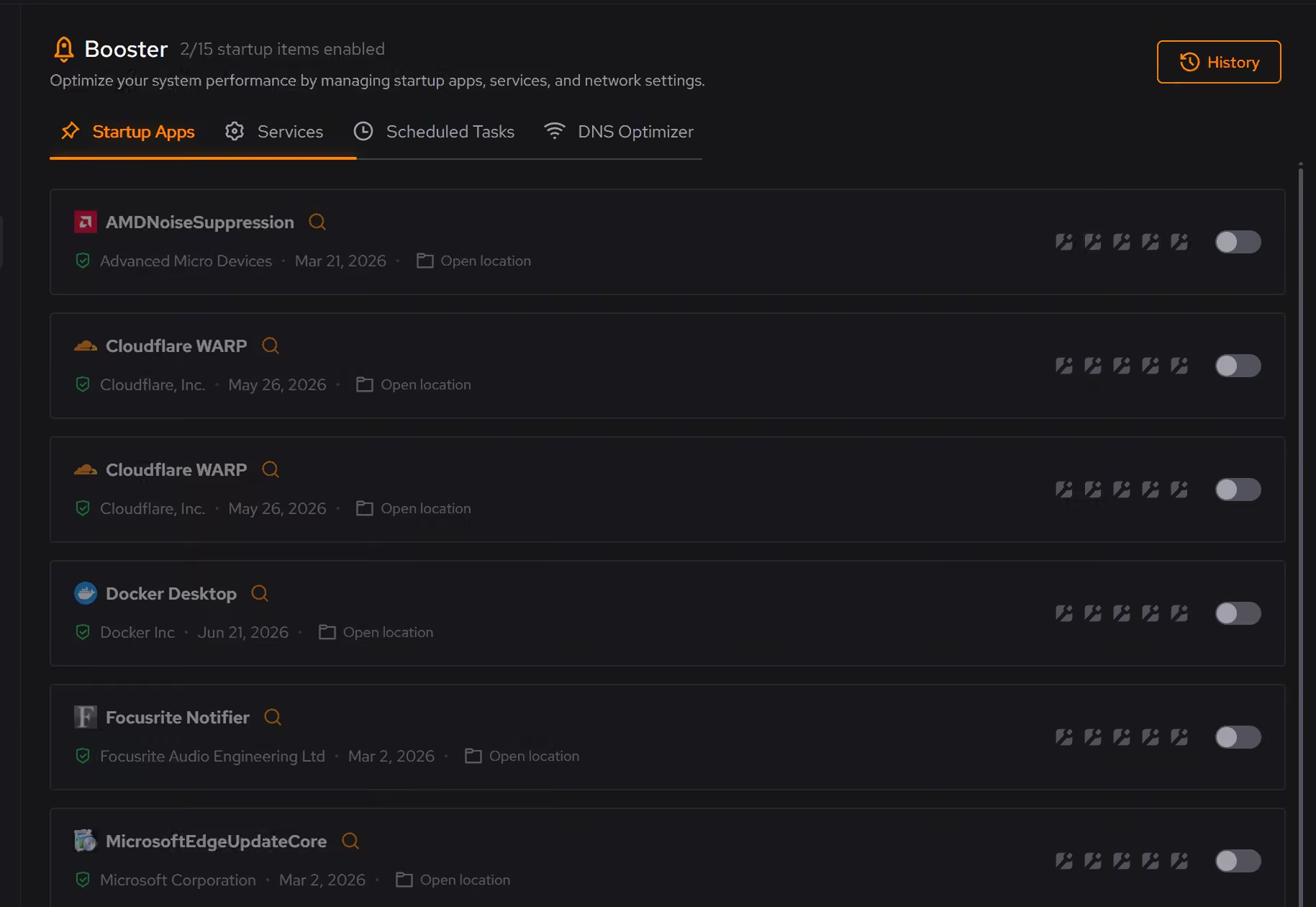
Free on Windows 10 and 11, no trial timer.
Download freeThe tweaks, by name. Each one explains itself before it runs.
Disable Background Apps
Prevents apps from running in the background when not actively in use. This reduces CPU and memory usage, extends battery life on laptops, and improves overall system responsiveness.
Prioritize Foreground Apps
Configures Windows process scheduling to give higher priority to the active window. This improves UI responsiveness, reduces input lag in games, and provides a smoother multitasking experience.
Disable Automatic Folder Discovery
Disables Windows Explorer's automatic folder type detection which can cause slowdowns on folders with many files. Uses a generic view for all folders.
Disable Svchost Splitting
Combines Windows services into fewer svchost.exe processes instead of running each separately. This can significantly reduce RAM usage, though it slightly decreases service isolation.
Every tweak above changes Windows settings, and applied changes land in a history. See how Optimizer works
Proof, then limits.
What you can check
The large file finder shows size and modified date next to every result.
In CleanerLive processor, graphics, memory, storage, and network activity can be followed as it changes, free for everyone.
In Your PC
Where eclean stops
eclean does not touch your creative apps, their caches, or their scratch settings. Those belong in the apps.
It cannot speed up a render your hardware cannot hold. It clears the competition and shows you the constraint.
If eclean steps over a line here, tell us and we'll fix it.
What Pro adds here.
These are the additions the modules on this page gate. Pro covers up to 2 PCs, and Family covers up to 5.
Cleaning that runs on a schedule for the categories you choose
In Cleaner
Large file scans across all drives at once
In Cleaner
Secure overwrite mode in the file shredder
In Cleaner
Still deciding? Fair questions, answered.
Is the free version actually useful?
Yes. The core of eclean, understanding your PC and keeping it tidy, is free without time limits or nagging. Pro adds depth for people who want more control, not the basics held hostage.
Do I need eclean if Windows has Storage Sense?
Storage Sense and Disk Cleanup are a good floor, and eclean does not pretend otherwise. They clear temporary files on a schedule, but they do not review app leftovers, startup, or installed software, and they never explain what went. eclean covers that layer and shows its work, so the two are companions more than rivals.
Can it run maintenance on a schedule?
Yes, with Pro. Scheduled maintenance runs your routine automatically, alongside the deeper optimization and secure deletion Pro adds. The free tier runs whenever you open the app.