Windows that collects and suggests less. Choose what Windows is allowed to do.
Turn off Copilot, Recall, ads, web search in Start and advertising ID, and encrypt your DNS lookups. Each change explained first, with a route back.
Free · Windows 10 and 11
The problem.
Windows keeps adding things that watch, suggest, or phone home. Copilot has a button on the taskbar, Start recommends apps, search sends your typing to the web, and the switches for all of it are scattered across Settings and policy keys. You want fewer of them on, and you want to know what each change does.
Privacy on Windows is spread across Settings, group policy, and registry keys, and a feature update can quietly move some of it back. Most people who care about this have found the long checklists online, and most of those checklists ask you to trust a stranger's script.
eclean puts the settings in one list and explains each before you apply it. The tweaks named further down cover the usual complaints. One turns off the advertising ID, one turns off Copilot and hides its taskbar button, and one prevents Recall from being enabled, though Recall availability depends on your device and Windows policy. Another keeps Windows Search on local results by turning off Bing web search and suggestions, and another stops suggested apps and tips from showing up in Start. Local file search keeps working.
Be exact about the scope. The personalization tweak changes current-user settings such as tailored experiences, online speech, and feedback prompts. It does not touch machine diagnostic data policy or telemetry services, and the app says so in its own description. If you want the detail on what Windows sends, the linked guide explains where each setting lives.
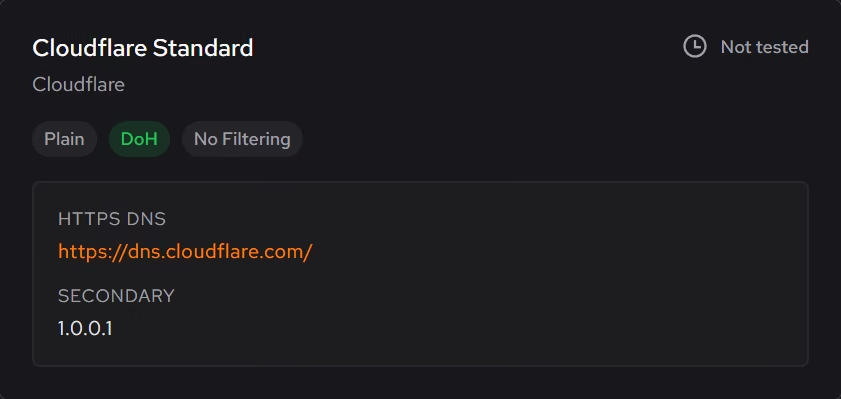
Network lookups are the other half. Your DNS provider sees every name you resolve, and unencrypted lookups can be read on the way. DNS Optimizer measures providers from your own connection, can switch you to encrypted lookups, and offers blocking levels for malware, phishing, or adult sites. It is a resolver choice rather than a VPN, and the limits below say so plainly.
Every change keeps a history, and supported ones can be undone from the same place you made them. That matters for privacy tweaks, because the cost of one is usually a feature you stopped using on purpose. Pro adds Stay optimized, which reapplies your choices after a Windows update resets them and tells you what it fixed.
What eclean does here.
The privacy switches, in one reviewable list
Optimizer groups changes by what they affect, so privacy is a list you can read instead of a hunt through Settings. Each change explains itself first, and with Pro, Stay optimized reapplies your choices when a Windows update undoes them.
Pro covers 2 PCs. Family covers 5.
In Optimizer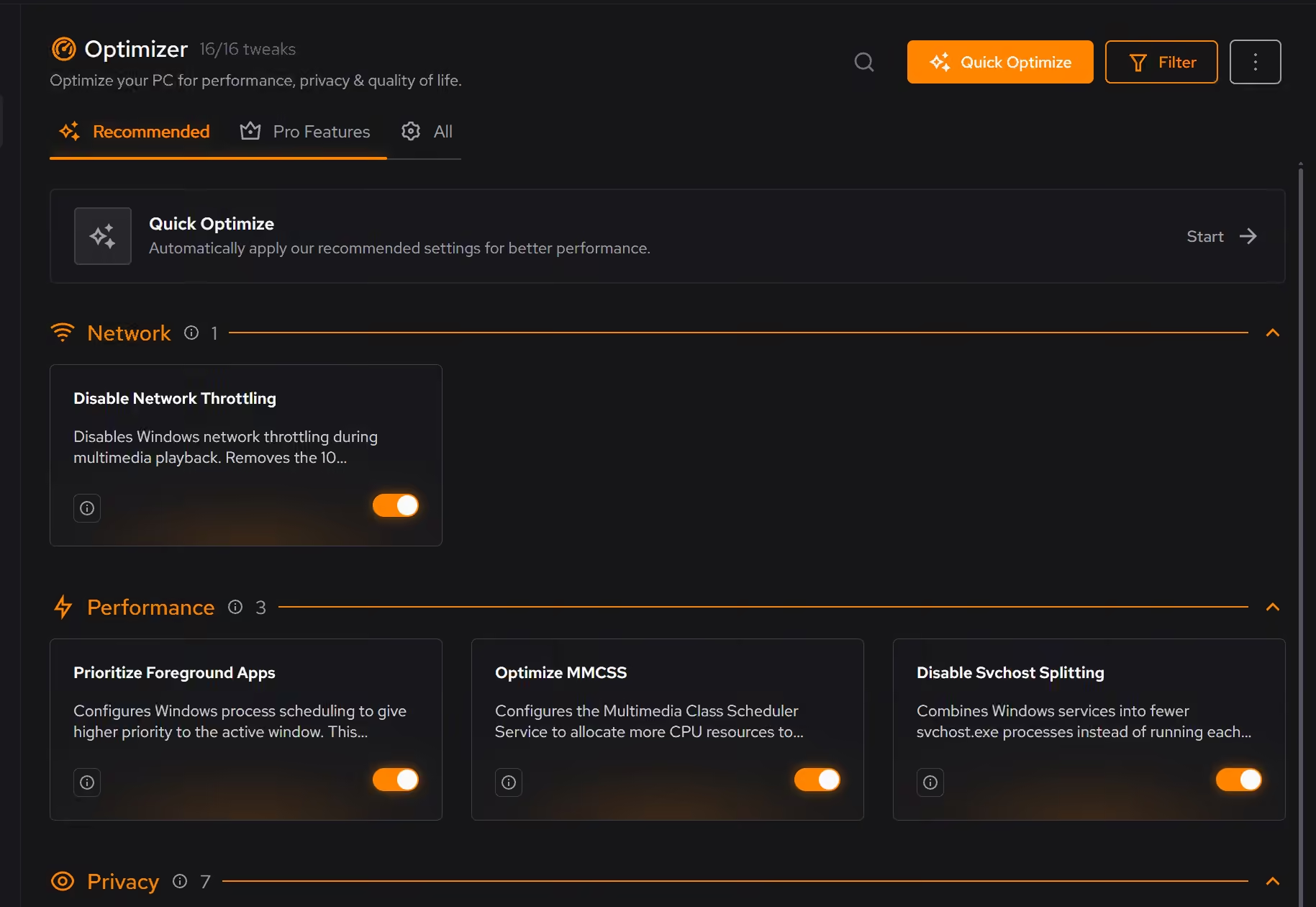
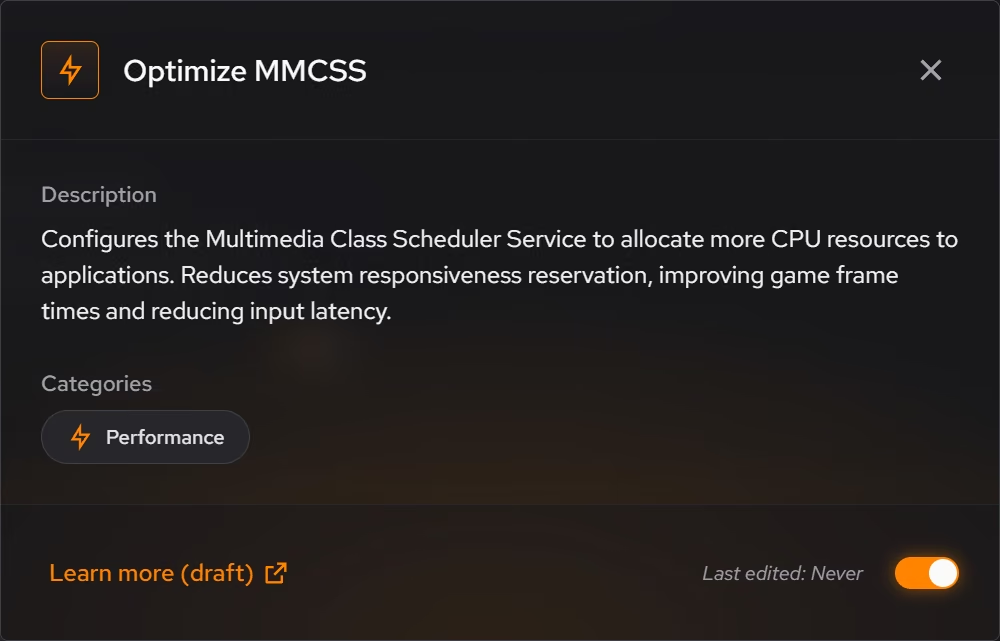
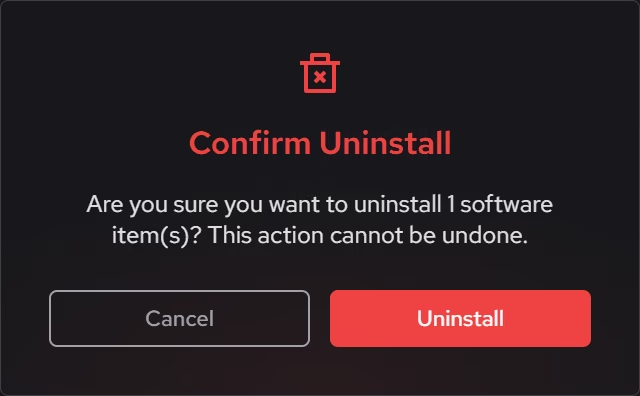
Apps and extensions you no longer trust
Desktop apps, Store apps, and browser extensions share one list with publisher and install date beside each. Removing one also checks for the files and registry entries it leaves behind.
In Uninstaller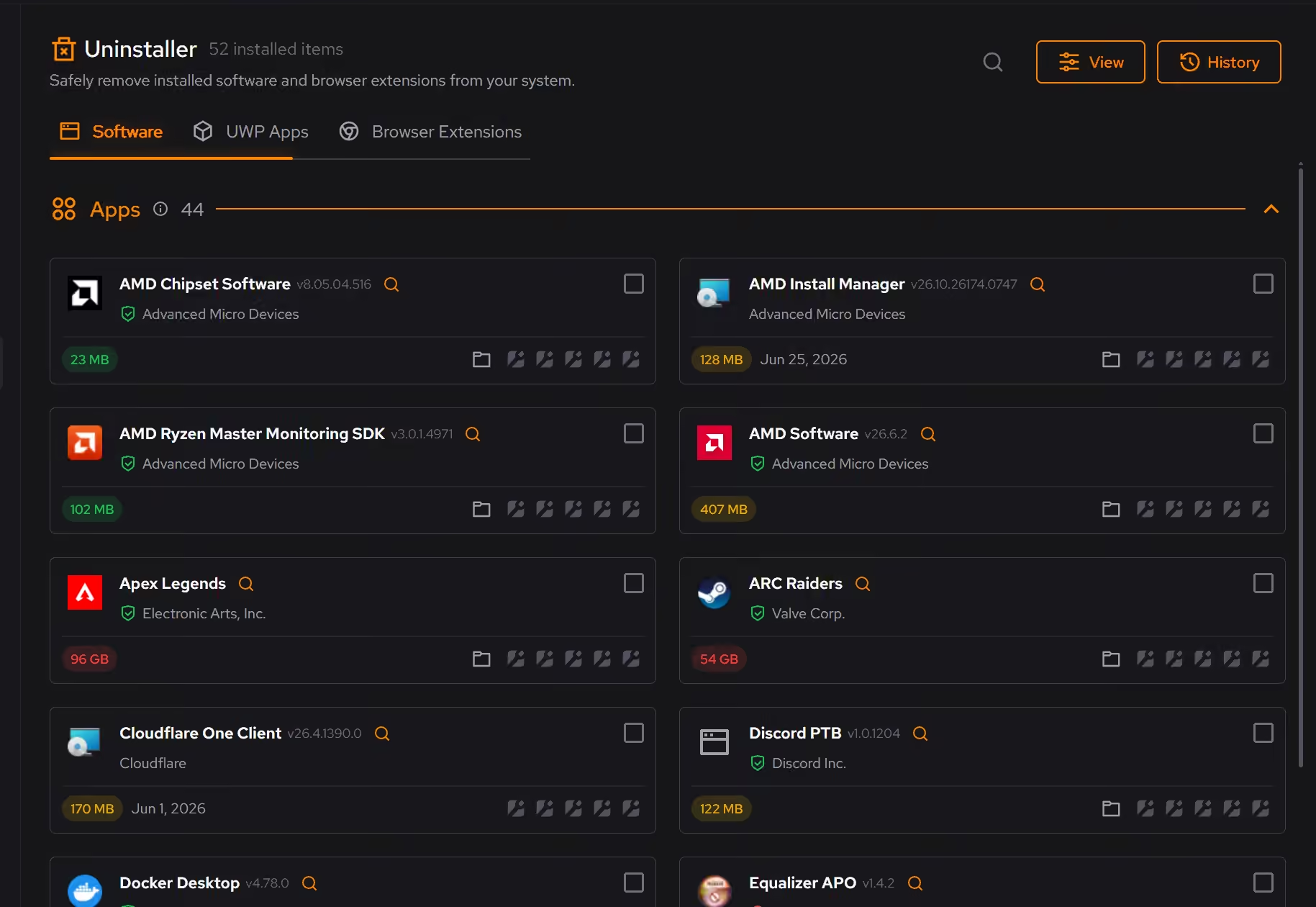
Encrypted DNS lookups, measured first
DNS Optimizer can encrypt your lookups, and block malware, phishing, or adult sites if you want that. It measures providers on your own connection first, and one click undoes a switch.
In Booster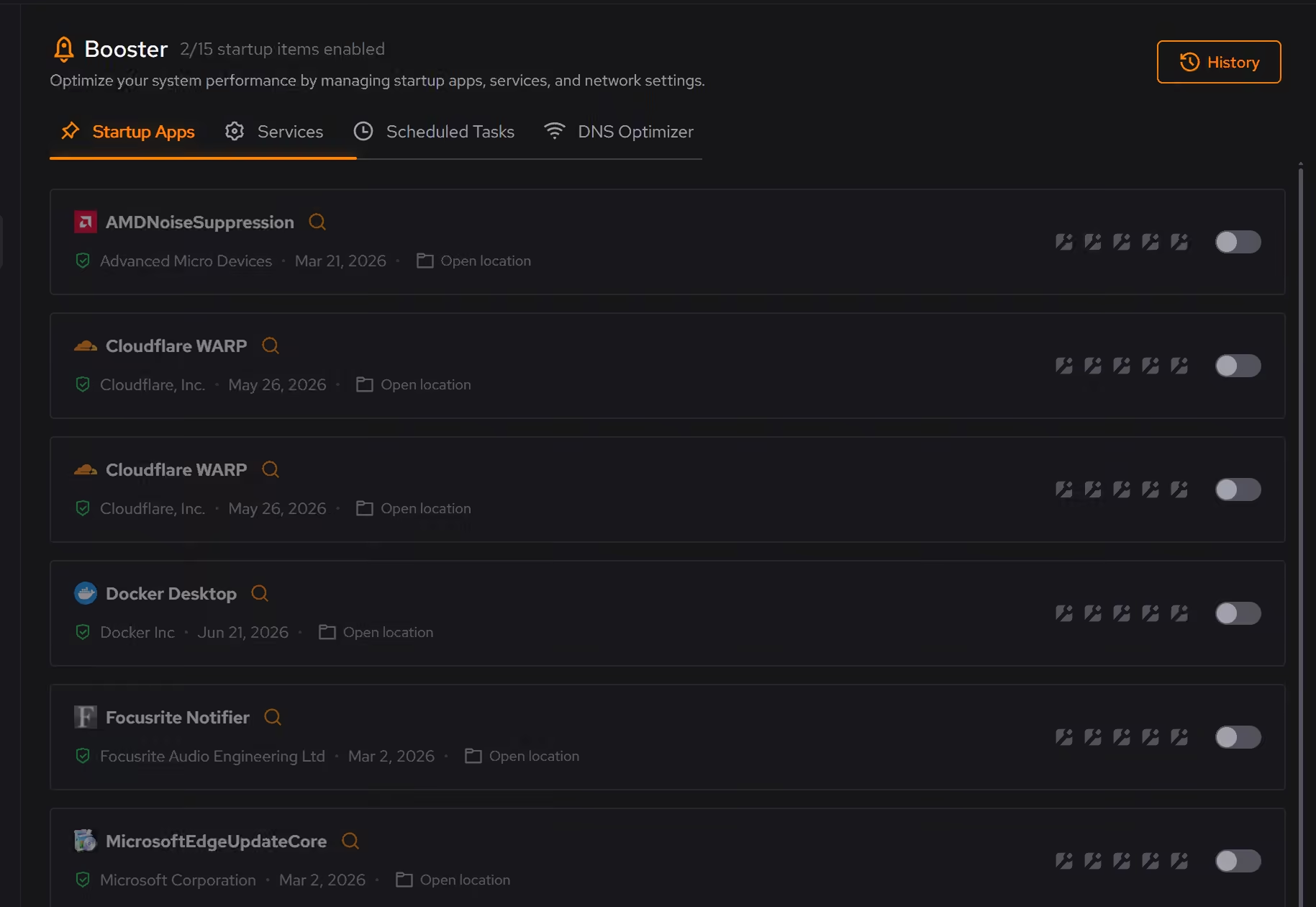
Free on Windows 10 and 11, no trial timer.
Download freeThe tweaks, by name. Each one explains itself before it runs.
Disable Advertising ID
Prevents Windows from assigning you a unique advertising identifier used by apps and advertisers to track your activity and serve personalized ads across applications.
Limit User Privacy Personalization
Changes current-user privacy personalization settings, including tailored experiences, online speech, input personalization, feedback prompts, and PowerShell telemetry opt-out. It does not change machine diagnostic data policy or telemetry services.
Disable Copilot
Turns off Windows Copilot, hides its taskbar button, and removes related components when Windows allows it.
Disable Recall
Prevents Windows Recall from being enabled and blocks snapshot analysis on supported devices. Recall availability depends on device and Windows policy support.
Limit Windows Search to Local Results
Keeps Windows Search focused on local results by turning off Bing web search, cloud results, and search suggestions. Local file search still works as normal.
Disable Content Delivery
Stops Windows from automatically installing suggested apps, showing app recommendations in the Start menu, and displaying tips and advertisements throughout the system.
Disable Activity Feed
Stops Windows from tracking your application usage, document access, and browsing history. This prevents activity upload to Microsoft cloud, disables cross-device synchronization, and removes the Timeline feature from Task View.
Every tweak above changes Windows settings, and applied changes land in a history. See how Optimizer works
Proof, then limits.
What you can check
Optimizer sorts every change by how far it goes and keeps a history of when it was turned on or off.
In OptimizerDNS Optimizer encrypts lookups and offers blocking levels for malware, phishing, and adult sites.
In Booster
Where eclean stops
eclean changes settings on your PC. It is not a VPN and does not hide your traffic from your provider or the sites you visit.
Optimizer limits current-user personalization and error reporting. It does not change machine diagnostic data policy or telemetry services.
If eclean steps over a line here, tell us and we'll fix it.
What Pro adds here.
These are the additions the modules on this page gate. Pro covers up to 2 PCs, and Family covers up to 5.
Stay optimized reapplies your changes when a Windows update undoes them, and tells you what it fixed
In Optimizer
Saved setups switch your PC between setups like Gaming or Work in one press
In Optimizer
Expert tweaks for CPU, timers, and power, and each one says what it costs
In Optimizer
Still deciding? Fair questions, answered.
Will it break my PC?
It is designed not to. Every change is explained before it is applied, you decide what runs, and supported changes keep a route back inside the app, so nothing you try has to be permanent.
Is eclean safe to download?
Yes. The installer is a single signed file from our own release server, with no bundled extras. While our signing certificate is new, Windows SmartScreen may ask you to confirm the publisher, which reads eclean Labs AB, the company that signs our Windows installer. What the app collects, and what it never touches, is documented in the trust center.
Why is there no registry cleaner?
On purpose. Registry cleaning has not delivered measurable speed on any Windows since XP, and the category keeps shipping it because a scary count of issues sells scans. eclean only ships changes whose effect you can see and verify.