Getting your PC ready for a big launch. Make room, check the specs, quiet the rest.
Free SSD space for a 100 GB install, check your hardware against the published requirements, and quiet the background before a huge game releases.
Free · Windows 10 and 11
The problem.
A release you have waited years for is a week away, and the install will not fit. Modern launches ask for well over 100 GB on an SSD, the requirements list names hardware you can only half remember owning, and launch day is the worst time to learn either one.
Big releases arrive with big numbers. Fable's PC release on 23 February 2027 lists 135 GB of space and an SSD, and a title of that size will not fit on a drive that is mostly full of other things. GTA VI is dated for consoles on 19 November 2026, and a PC version has not been announced, so any PC requirements you read for it today are a guess. Plan around what publishers have actually published.
Start with space, because it is the only problem that stops the download. Cleaner groups clutter by browsers, apps, Windows, and games, and shows what each item is before anything is removed. The large file finder covers every drive and sorts what it finds, and Uninstaller lists installed games by size, which usually settles the question of what goes. Removals check for leftovers afterward.
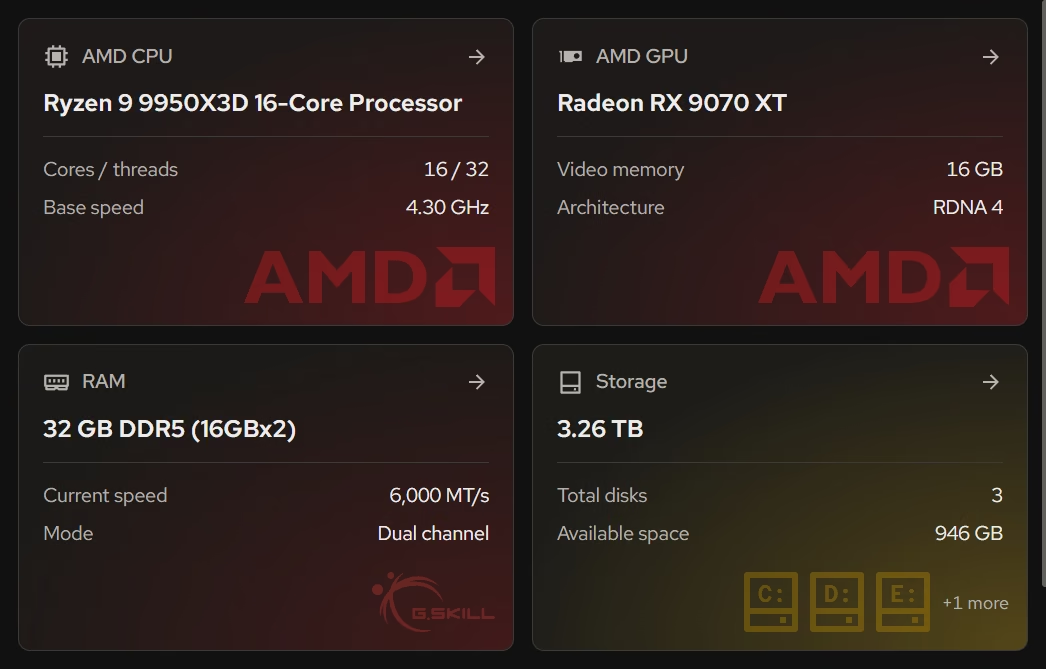
Then compare the hardware. Your PC shows the processor, graphics, memory, and storage in one place, so a requirements list becomes a short comparison rather than a search through Device Manager. It cannot tell you whether a game will run well, because that is not something an inventory knows. It can tell you quickly if you are short on memory or sitting on a drive the publisher does not list.
The last step is quieting the background. The tweaks named further down switch off background apps, the Game Bar and its recording, and network throttling, and they raise the priority of the active window. Each describes what it does in the app's words, and nothing here comes with a frame rate. The point is fewer things competing with the game for your attention.
Do this a week out, not on launch day. A cleaned drive and a hardware check leave time to fix a gap, whether that means deleting an old game or ordering a part.
What eclean does here. In this order.
Make room before the download starts
Cleaner shows what is safe to clean and what each item is, and the large file finder checks every drive at once. With Pro, Space watch warns when a drive is filling and which folder grew.
Pro covers 2 PCs. Family covers 5.
In Cleaner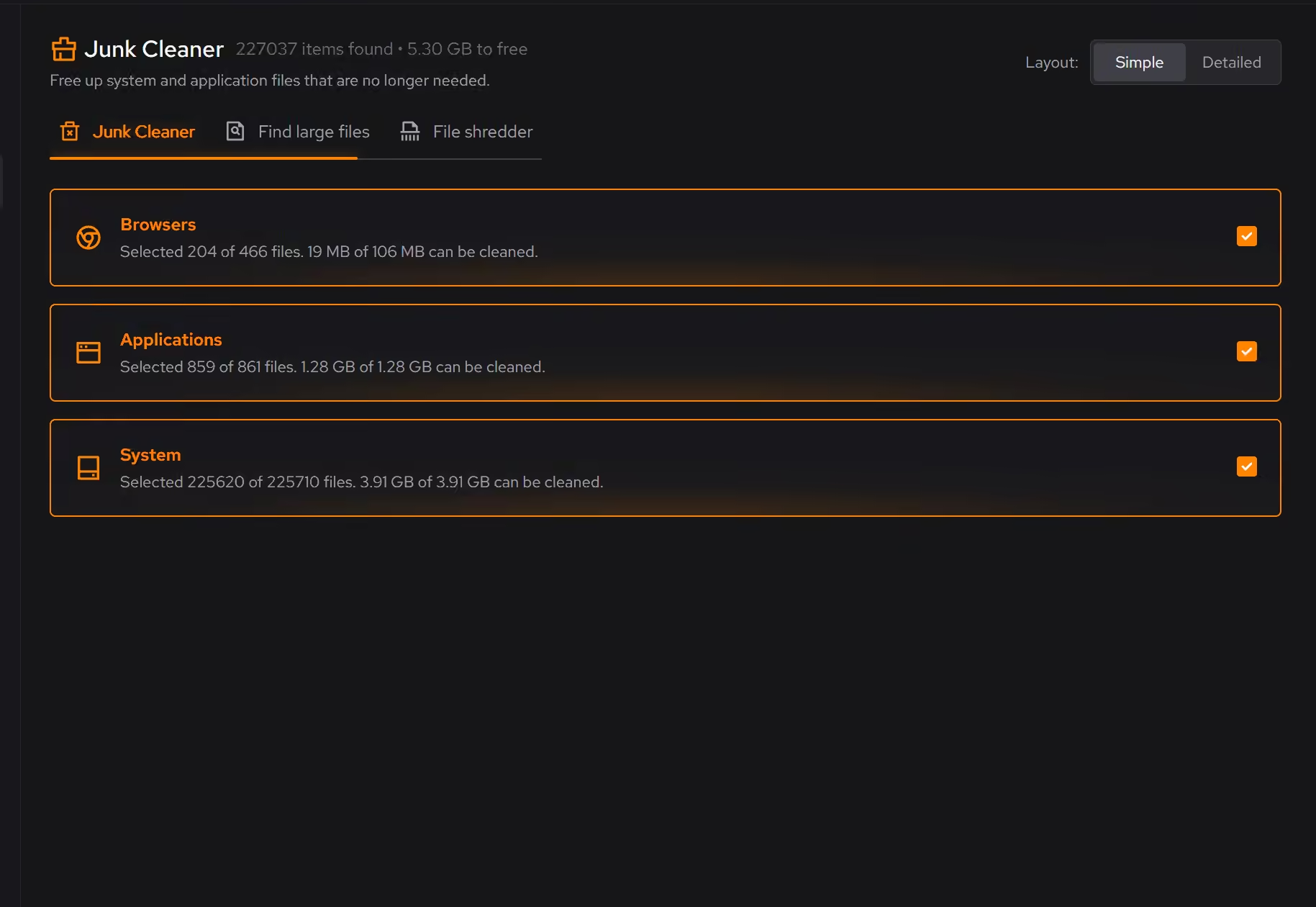
Check your hardware against the list
Your PC shows the processor, graphics, memory, and storage in plain terms, so a published requirements list can be compared with what is actually installed.
In Your PC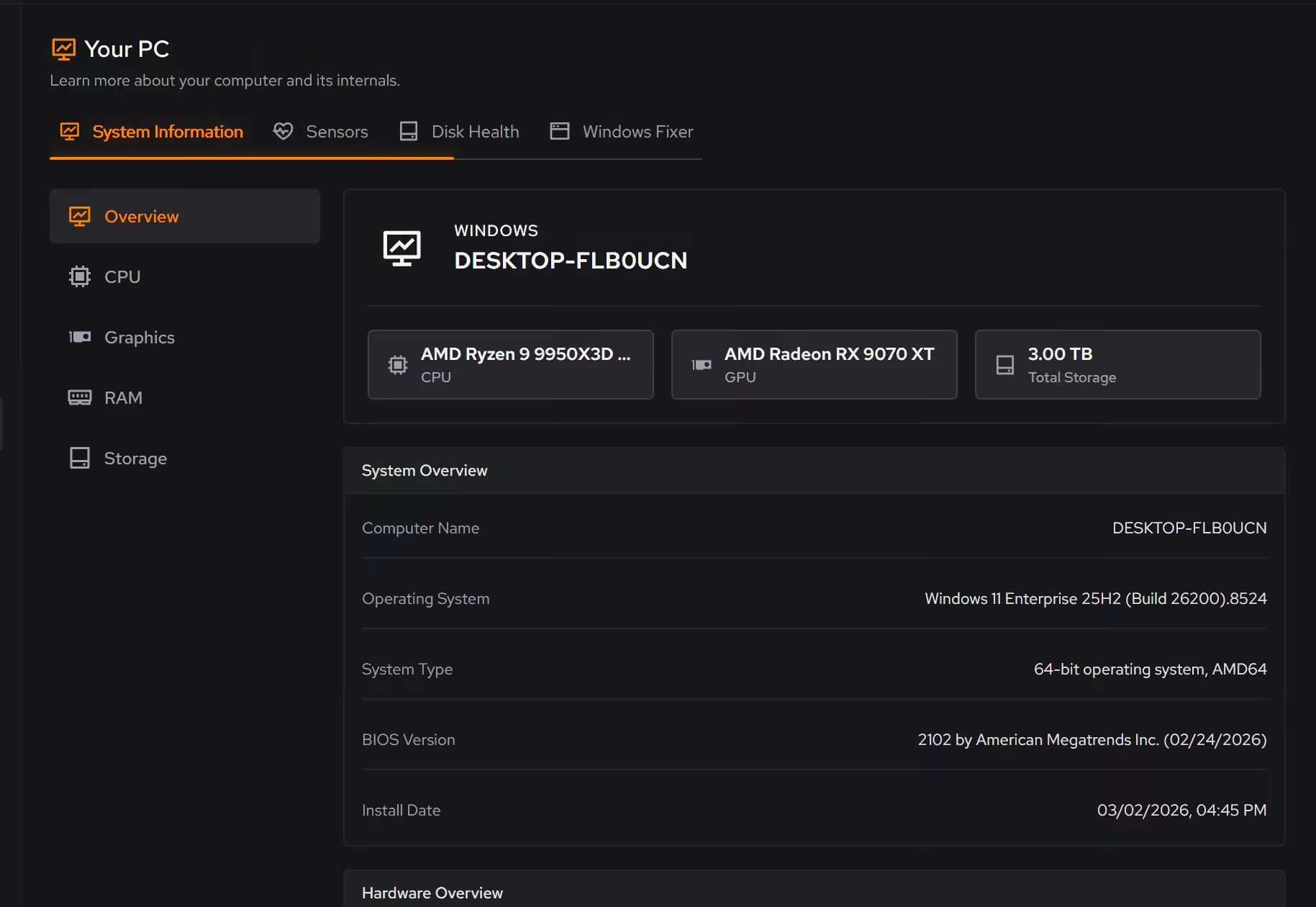
Less running behind the game
Optimizer includes changes for background apps, the Game Bar, and foreground priority. Each explains itself before it applies, and a history keeps a route back.
In Optimizer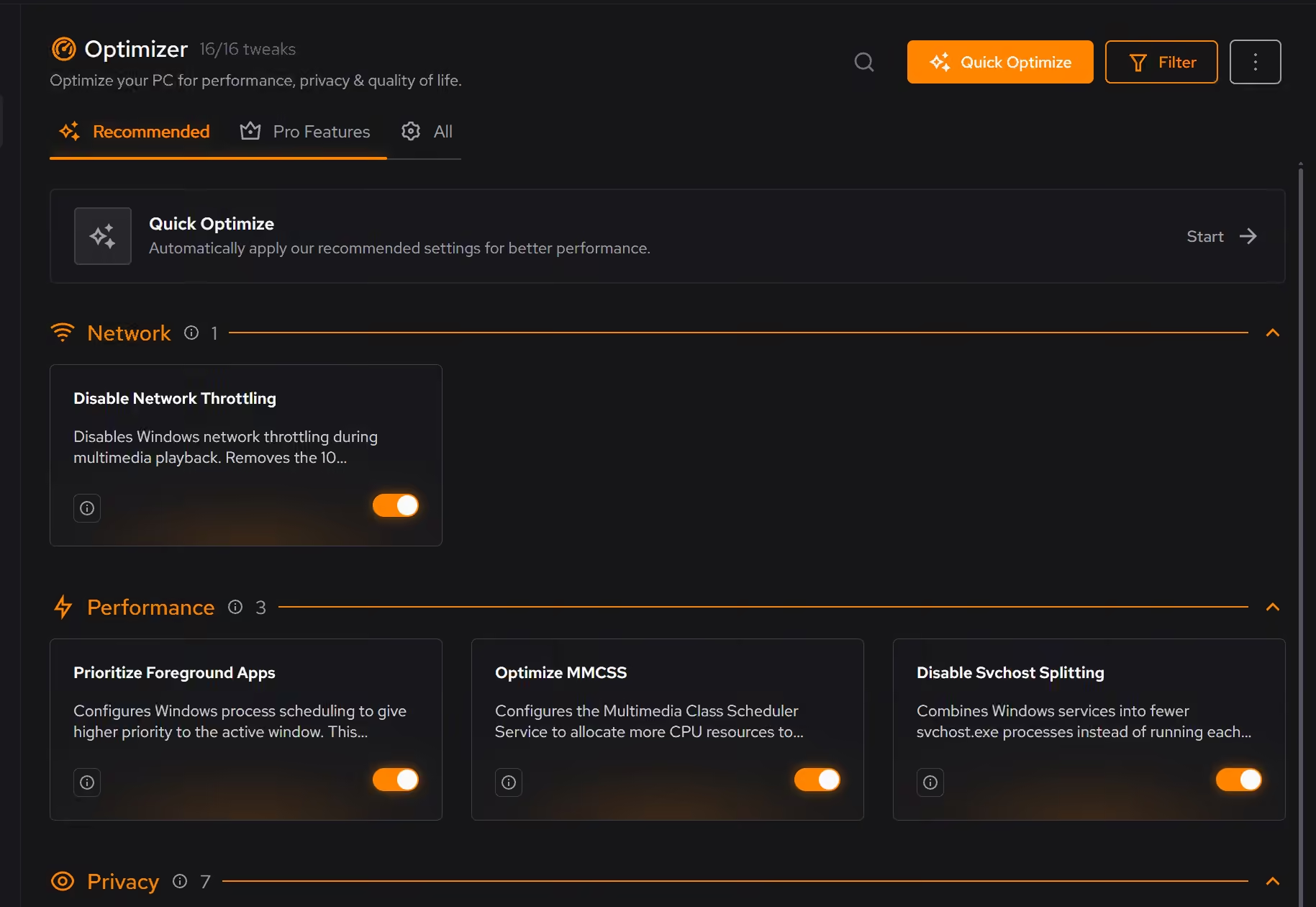
Free on Windows 10 and 11, no trial timer.
Download freeThe tweaks, by name. Each one explains itself before it runs.
Disable Background Apps
Prevents apps from running in the background when not actively in use. This reduces CPU and memory usage, extends battery life on laptops, and improves overall system responsiveness.
Disable Game Bar
Disables Xbox Game Bar, Game DVR, and background game recording features. This reduces CPU and memory overhead during gaming sessions and eliminates overlay-related performance impacts.
Prioritize Foreground Apps
Configures Windows process scheduling to give higher priority to the active window. This improves UI responsiveness, reduces input lag in games, and provides a smoother multitasking experience.
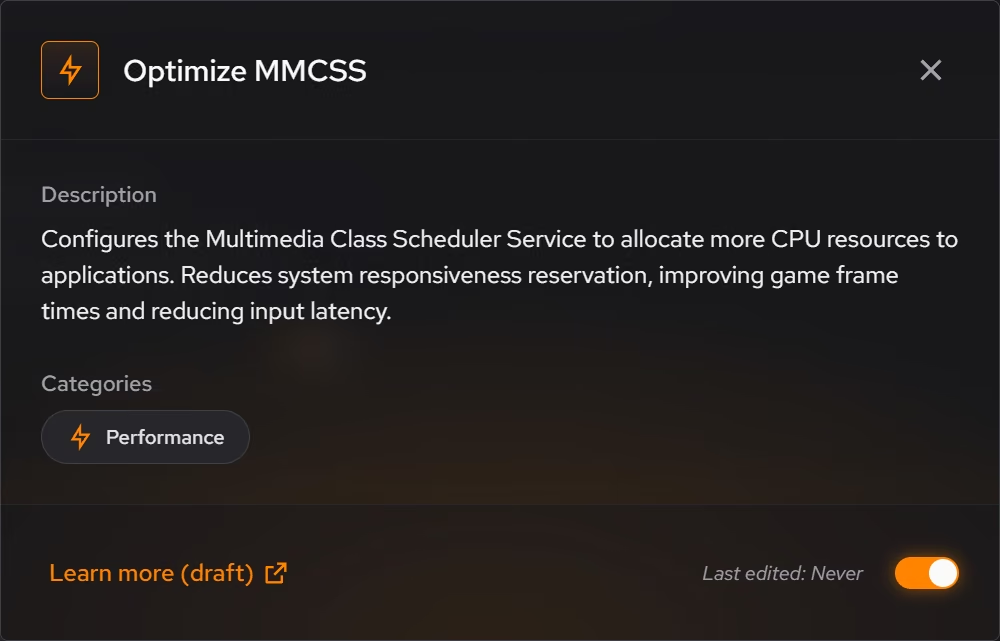
Optimize MMCSS
Configures the Multimedia Class Scheduler Service to allocate more CPU resources to applications. Reduces system responsiveness reservation, improving game frame times and reducing input latency.
Disable Network Throttling
Disables Windows network throttling during multimedia playback. Removes the 10 packets/ms limit to improve network performance for gaming, streaming, and VoIP applications.
Every tweak above changes Windows settings, and applied changes land in a history. See how Optimizer works
Proof, then limits.
What you can check
Uninstaller shows how much space your apps and games take, with the games listed first by size.
In UninstallerCleaner checks every drive at once and sorts large files into what is usually safe to remove and what is yours.
In Cleaner
Where eclean stops
eclean does not know a game's requirements. Read the publisher's published list and compare it with what Your PC shows.
eclean cannot promise a frame rate, and it does not replace a faster drive or graphics card when the hardware falls short.
If eclean steps over a line here, tell us and we'll fix it.
What Pro adds here.
These are the additions the modules on this page gate. Pro covers up to 2 PCs, and Family covers up to 5.
Automatic cleanup clears what apps leave behind every week, even with eclean closed, and clears more when your system drive runs low while eclean is open or in the tray
In Cleaner
Space watch tells you when a drive is filling up and which folder grew, while eclean is open or in the tray
In Cleaner
Secure delete overwrites files in the file shredder before deleting them
In Cleaner
Still deciding? Fair questions, answered.
What does my PC need to run it?
Very little. If your PC runs Windows 10 or 11 (64-bit), it runs eclean. The full spec sheet is one page long.
Will it break my PC?
It is designed not to. Every change is explained before it is applied, you decide what runs, and supported changes keep a route back inside the app, so nothing you try has to be permanent.
Is the free version actually useful?
Yes. The core of eclean, understanding your PC and keeping it tidy, is free without time limits or nagging. Pro adds the upkeep that runs on its own, like weekly cleanup.