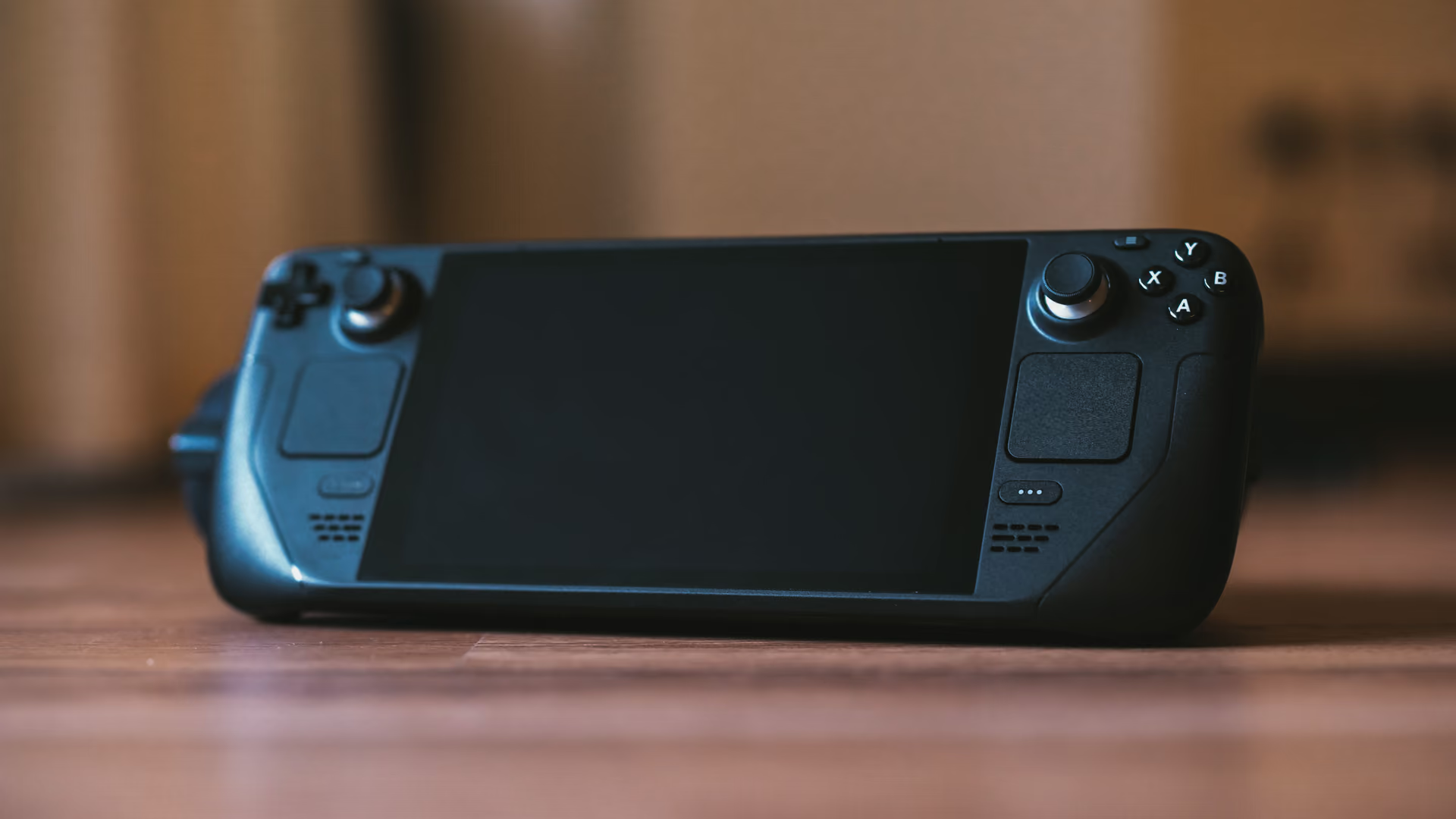
A Windows handheld with room to spare. Small drive, small screen, less overhead.
Free up a small SSD and trim Windows overhead and background apps on ROG Ally, Xbox Ally, Legion Go and MSI Claw handhelds, with every change explained.
Free · Windows 10 and 11
The problem.
A Windows handheld is a full PC with a small SSD, a small screen, and a battery. A few big installs fill the drive, Windows runs much of the same background load a desktop does, and the desktop-sized tools for fixing it are awkward to use from the couch.
Handhelds in the ROG Ally, Xbox Ally, Legion Go, and MSI Claw class run ordinary Windows on a drive that is small next to a gaming desktop. Modern games run to dozens of gigabytes each, so the drive is usually the first thing that bites, and Windows adds its own share in update leftovers and caches.
Cleaner shows where the space went before anything is removed. Clutter is grouped by browsers, apps, Windows, and games, and each item says what it is and how it comes back. The large file finder checks every drive and sorts what it finds into what is usually safe to remove and what is yours. Uninstaller lists games by size, so the one you finished last spring is easy to spot, and it checks for leftovers after removal.
Then there is overhead. Windows runs services and background apps built for a desktop with a mains plug. The tweaks named further down switch off background apps, Widgets, the Game Bar and its background recording, and Dynamic Lighting, and each one describes its effect before you apply it. Two others are about power, one disabling SleepStudy logging and one disabling Modern Standby. Modern Standby is a Pro tweak, and traditional sleep only appears if your firmware and Windows installation support it, so read its description before changing it on a device you carry around.
Startup matters on a device you wake with a button. Booster shows what launches with Windows, so a stack of game launchers that open before your library does can be trimmed to the one you use. Services and scheduled tasks sit in the same view.
Nothing here comes with a battery number or a frame rate, because those depend on the device, the game, and the power mode you pick. What eclean offers is a lighter background load and a clear view of the drive. The maker's own app still owns performance modes and fan curves.
What eclean does here.
Room back on a small SSD
Cleaner groups clutter by browsers, apps, Windows, and games, and the large file finder shows what else holds space. With Pro, Space watch tells you when a drive is filling and which folder grew.
Pro covers 2 PCs. Family covers 5.
In Cleaner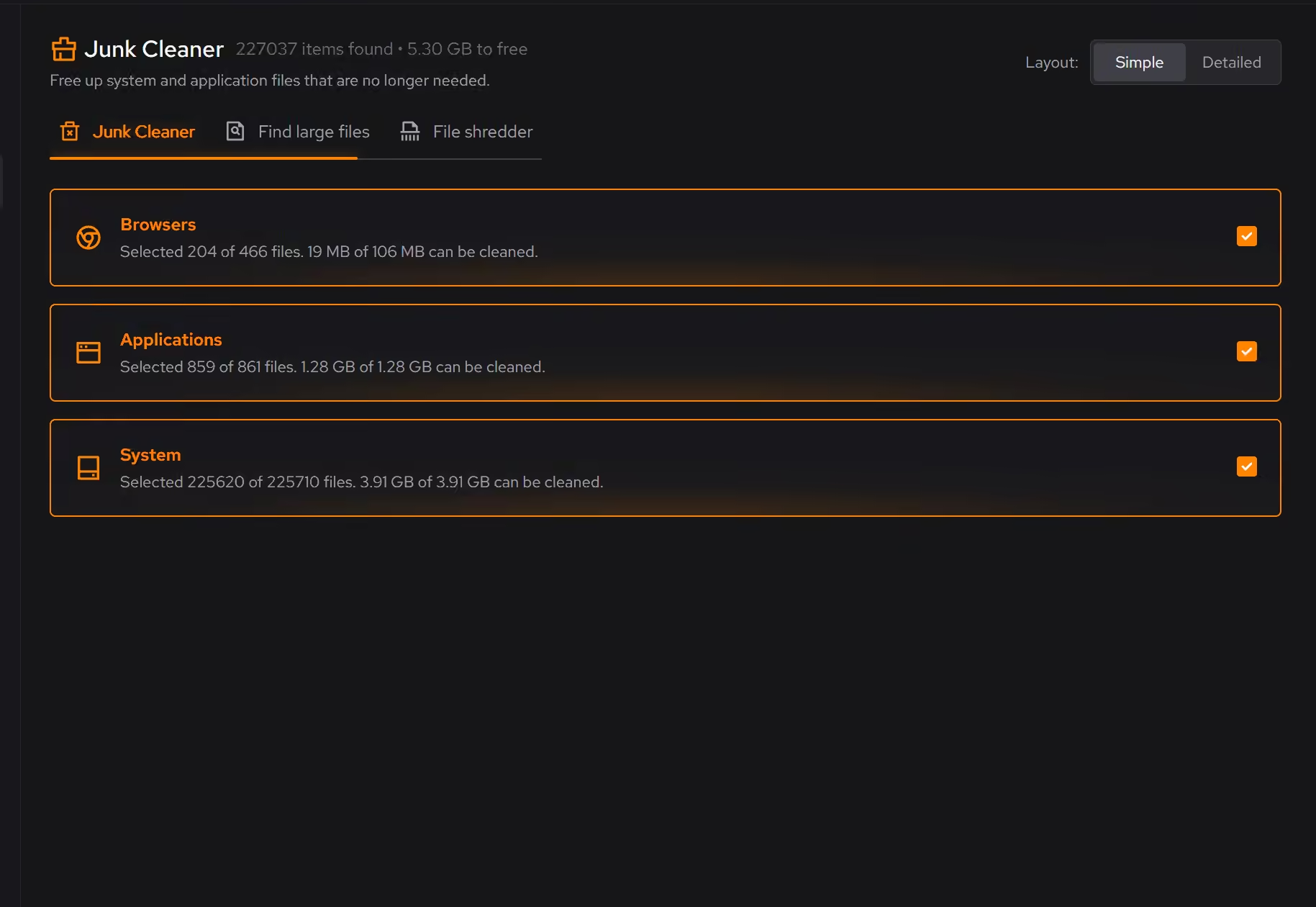
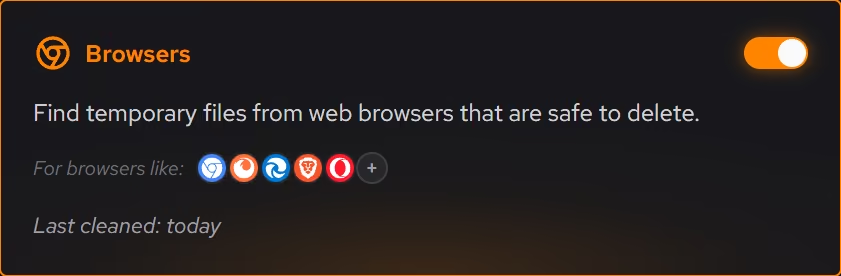
Windows overhead you can see and trim
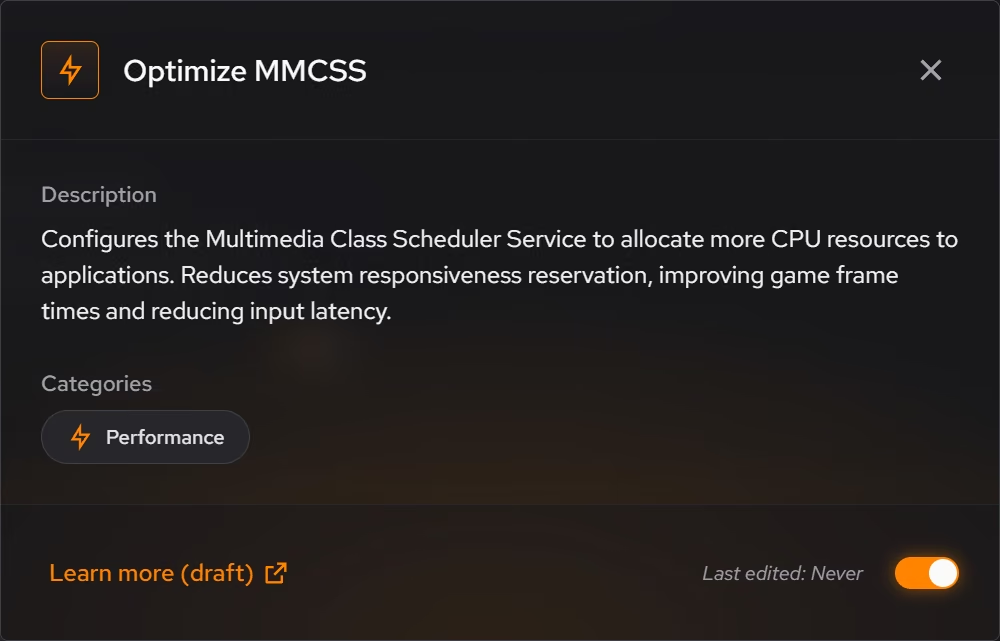
Optimizer reviews background apps, Widgets, Game Bar, and other overhead, explains each change in plain language, and keeps a history so supported changes can be undone.
In Optimizer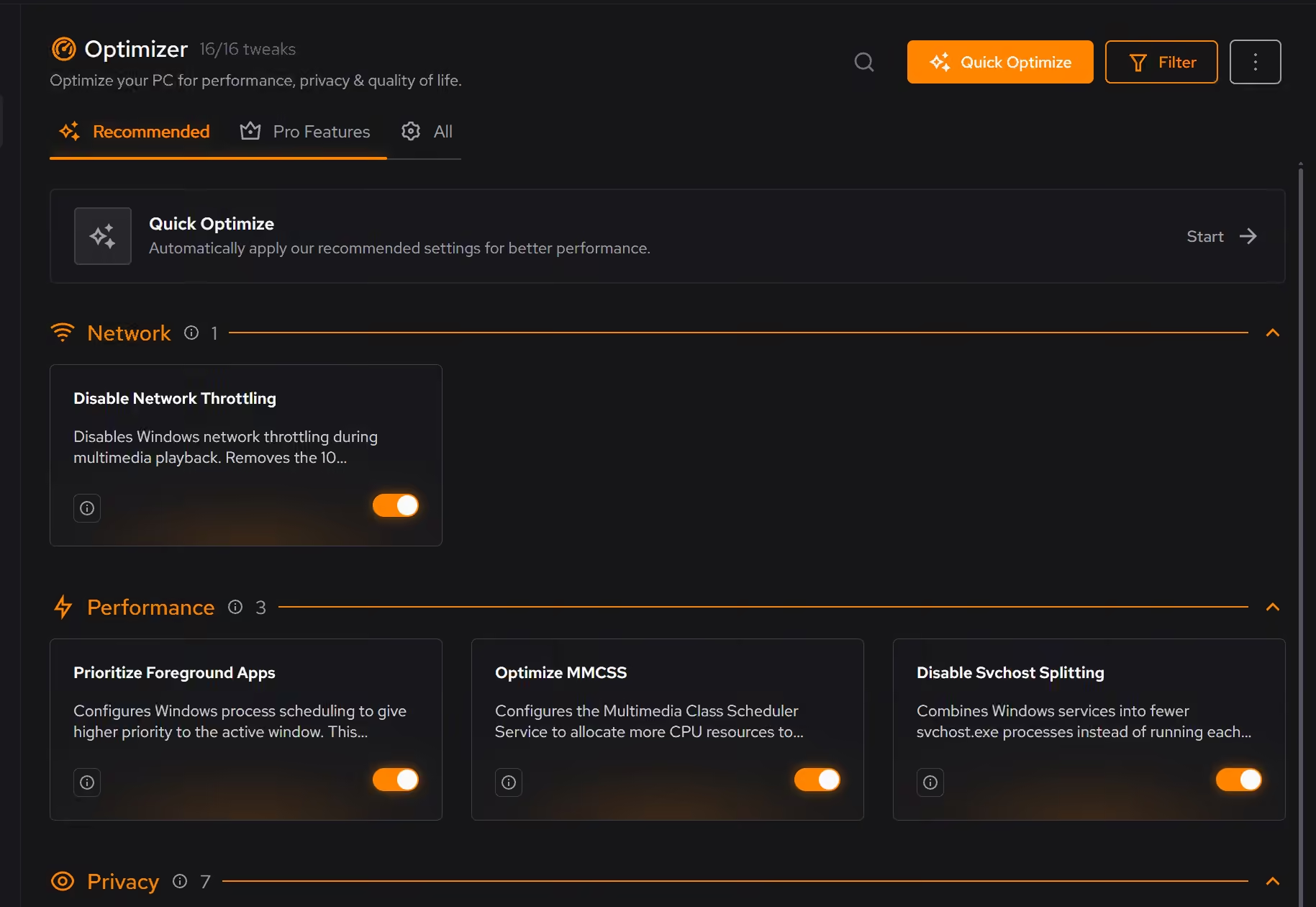
Fewer launchers starting at boot
Booster lists what starts with Windows, plus services and scheduled tasks. On a handheld that opens into a game library, it is easy to see which launchers can wait.
In Booster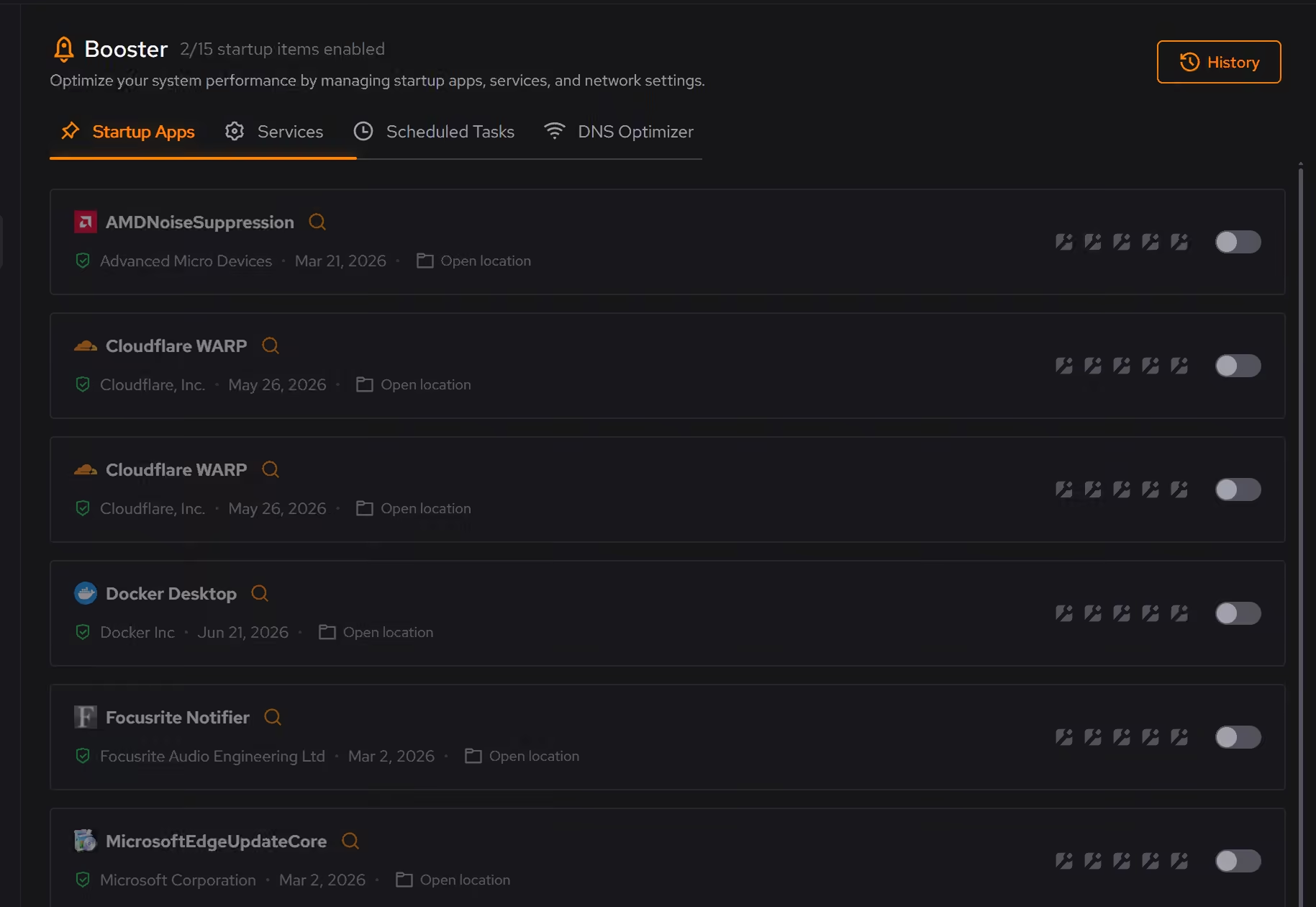
Free on Windows 10 and 11, no trial timer.
Download freeThe tweaks, by name. Each one explains itself before it runs.
Disable Background Apps
Prevents apps from running in the background when not actively in use. This reduces CPU and memory usage, extends battery life on laptops, and improves overall system responsiveness.
Disable Game Bar
Disables Xbox Game Bar, Game DVR, and background game recording features. This reduces CPU and memory overhead during gaming sessions and eliminates overlay-related performance impacts.
Disable Widgets
Turns off the Windows Widgets panel and, when possible, removes related components. This reduces background content fetching, memory usage, and taskbar clutter.
Disable SleepStudy Logging
Disables Modern Standby's SleepStudy diagnostic logging which tracks power and sleep events. Reduces unnecessary disk writes and battery usage.
Disable Dynamic Lighting
Disables Windows 11's Dynamic Lighting feature for RGB peripheral control. Saves battery and reduces background processing.
Disable Modern Standby Pro
Disables Modern Standby (S0 Low Power Idle) through the legacy registry override. Traditional S3 sleep and extra power plans only appear if your firmware and Windows installation support them.
Every tweak above changes Windows settings, and applied changes land in a history. See how Optimizer works
Proof, then limits.
What you can check
Uninstaller shows how much space your apps and games take, with the games listed first by size.
In UninstallerBooster shows startup apps, services, and scheduled tasks together, so the whole background load is visible in one place.
In Booster
Where eclean stops
eclean makes no claims about battery life, and it does not replace the handheld maker's own control app or its performance modes.
A small drive and a low power budget are hardware. Software only removes load.
If eclean steps over a line here, tell us and we'll fix it.
What Pro adds here.
These are the additions the modules on this page gate. Pro covers up to 2 PCs, and Family covers up to 5.
Automatic cleanup clears what apps leave behind every week, even with eclean closed, and clears more when your system drive runs low while eclean is open or in the tray
In Cleaner
Space watch tells you when a drive is filling up and which folder grew, while eclean is open or in the tray
In Cleaner
Secure delete overwrites files in the file shredder before deleting them
In Cleaner
Still deciding? Fair questions, answered.
What does my PC need to run it?
Very little. If your PC runs Windows 10 or 11 (64-bit), it runs eclean. The full spec sheet is one page long.
Will it break my PC?
It is designed not to. Every change is explained before it is applied, you decide what runs, and supported changes keep a route back inside the app, so nothing you try has to be permanent.
Is the free version actually useful?
Yes. The core of eclean, understanding your PC and keeping it tidy, is free without time limits or nagging. Pro adds the upkeep that runs on its own, like weekly cleanup.