Getting out of low disk space. Facts first, deletions second.
When Windows warns about low disk space, guessing costs files. Preview the clutter, sort what remains by size and date, and decide on the drive's facts.
Free · Windows 10 and 11
Every change explained, with a route back.
The problem.
The low disk space warning never arrives at a good time. Windows needs room to update, the thing you are trying to save will not fit, and the machine slows down as the drive fills. Deleting at random is the reflex, and it is how people lose files they wanted while keeping gigabytes they had forgotten existed.
A full drive punishes guesswork. The files easiest to find are rarely the ones taking the space, so panic cleaning clears a desktop's worth of megabytes while the real weight, old video, forgotten installers, a games folder from two years ago, sits untouched. The way out is not deleting harder. It is seeing the drive's actual contents before touching any of them.
eclean puts the reclaimable layer first because it is the safest. Browser caches, app leftovers, Windows' own accumulation, and game clutter are grouped by origin, and the preview states what will be removed and how much space returns before anything happens. This layer alone often ends the immediate emergency, and it carries the least regret, because nothing in it is anyone's work.
The second layer is the software inventory. Programs hold space whether or not anyone still opens them, and the size and install date columns make the candidates obvious. Removals check afterward for the files and registry entries a standard uninstall leaves behind, so the space actually comes back. The large file finder then handles everything that is neither clutter nor a program, sorting by size with the modified date beside each result, which is usually all the information a keep-or-delete decision needs.
One tweak named further down frees space in a different way. Disabling hibernation removes the file Windows reserves on the system drive for hibernate state, which on many machines is a multi-gigabyte reservation, and the description says plainly that Fast Startup and hibernation go with it. It is not a default recommendation. It is an informed choice the app explains before you make it.
The limits on this page are the ones that keep it trustworthy. eclean backs nothing up, so anything precious gets saved before cleaning starts. And a drive that refills every month is not dirty, it is small, in which case the honest advice is storage rather than another cleanup pass. The live storage view and the inventory make that case visible too, which is how you find out whether you have a cleaning problem or a hardware decision.
What eclean does here. In this order.
The reclaimable layer, previewed
Cleaner groups clutter by where it comes from, browsers, apps, Windows itself, and games, and shows what will be removed and how much space it frees before anything happens. The large file finder sorts the rest by size with the modified date beside every result.
In Cleaner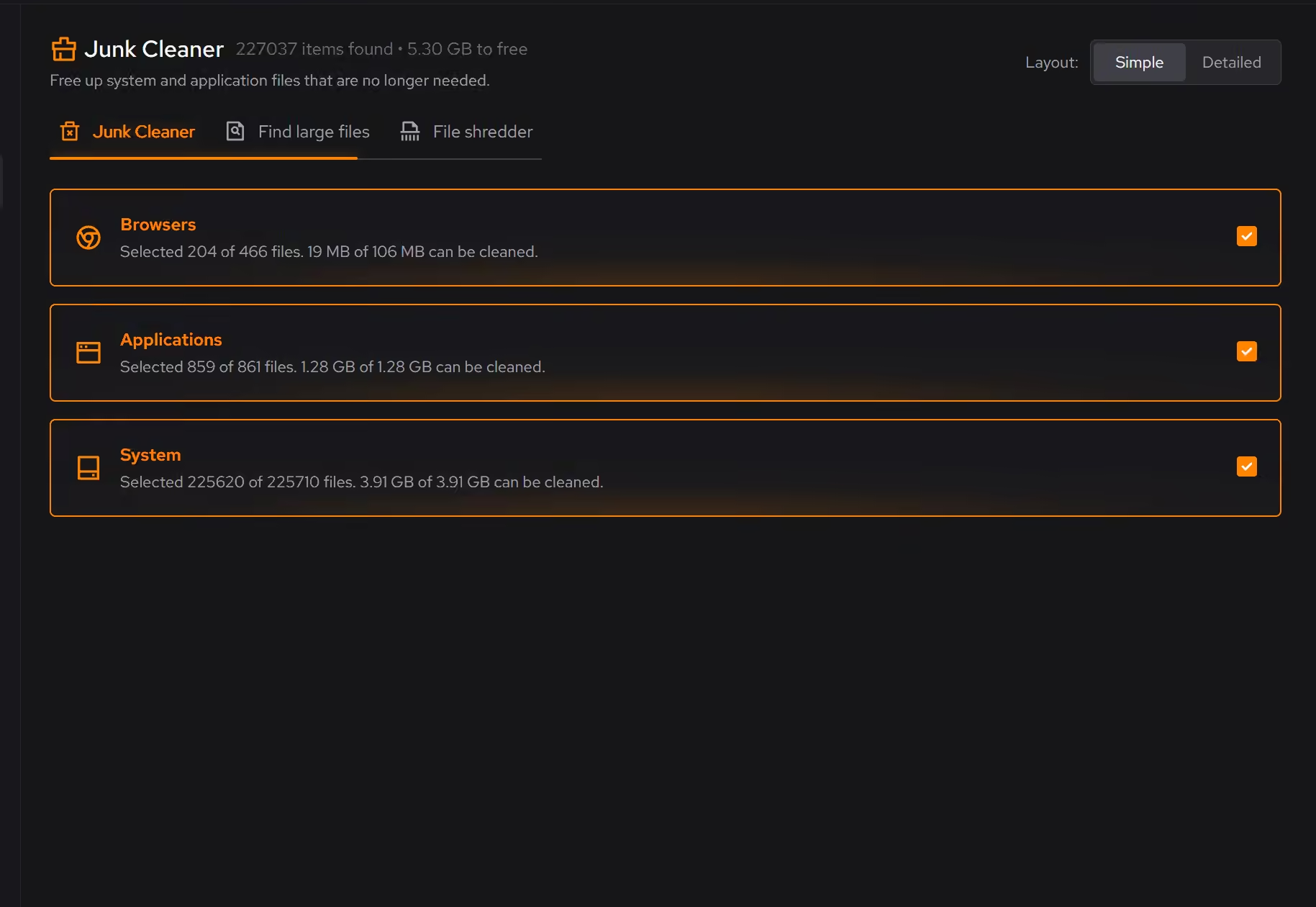
The software you stopped using
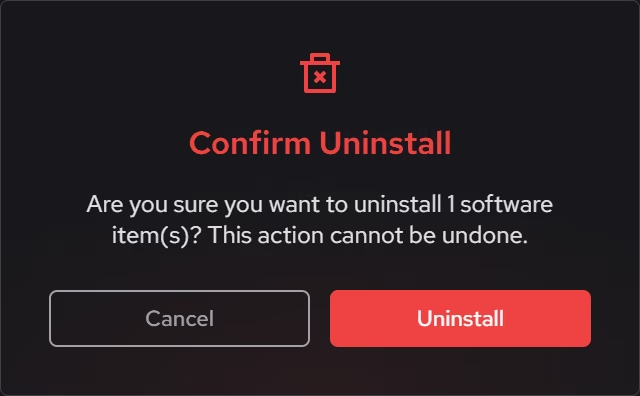
Programs claim space long after anyone opens them. The inventory lists desktop programs, packaged Windows apps, and browser extensions with size and install date, and removals look for the leftovers a standard uninstall forgets.
In Uninstaller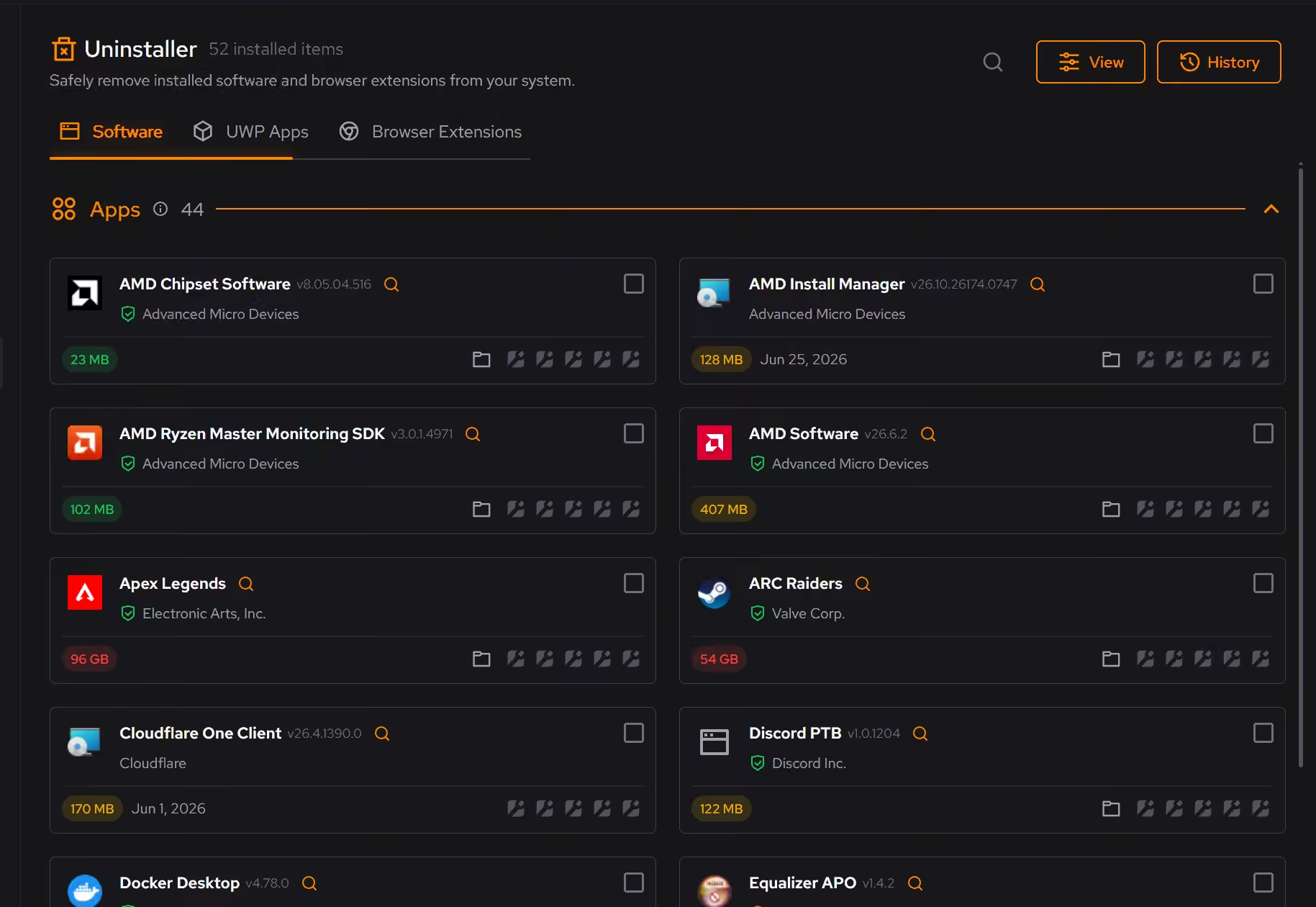
The drive, watched instead of guessed
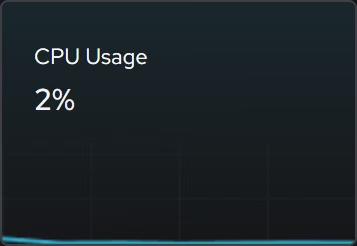
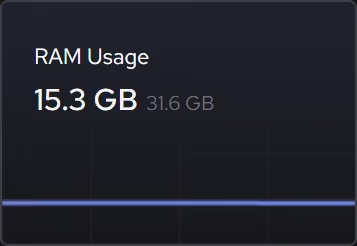
The live storage view shows demand on the drive as it happens, and the inventory names what storage the machine actually has, which turns the next warning into something you see coming.
In Your PC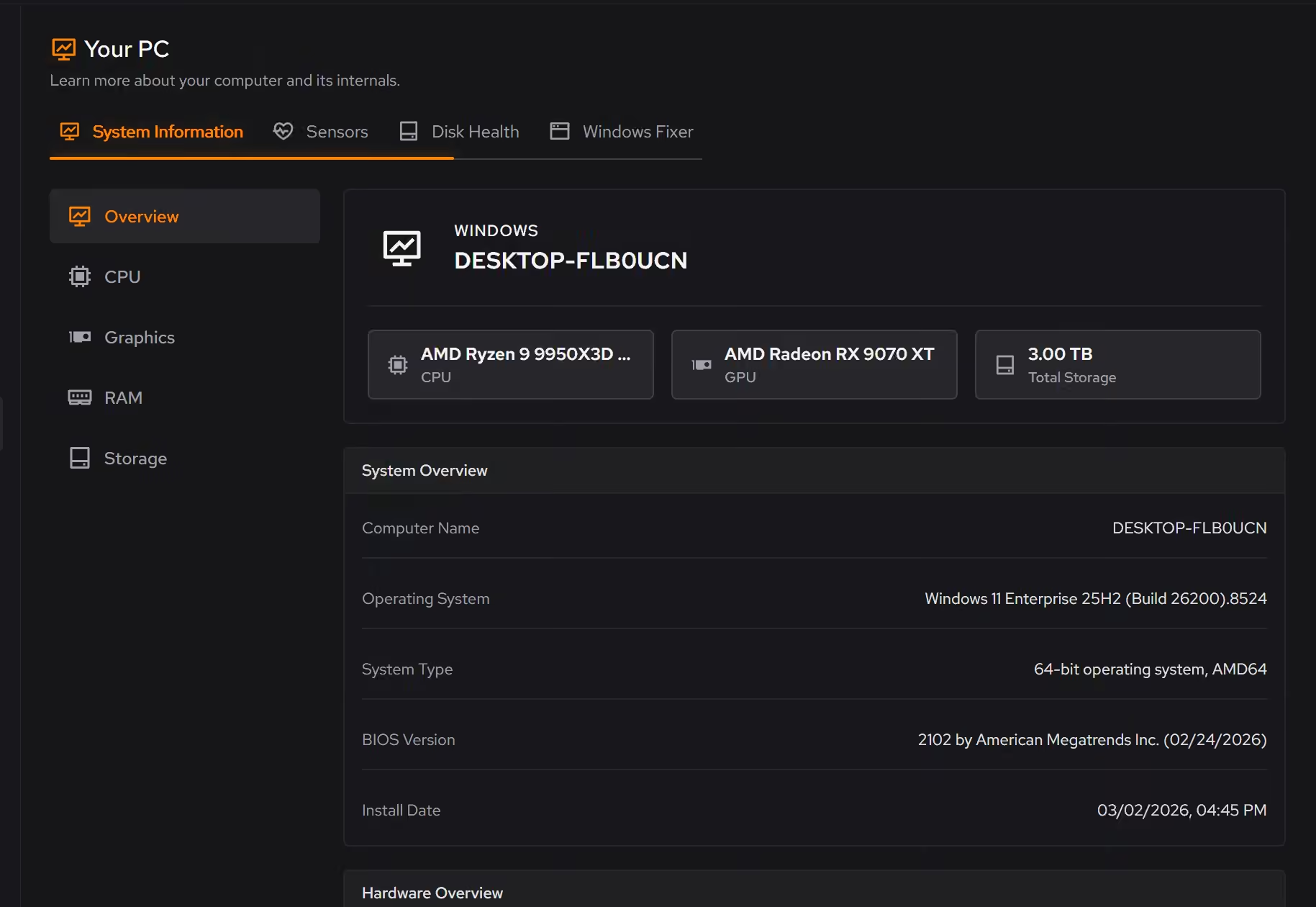
Free on Windows 10 and 11, no trial timer.
Download freeThe tweaks, by name. Each one explains itself before it runs.
Disable Hibernation
Disables hibernation and Fast Startup, removes hiberfil.sys, and frees the disk space reserved for hibernate state. Sleep remains available on supported systems.
Every tweak above changes Windows settings, and applied changes land in a history. See how Optimizer works
Proof, then limits.
What you can check
Clutter is grouped by category, and you see what will be removed and how much space it frees before anything happens.
In CleanerThe large file finder shows size and modified date next to every result.
In Cleaner
Where eclean stops
eclean frees space, it does not back anything up. Save what matters before cleaning anything.
If the drive is simply too small for the life it leads, cleanup buys time, not a solution. More storage is the honest fix.
If eclean steps over a line here, tell us and we'll fix it.
Still deciding? Fair questions, answered.
Do I need eclean if Windows has Storage Sense?
Storage Sense and Disk Cleanup are a good floor, and eclean does not pretend otherwise. They clear temporary files on a schedule, but they do not review app leftovers, startup, or installed software, and they never explain what went. eclean covers that layer and shows its work, so the two are companions more than rivals.
Is the free version actually useful?
Yes. The core of eclean, understanding your PC and keeping it tidy, is free without time limits or nagging. Pro adds depth for people who want more control, not the basics held hostage.
Is eclean safe to download?
Yes. The installer is a single signed file from our own release server, with no bundled extras. While our signing certificate is new, Windows SmartScreen may ask you to confirm the publisher, which reads ECLEAN LIMITED, the company that signs our Windows installer. What the app collects, and what it never touches, is documented in the trust center.