After a fresh Windows install. Keep the clean feeling on purpose.
A fresh Windows install is the easiest PC you will ever maintain. Set the defaults deliberately, clear what the image shipped, and guard the empty startup.
Free · Windows 10 and 11
Every change explained, with a route back.
The problem.
The reinstall finished and the machine feels new again. It also feels temporary, because the last install felt like this once too, and it aged into the mess you just erased. The first week decides whether this one goes the same way, and Windows spends that week quietly restoring the defaults and extras you did not pick.
Every fresh install is a small resolution. This time the desktop stays empty, the startup stays quick, and nothing gets installed without a reason. The resolution usually survives about a month, not because anyone breaks it, but because Windows and the software you add work quietly against it, restoring suggestions, registering login items, and refilling the drive with things nobody chose.
The counter is to spend the first hour deliberately, and a clean machine makes that hour cheap. The recommended tweak set applies in one pass, or one at a time with each change explained before it runs. The ones this page lists further down are the fresh-install classics, stopping suggested app installs, Widgets feeds, Copilot's components, update sharing to other PCs, and apps running in the background, all before any of them becomes furniture. Everything lands in the history, so the deliberate hour is also a reversible one.
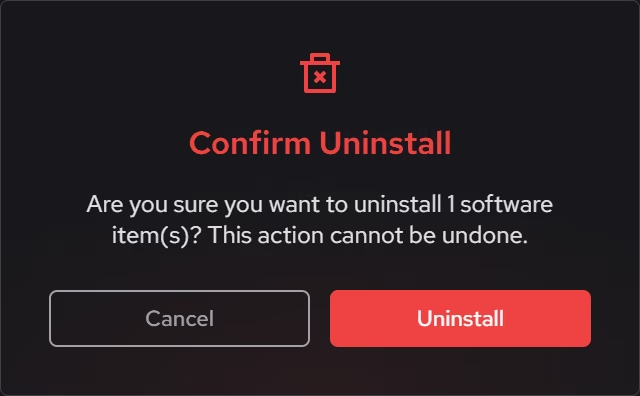
The inventory pass matters most on machines reset from a vendor recovery image, because those images restore the factory payload along with Windows. Trials and vendor utilities are easiest to identify on day one, when the publisher column tells the whole story and everything else on the machine is something you added this week. Removals check for leftovers, so what goes is gone.
The startup list is the part worth guarding long after the first hour. A fresh install boots into an almost empty login queue, and every app you install from now on will ask to join it. Booster keeps that queue visible in one place, which changes the dynamic permanently. The question stops being what crept in over the years and becomes whether this new thing earns a place, asked while you still remember installing it.
What eclean does not do here is the install itself. Windows, drivers, firmware, and updates belong to Microsoft and your hardware vendors, and the limits on this page hold that line. What eclean offers is the part those tools skip, a deliberate first hour, a record of every choice made in it, and the visibility to keep the machine feeling like week one for years instead of weeks.
What eclean does here. In this order.
Set the defaults while they are fresh
A new install ships everyone's defaults, chosen for no one. The recommended set applies in one pass with Quick Optimize, or one at a time with each tweak explained first, and everything lands in a history with a route back.
In Optimizer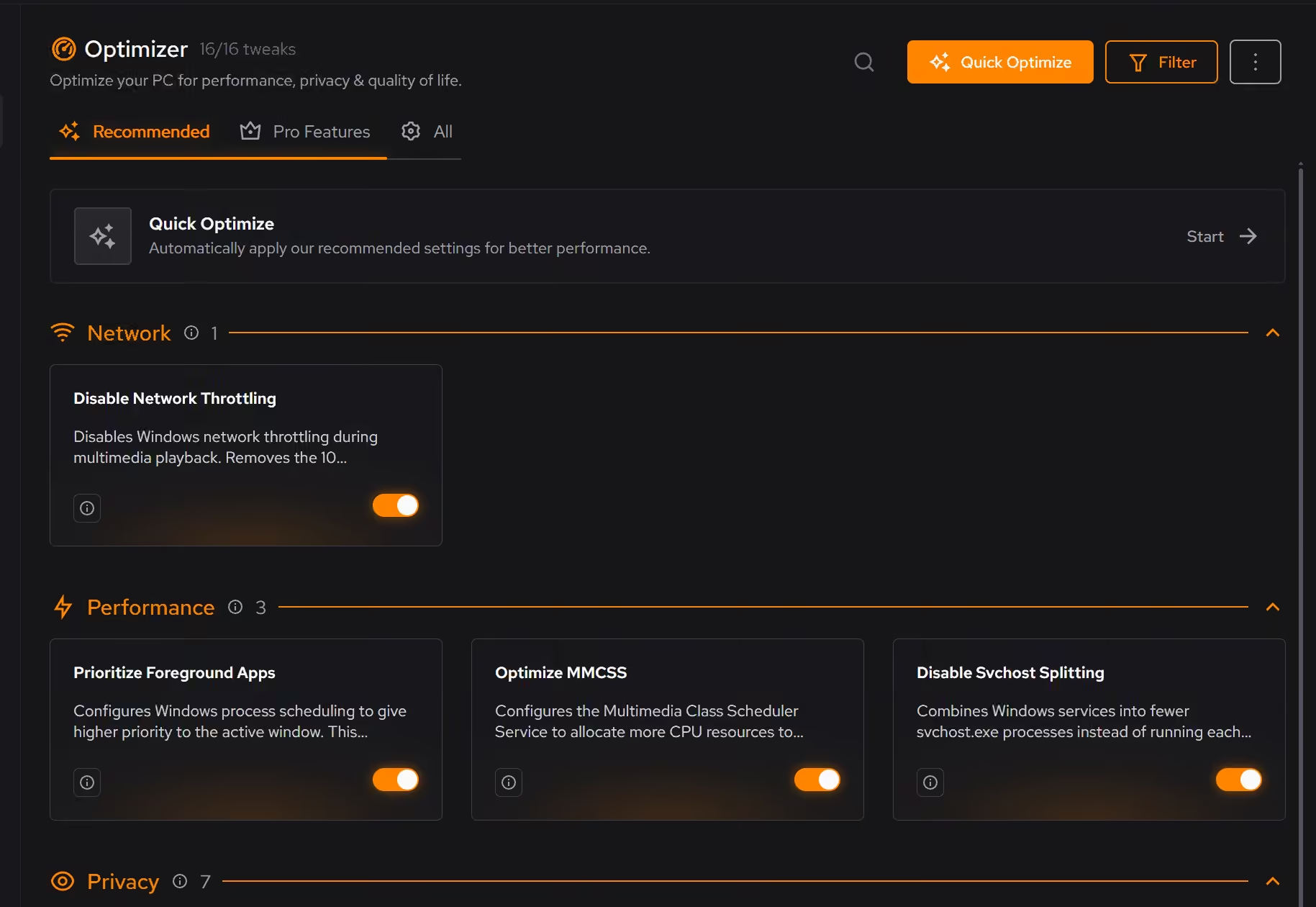
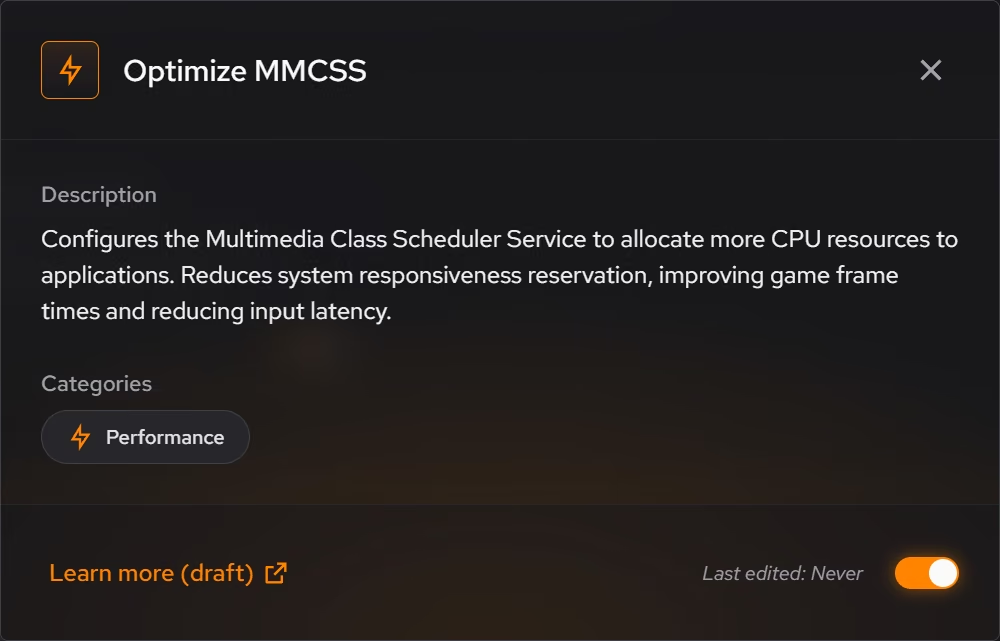
Clear what the image brought along
Even a fresh install arrives with passengers, and an OEM recovery image arrives with a payload. The inventory shows what is present on day one with publisher beside each entry, so the factory layer leaves before it settles in.
In Uninstaller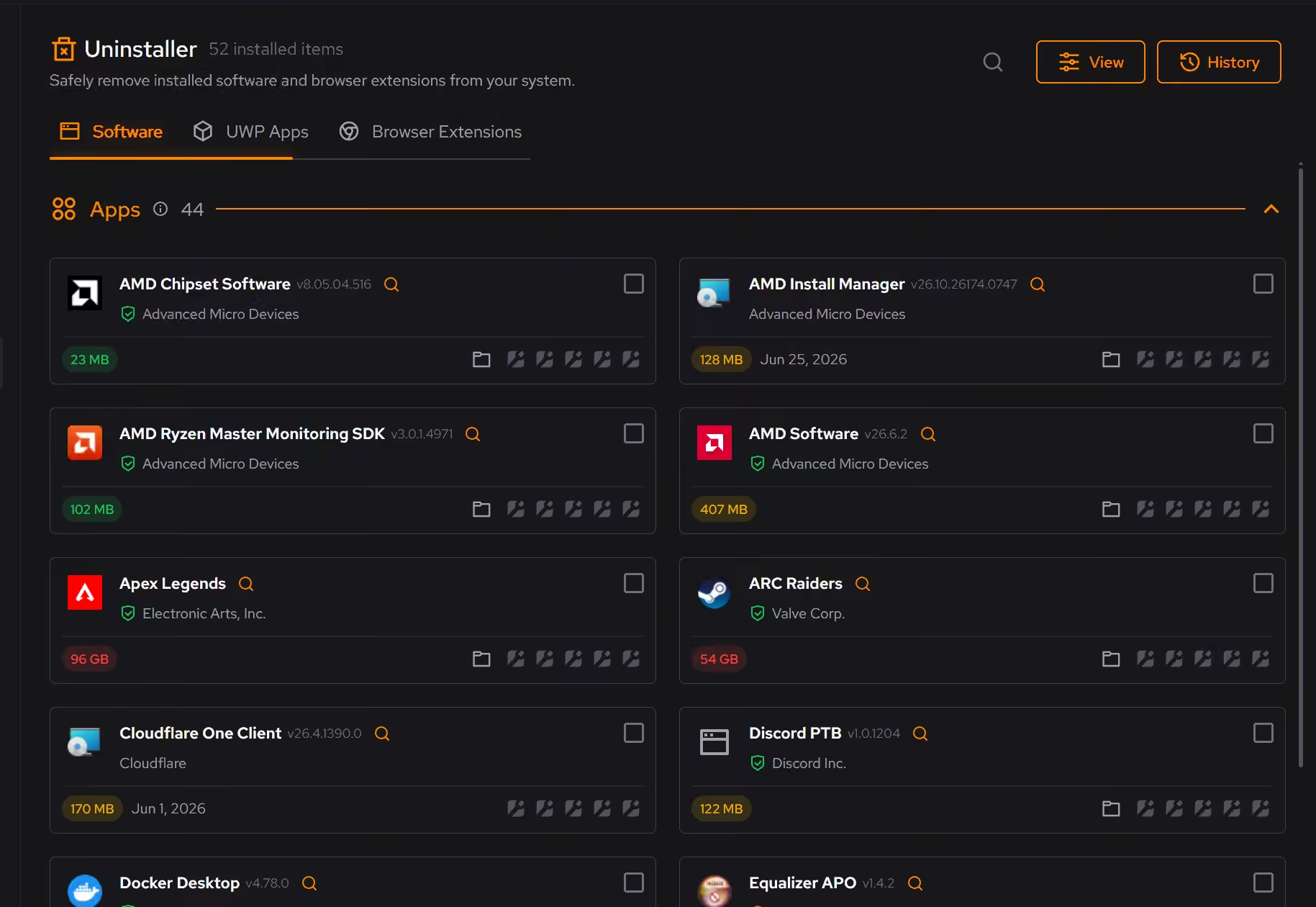
Guard the empty startup
Today the startup list is the shortest it will ever be. Booster shows everything that registers itself at login from here on, so each addition is a decision instead of sediment.
In Booster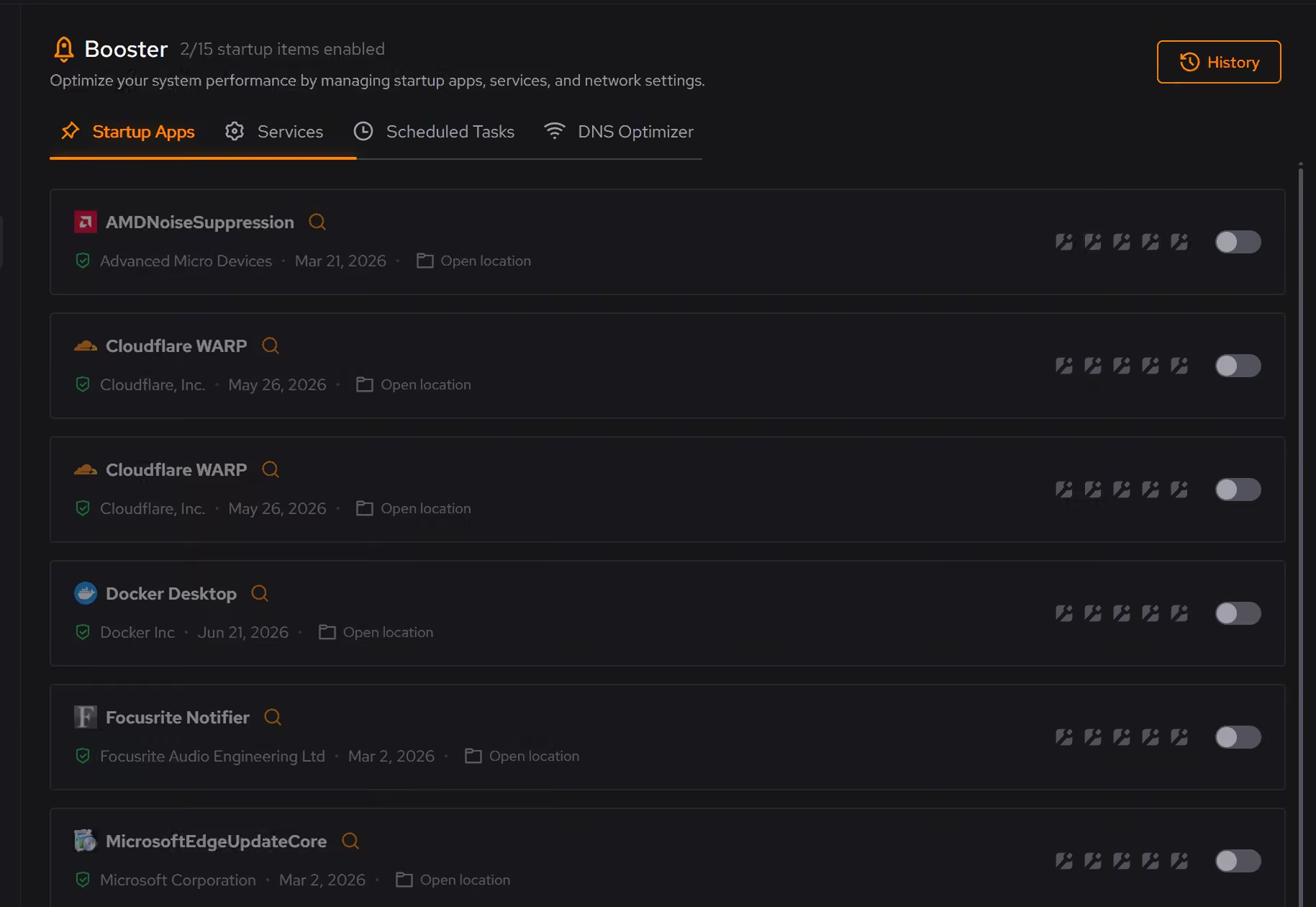
Free on Windows 10 and 11, no trial timer.
Download freeThe tweaks, by name. Each one explains itself before it runs.
Disable Content Delivery
Stops Windows from automatically installing suggested apps, showing app recommendations in the Start menu, and displaying tips and advertisements throughout the system.
Disable Widgets
Turns off the Windows Widgets panel and, when possible, removes related components. This reduces background content fetching, memory usage, and taskbar clutter.
Disable Copilot
Turns off Windows Copilot, hides its taskbar button, and removes related components when Windows allows it.
Disable Delivery Optimization Peering
Sets Delivery Optimization to HTTP-only, no-peering mode. Updates still download normally, but Windows stops sharing update content with other PCs.
Disable Background Apps
Prevents apps from running in the background when not actively in use. This reduces CPU and memory usage, extends battery life on laptops, and improves overall system responsiveness.
Every tweak above changes Windows settings, and applied changes land in a history. See how Optimizer works
Proof, then limits.
What you can check
Quick Optimize applies the whole recommended set, or you can go through tweaks one at a time.
In OptimizerOptimizer keeps a history of what you applied, and supported changes can be reverted from the same place you enabled them.
In Optimizer
Where eclean stops
eclean does not install Windows, drivers, or updates. The install itself and the vendor tools stay yours.
A fresh install it did not witness is not a baseline it can restore. The history starts when you do.
If eclean steps over a line here, tell us and we'll fix it.
Still deciding? Fair questions, answered.
What does my PC need to run it?
Very little. If your PC runs Windows 10 or 11 (64-bit), it runs eclean. The full spec sheet is one page long.
Is eclean safe to download?
Yes. The installer is a single signed file from our own release server, with no bundled extras. While our signing certificate is new, Windows SmartScreen may ask you to confirm the publisher, which reads ECLEAN LIMITED, the company that signs our Windows installer. What the app collects, and what it never touches, is documented in the trust center.
Can it run maintenance on a schedule?
Yes, with Pro. Scheduled maintenance runs your routine automatically, alongside the deeper optimization and secure deletion Pro adds. The free tier runs whenever you open the app.