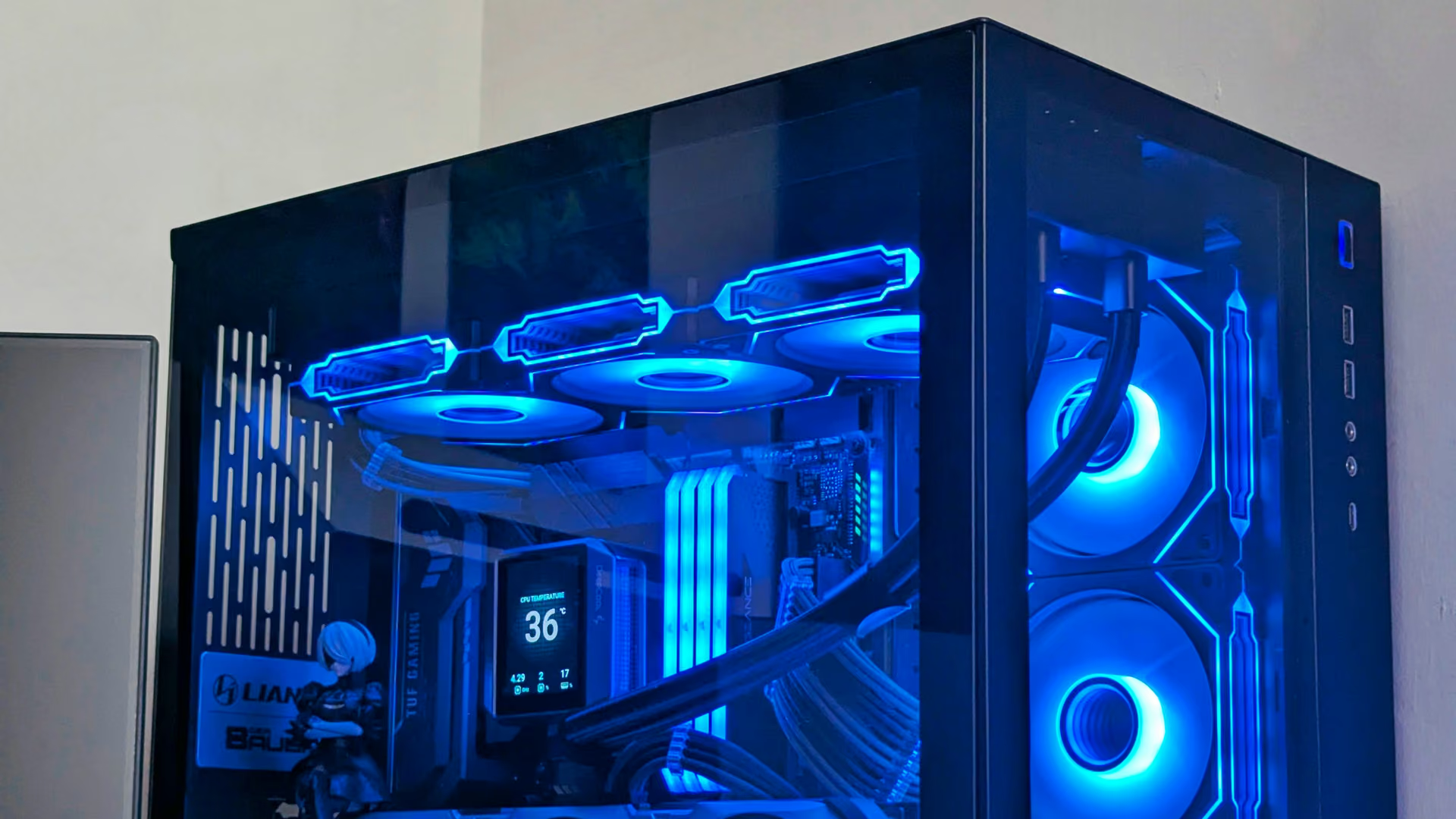
Setting up a new gaming PC. Start clean, stay clean.
The first hour with a new gaming PC decides how it ages. What to check, remove, and tune with eclean before the preloads and startup apps settle in.
Free · Windows 10 and 11
The problem.
The PC is finally on the desk and it should feel effortless. Prebuilts arrive with trials and vendor utilities already pinned to startup, and even a clean build collects launchers and helper apps within a week. You want it set up properly, without pasting tweaks from a video into a machine you just paid for.
A new gaming PC is the fastest it will ever feel. What erodes that is rarely one big thing. It is the slow accumulation of software that starts at boot, runs in the background, and asks for attention at the worst moment. Day one is the cheapest time to prevent it, because there is almost nothing to undo yet.
The order matters more than the effort. Look first, and let the inventory confirm the Windows build and the parts you paid for. Remove next, while the preloads are still strangers. Tune after that, with changes that explain themselves and can be reverted. From then on, anything that wants to start with Windows has to earn the spot.
What eclean does here. In this order.
Confirm what you paid for
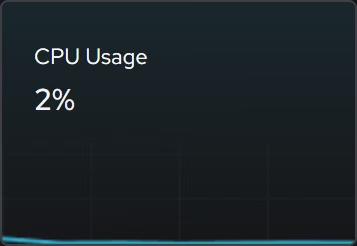
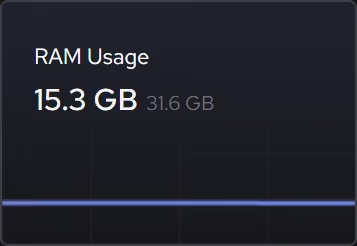
The inventory shows your Windows version and build, firmware, processor, graphics, memory, storage, and network hardware in plain terms, so day one starts with knowing exactly what is in the case.
In Your PC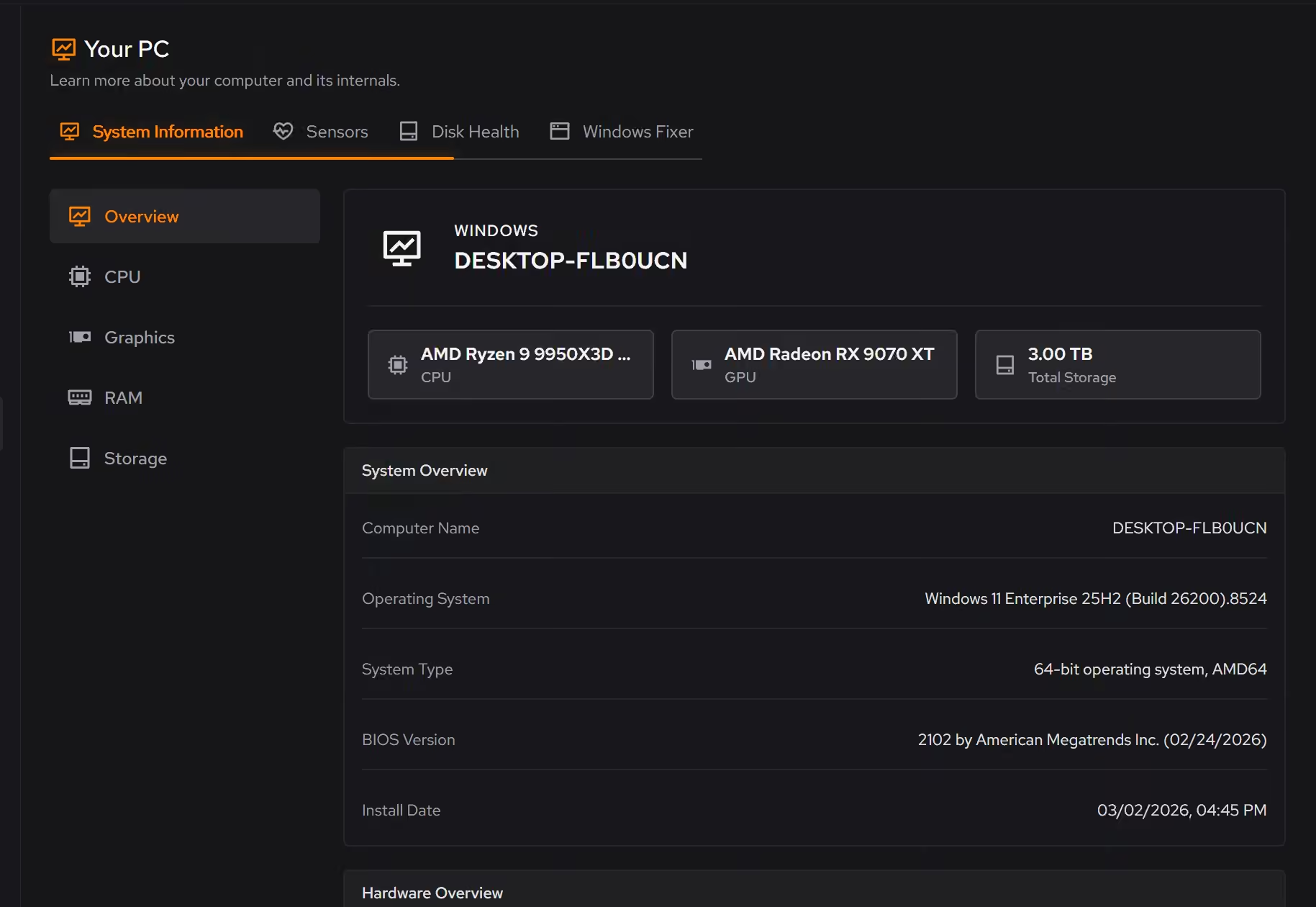
Remove what you did not ask for
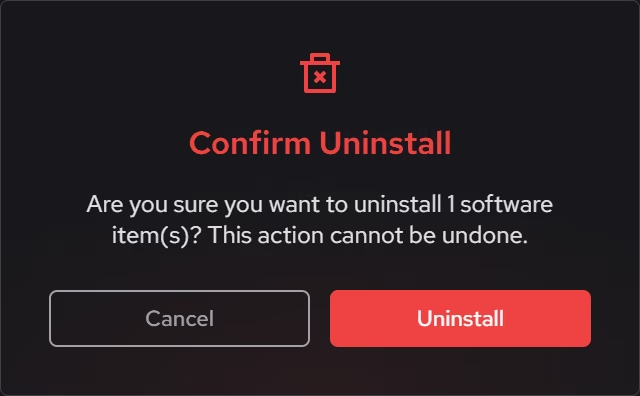
Preloaded trials are easiest to remove before they take root. The inventory puts desktop programs, packaged Windows apps, and browser extensions in one list, and the install date and publisher make the vendor's additions easy to tell from your own.
In Uninstaller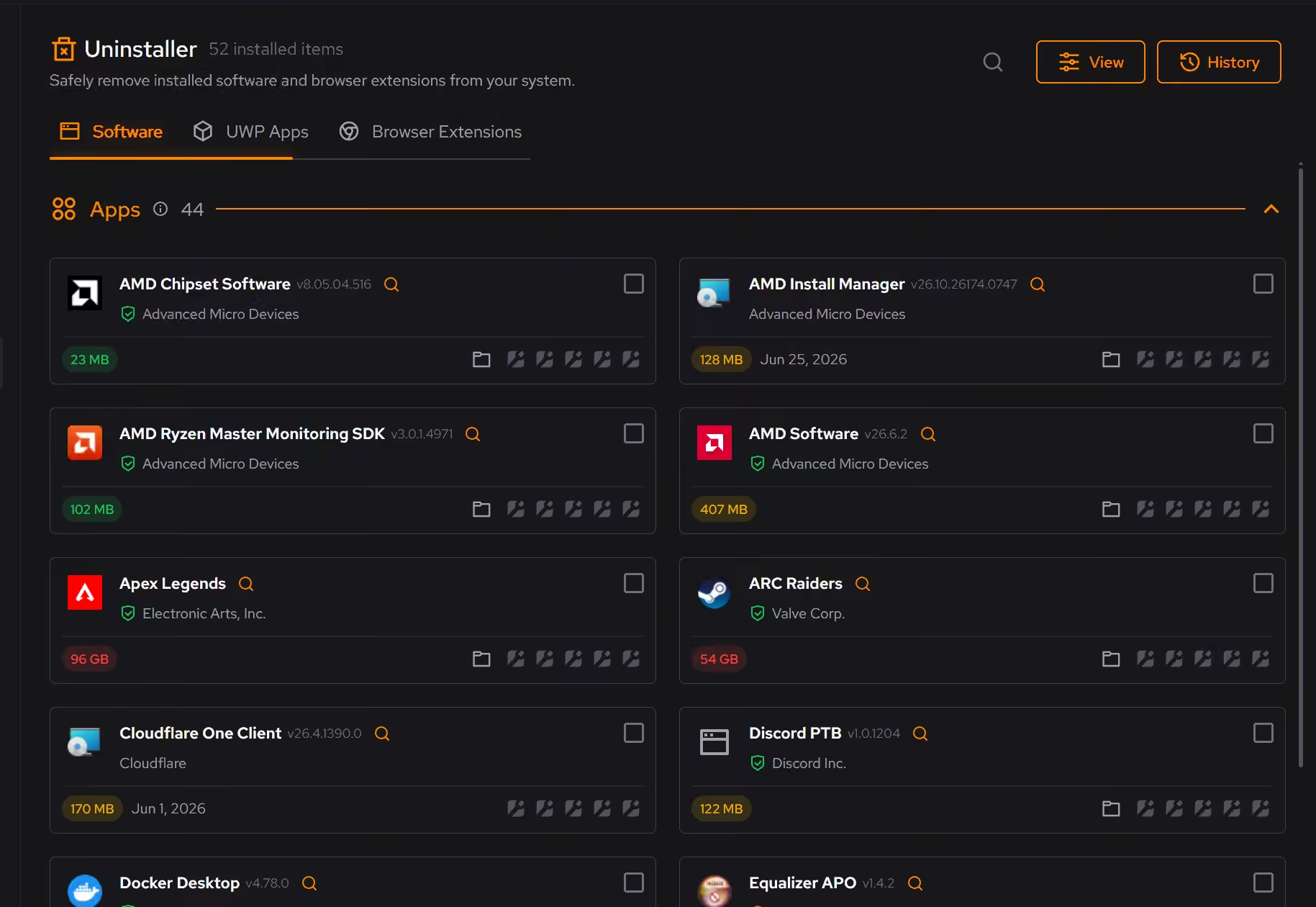
Apply the recommended set, deliberately
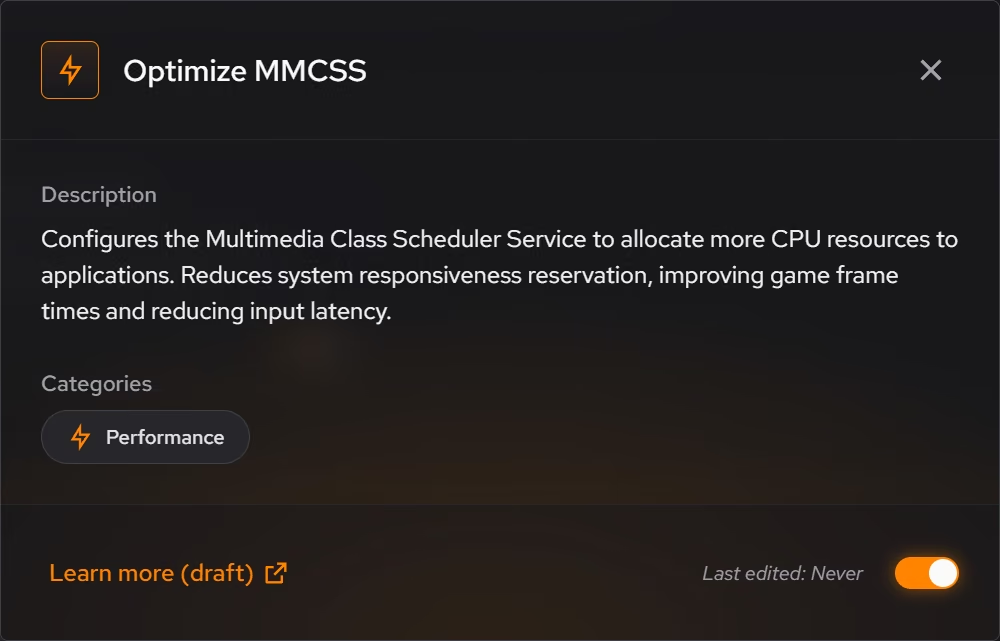
Each recommendation describes what it changes and why it can help, and Quick Optimize applies the whole recommended set in one pass. Everything you apply lands in a history with a supported route back, so day one experiments are not commitments.
In Optimizer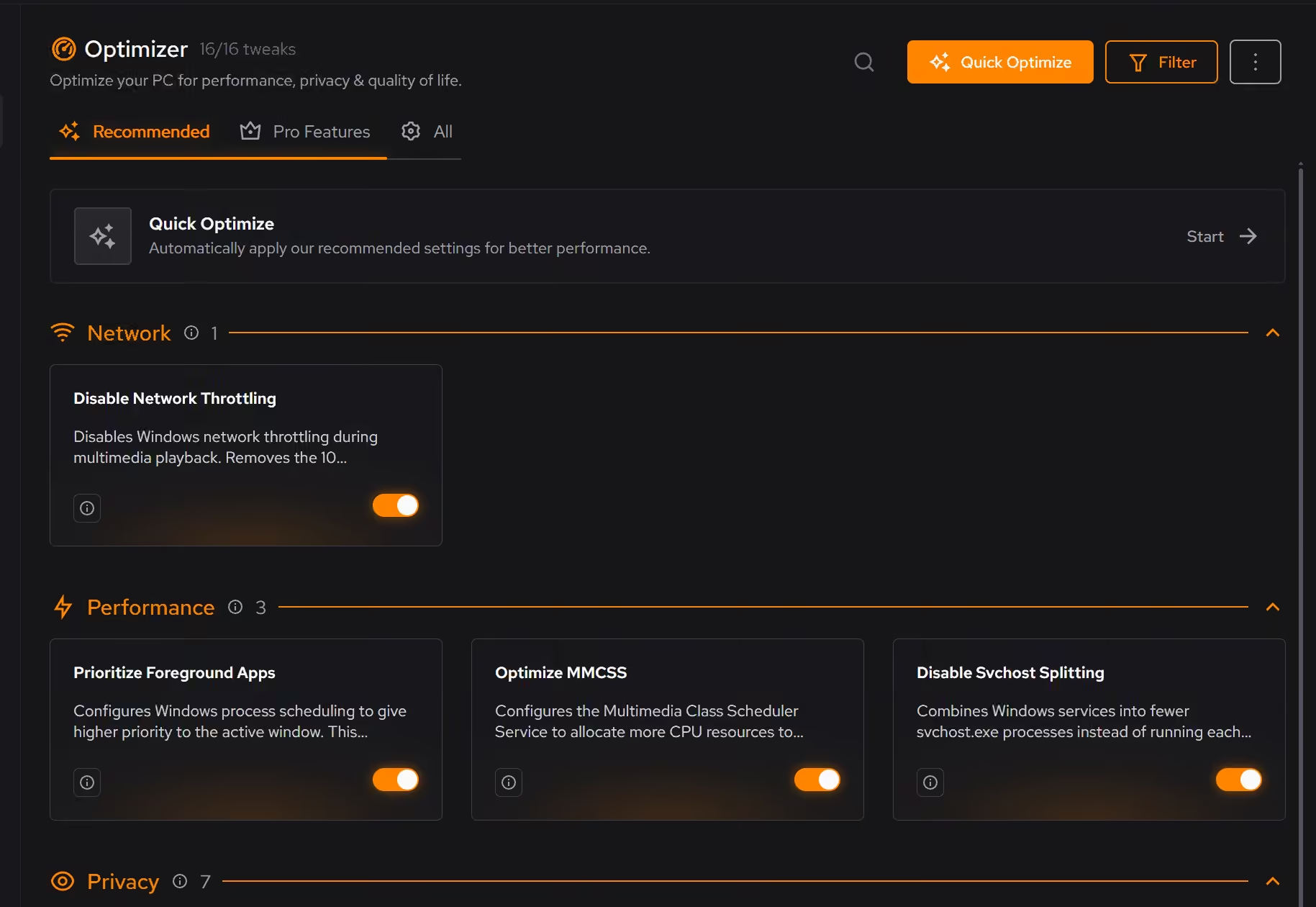
Keep the startup quiet while it still is
Startup apps, services, and scheduled tasks appear in one place. On a new PC the list is short, and reviewing it now means the background load only grows when you decide it should.
In Booster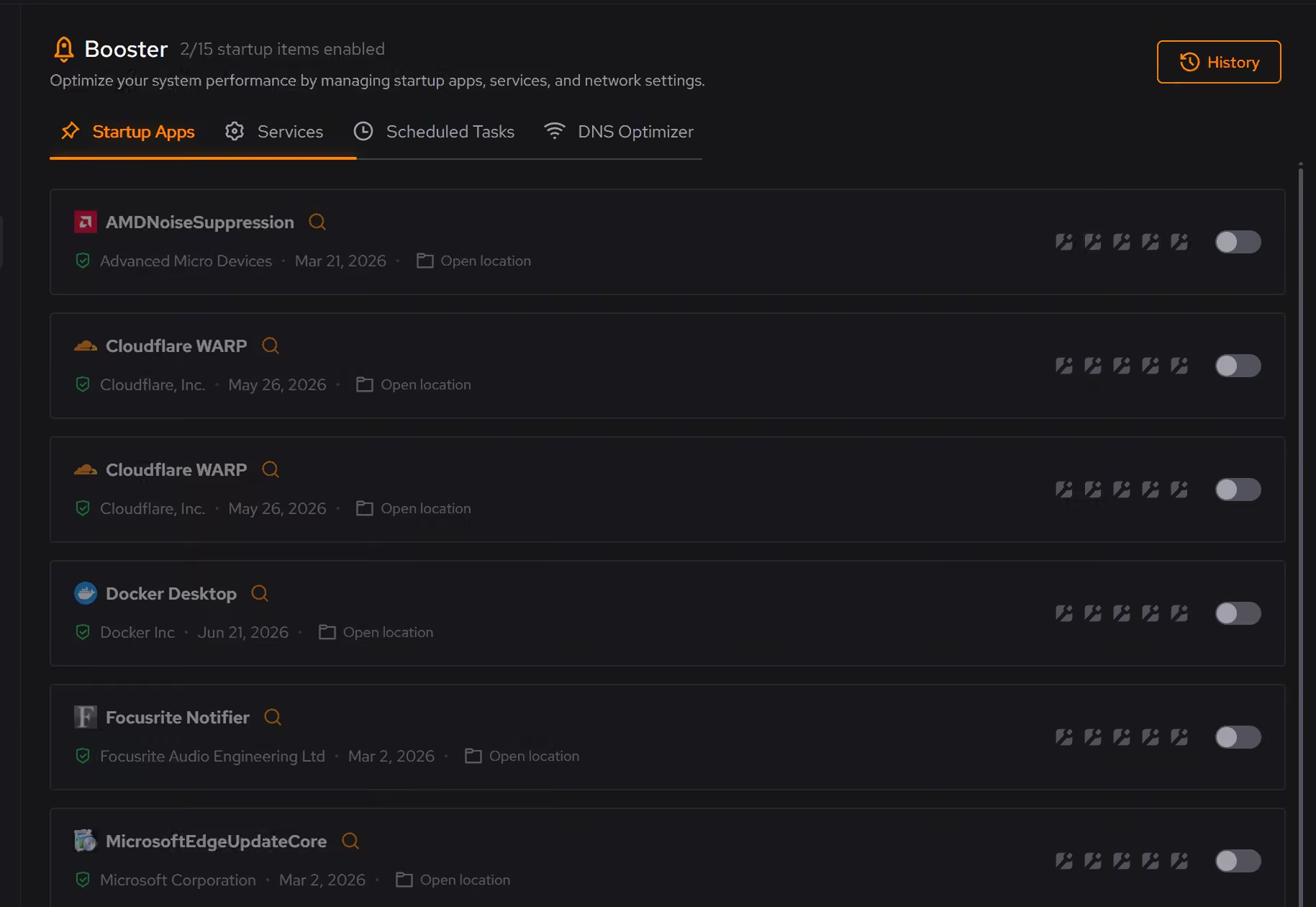
Proof, then limits.
What you can check
Quick Optimize applies the whole recommended set, or you can go through tweaks one at a time.
In OptimizerThe hardware inventory covers Windows, firmware, processor, graphics, memory, storage, and network details together.
In Your PC
Where eclean stops
eclean does not install GPU drivers or update the BIOS. First boot jobs like those belong to your hardware vendors' tools.
A new PC that still stutters after cleanup may have a driver or hardware problem, and eclean will not pretend otherwise.
If eclean steps over a line here, tell us and we'll fix it.