Staying on Windows 10 after support ended. Know your PC, then keep it tidy.
Windows 10 support ended on 14 October 2025. See your Windows version and hardware, remove what you do not use, and keep the PC lean while you decide.
Free · Windows 10 and 11
The problem.
Windows 10 reached end of support on 14 October 2025, and the PC on your desk still works. Whether to stay, pay, or move to Windows 11 is a real decision, and most of the advice is either alarm or a sales pitch. You want facts about your own machine first.
Support for Windows 10 ended on 14 October 2025, and Microsoft has since extended its free consumer Extended Security Updates program to 12 October 2027. The program covers security updates only and requires Windows 10 22H2, so check your version before counting on it. That gives you time, which is useful, because the sensible first step is learning what you have rather than reacting.
Your PC lists the Windows version and build, the processor, graphics, memory, and storage in plain terms. That answers the version question for the extended updates, and it gives you the numbers to compare against any requirements list. In a small office, running it on each PC gives you a version and hardware sheet per machine before you decide which ones to replace. Its security summary also shows whether Secure Boot is on, one of the settings Windows 11 checks. What it does not do is judge eligibility for Windows 11. Microsoft's PC Health Check is the right tool for that verdict, and the linked guide covers the TPM and Secure Boot settings that most often block it.
Staying on Windows 10 for now is a reasonable choice, and eclean runs on it and on Windows 11 alike. A PC that stays put benefits from being lean. Uninstaller makes an inventory of everything installed, including Store apps and browser extensions, so software from years ago becomes a list you can work through. Removal includes a check for what the app left behind.
If you do plan to upgrade, free space on the system drive helps. Cleaner shows the usual clutter by where it came from, and the large file finder sorts the rest by size, so you decide what goes. The tweaks named further down are mild ones. Two of them quiet Windows Update restart prompts and stop automatic restarts, and others limit suggested apps and background activity. Each describes its effect first and keeps a history with a route back.
Where eclean stops is Microsoft's side of the line. It does not install updates, enroll you in the extended program, or promise that an older PC will run Windows 11. It gives you the facts and a lighter machine, and the decision stays yours.
What eclean does here. In this order.
Your version, build, and hardware in one place
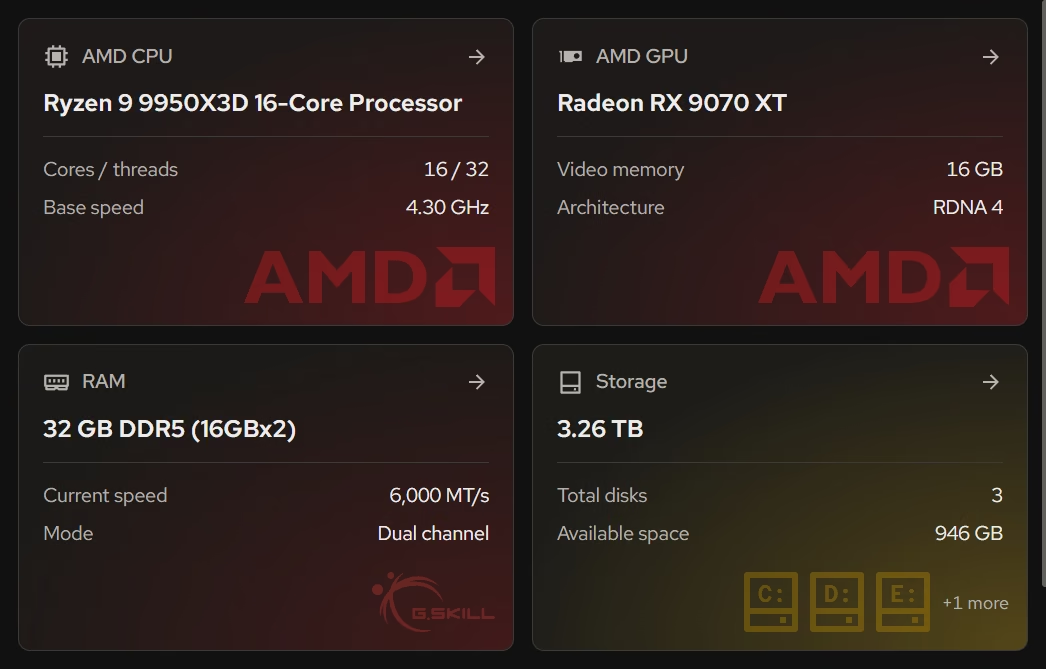
Your PC shows the Windows version and build next to the processor, graphics, memory, and storage. It is the inventory you want in hand before deciding anything.
In Your PC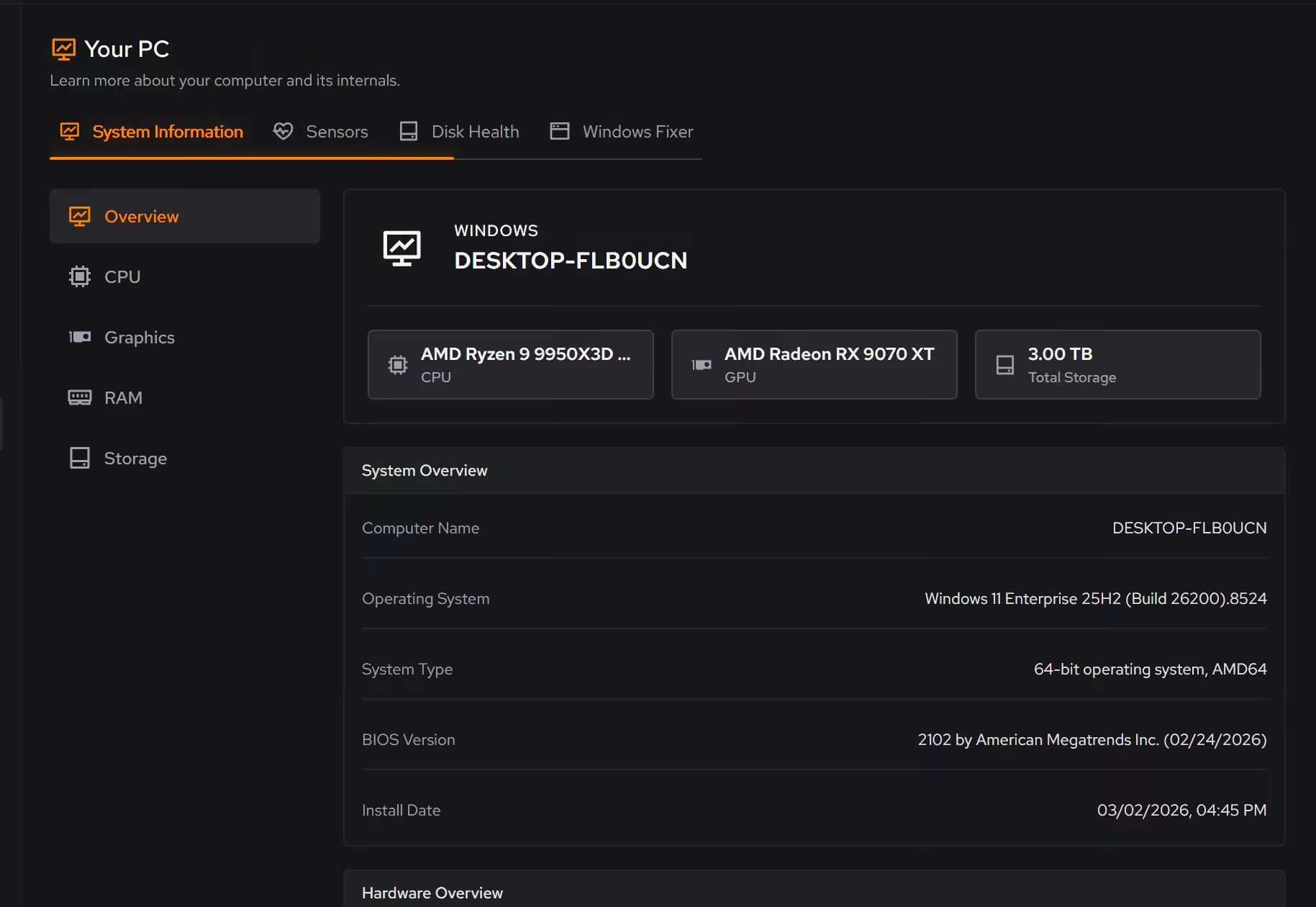
Clear out what you will not carry forward
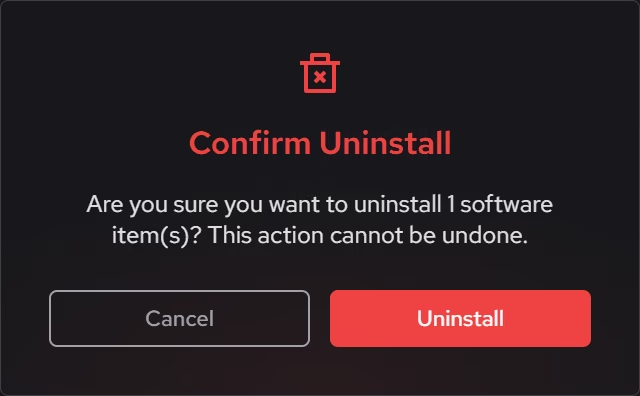
Whether you stay or move, old software is baggage. Desktop apps, Store apps, and browser extensions share one list with size, publisher, and install date, and leftovers are checked after each removal.
In Uninstaller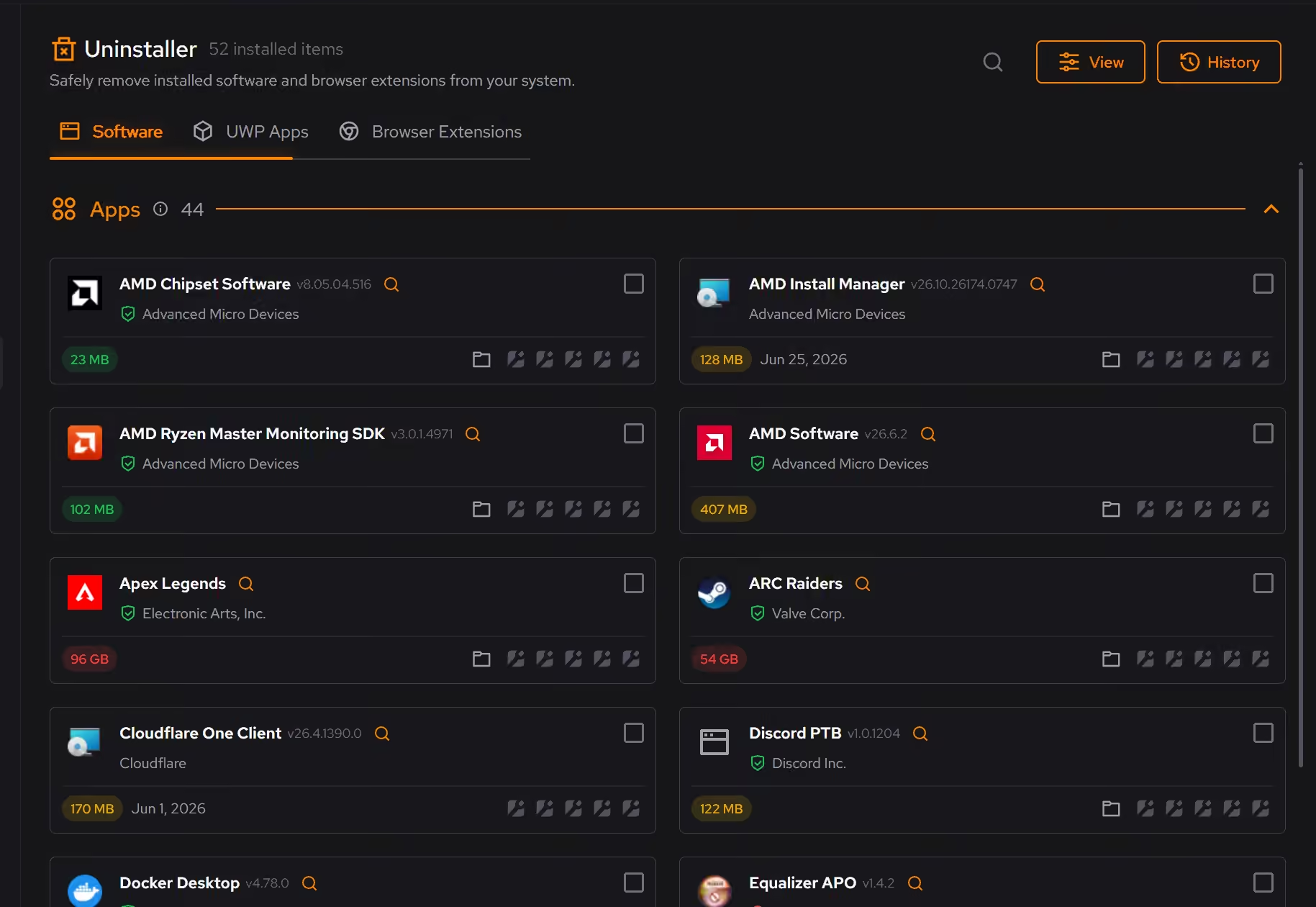
Space for the next step
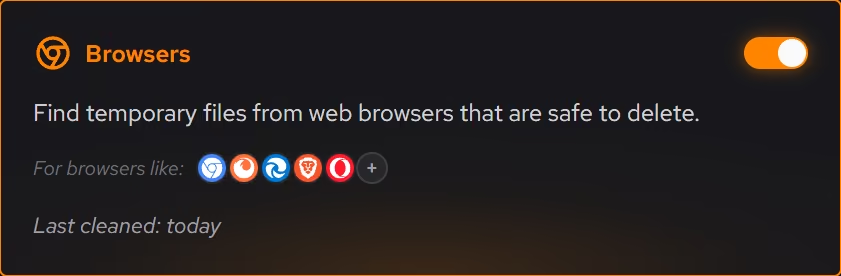
A big Windows upgrade wants room on the system drive. Cleaner shows what is safe to clean from browsers, apps, Windows, and games, and nothing goes until you choose.
In Cleaner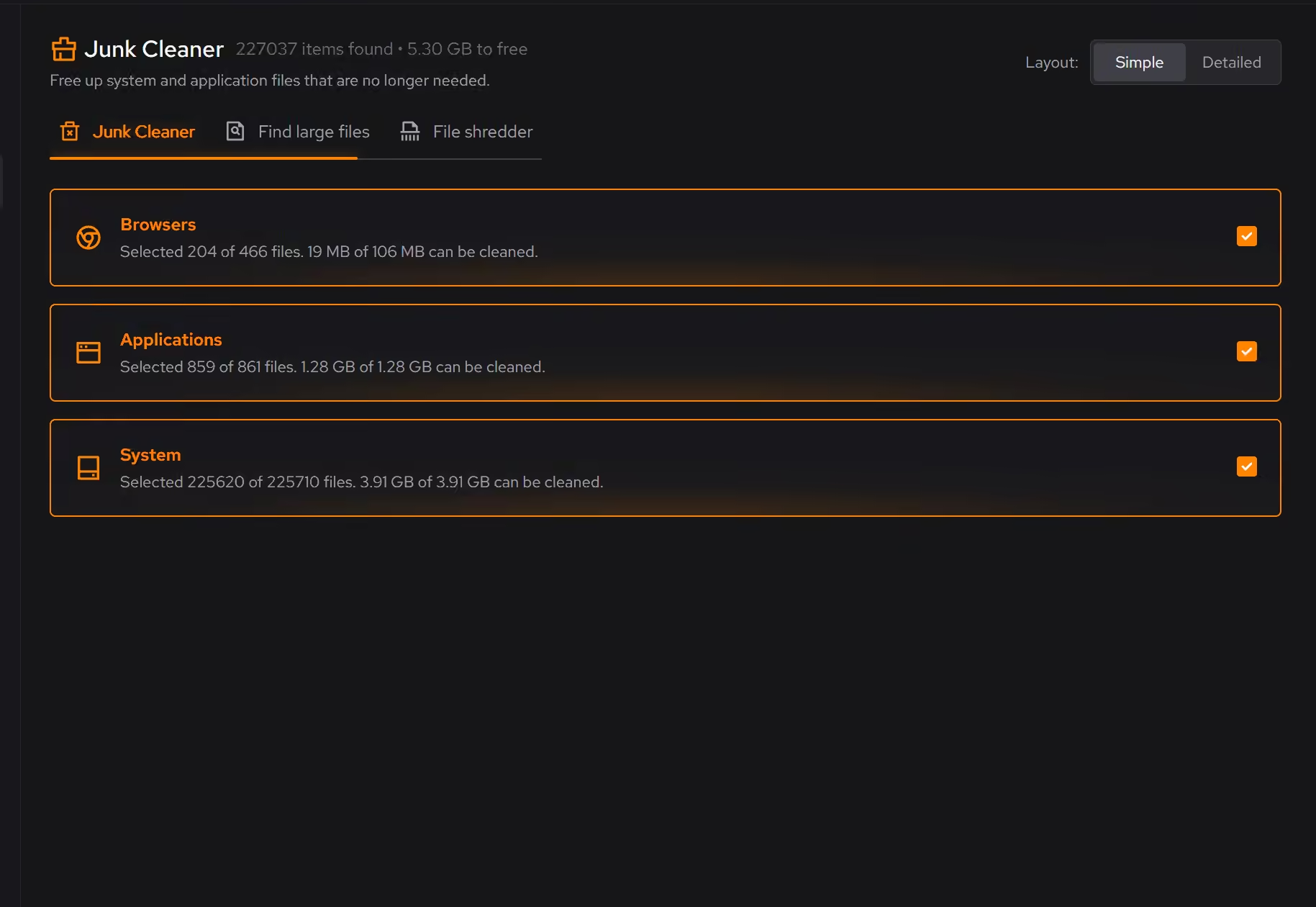
Free on Windows 10 and 11, no trial timer.
Download freeThe tweaks, by name. Each one explains itself before it runs.
Disable Update Nagging
Suppresses Windows Update restart prompts and prevents 'Install Updates and Shut Down' from being the default shutdown option.
Disable Auto Reboot After Updates
Prevents Windows Update from automatically rebooting your computer after updates. You remain in control of when to restart after installing updates.
Disable Content Delivery
Stops Windows from automatically installing suggested apps, showing app recommendations in the Start menu, and displaying tips and advertisements throughout the system.
Disable Background Apps
Prevents apps from running in the background when not actively in use. This reduces CPU and memory usage, extends battery life on laptops, and improves overall system responsiveness.
Every tweak above changes Windows settings, and applied changes land in a history. See how Optimizer works
Proof, then limits.
What you can check
Microsoft extended free consumer Extended Security Updates to 12 October 2027, covering security updates only and requiring Windows 10 22H2.
www.bleepingcomputer.comeclean is free on Windows 10 and 11, and Your PC shows the Windows version and build.
In Your PC
Where eclean stops
eclean does not judge Windows 11 eligibility. Microsoft's PC Health Check gives that verdict.
eclean does not install updates or enroll you in Extended Security Updates. Both stay with Windows and Microsoft.
If eclean steps over a line here, tell us and we'll fix it.
Still deciding? Fair questions, answered.
What does my PC need to run it?
Very little. If your PC runs Windows 10 or 11 (64-bit), it runs eclean. The full spec sheet is one page long.
Is eclean safe to download?
Yes. The installer is a single signed file from our own release server, with no bundled extras. While our signing certificate is new, Windows SmartScreen may ask you to confirm the publisher, which reads eclean Labs AB, the company that signs our Windows installer. What the app collects, and what it never touches, is documented in the trust center.
Is the free version actually useful?
Yes. The core of eclean, understanding your PC and keeping it tidy, is free without time limits or nagging. Pro adds the upkeep that runs on its own, like weekly cleanup.