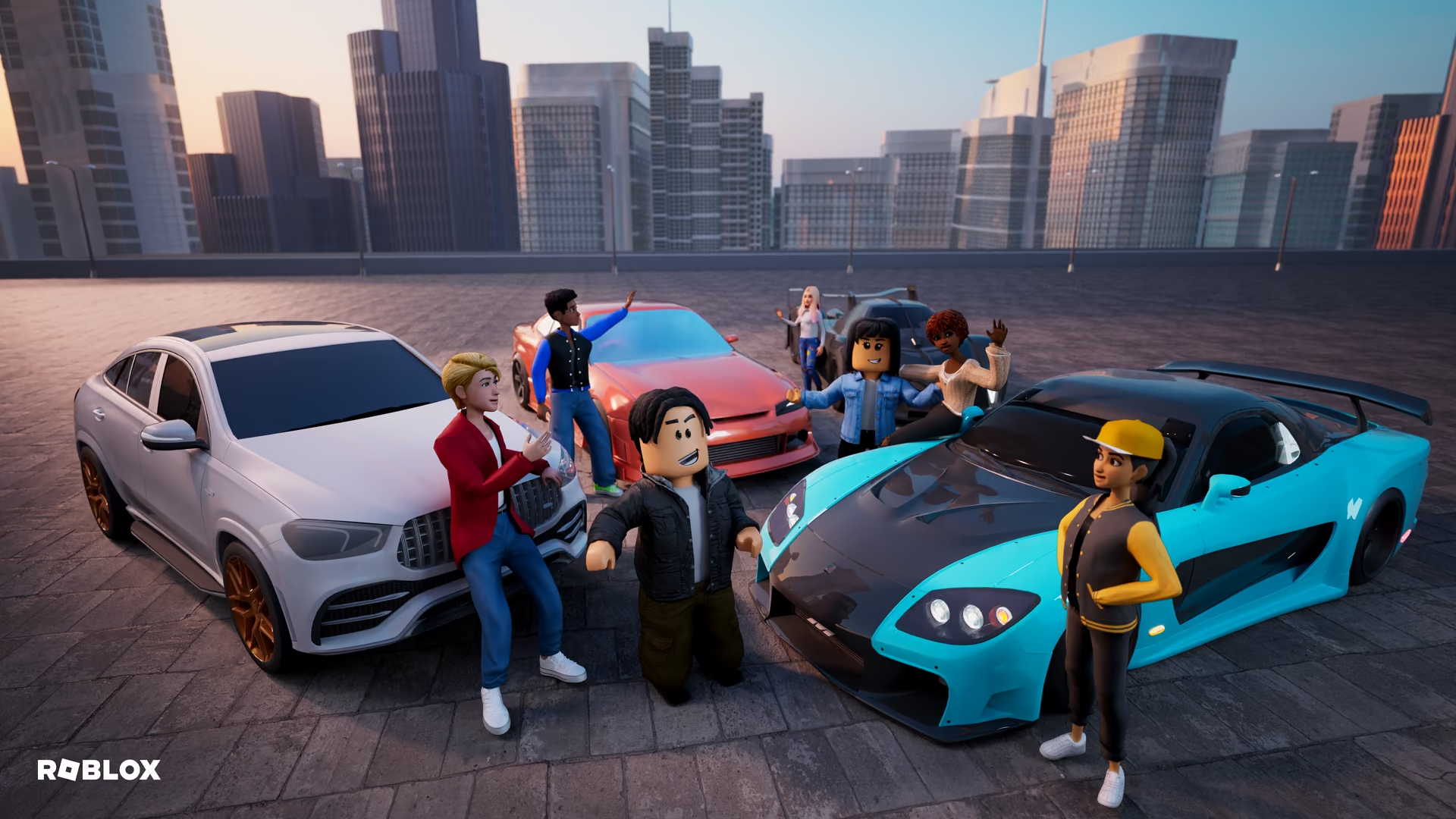
A tidier PC under Roblox. For the machine the kids actually use.
Roblox PCs collect installs, extensions, and clutter fast. eclean inventories what arrived, previews cleanup, and quiets startup without touching Roblox.
Free · Windows 10 and 11
Every change explained, with a route back.
The problem.
The PC that runs Roblox belongs to the busiest user in the house. Games get installed on impulse, browser extensions arrive with them, and six months later the machine takes minutes to settle after login and nobody can say why. Cleaning it up means first finding out what happened to it.
A Roblox PC ages in dog years. Every new favorite game brings an install, some installs bring a launcher, a few bring a browser extension, and the machine that was quick in January is unrecognizable by summer. The slowdown is real, but it is not Roblox's doing. It is the sediment of everything that arrived alongside.
The cleanup starts with reading the story rather than guessing at it. The inventory lists desktop programs, packaged Windows apps, and browser extensions in one place, and the install date and publisher columns usually explain each arrival better than anyone's memory does. What was installed in the same week as a new game, by a publisher nobody recognizes, is easy to spot and easy to remove, and removals check for the files and registry entries left behind.
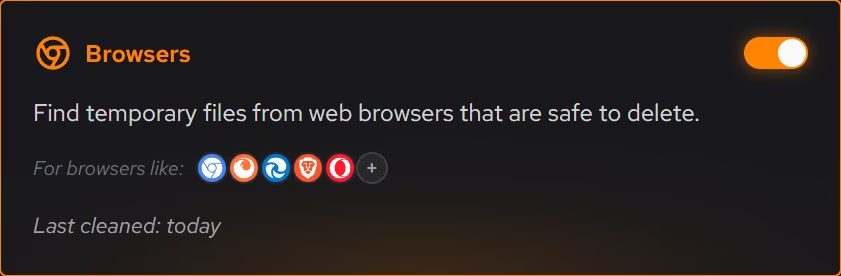
Cleanup on someone else's machine needs to be defensible, which is what the preview is for. Cleaner groups clutter by where it came from and shows exactly what will be removed and how much space returns before anything happens, so clearing the drive is a decision made in the open, not something a kid discovers afterward. The large file finder does the same for the big items, with size and modified date beside each so old video captures and abandoned downloads identify themselves.
The startup queue is where the machine gets its mornings back. Impulse installs love to register themselves at boot, and Booster's single list of startup apps, services, and scheduled tasks is where that accumulation becomes visible and reversible. The tweaks named further down help the same machine in quieter ways, stopping suggested app installs and background apps, each explained in plain words before it runs.
The limits are family-shaped too. eclean has no parental controls, does not watch what anyone plays, and never touches Roblox itself. It keeps the machine underneath clean, understood, and quick to log in, and with Family covering up to 5 PCs, the same routine works on every machine in the house.
What eclean does here.
Find out what arrived
Desktop programs, packaged Windows apps, and browser extensions appear in one inventory with install date and publisher beside each, so what accumulated around Roblox is a readable story instead of a mystery. Batch removal without limits is Pro.
Pro covers 2 PCs. Family covers 5.
In Uninstaller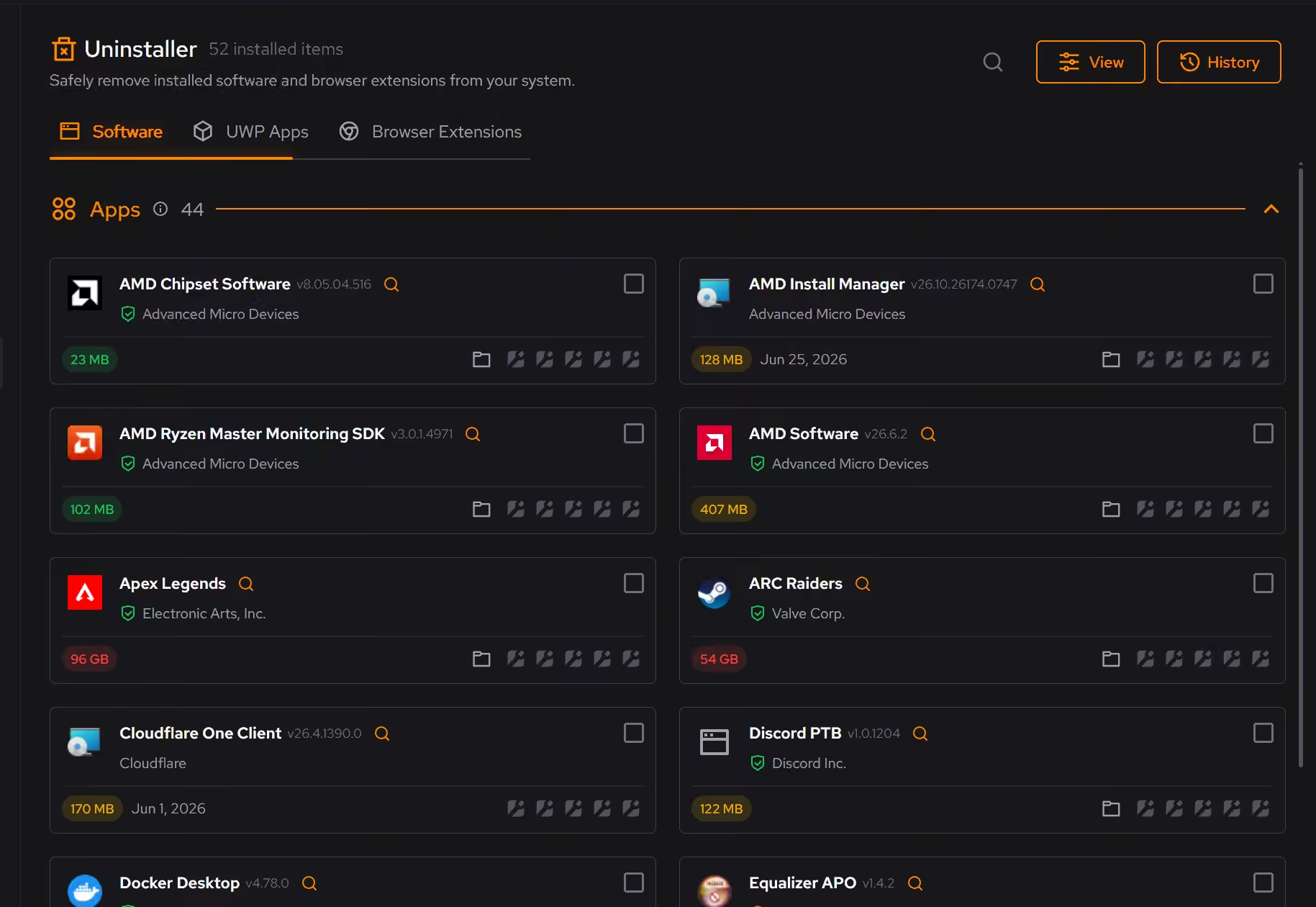
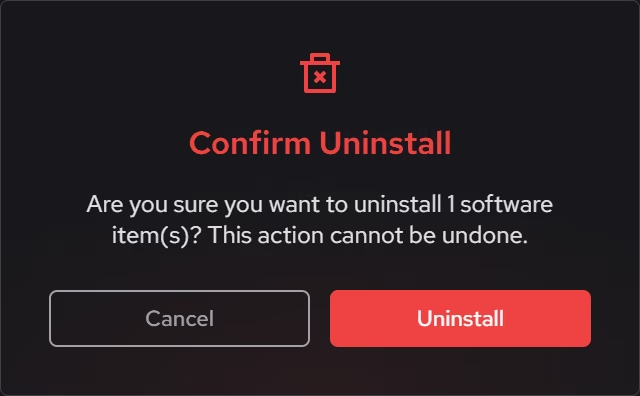
Clean with a preview a parent can read
Nothing is removed without showing what goes and how much space comes back, grouped by where the clutter came from. On a kid's PC that preview is the difference between cleanup and an argument.
In Cleaner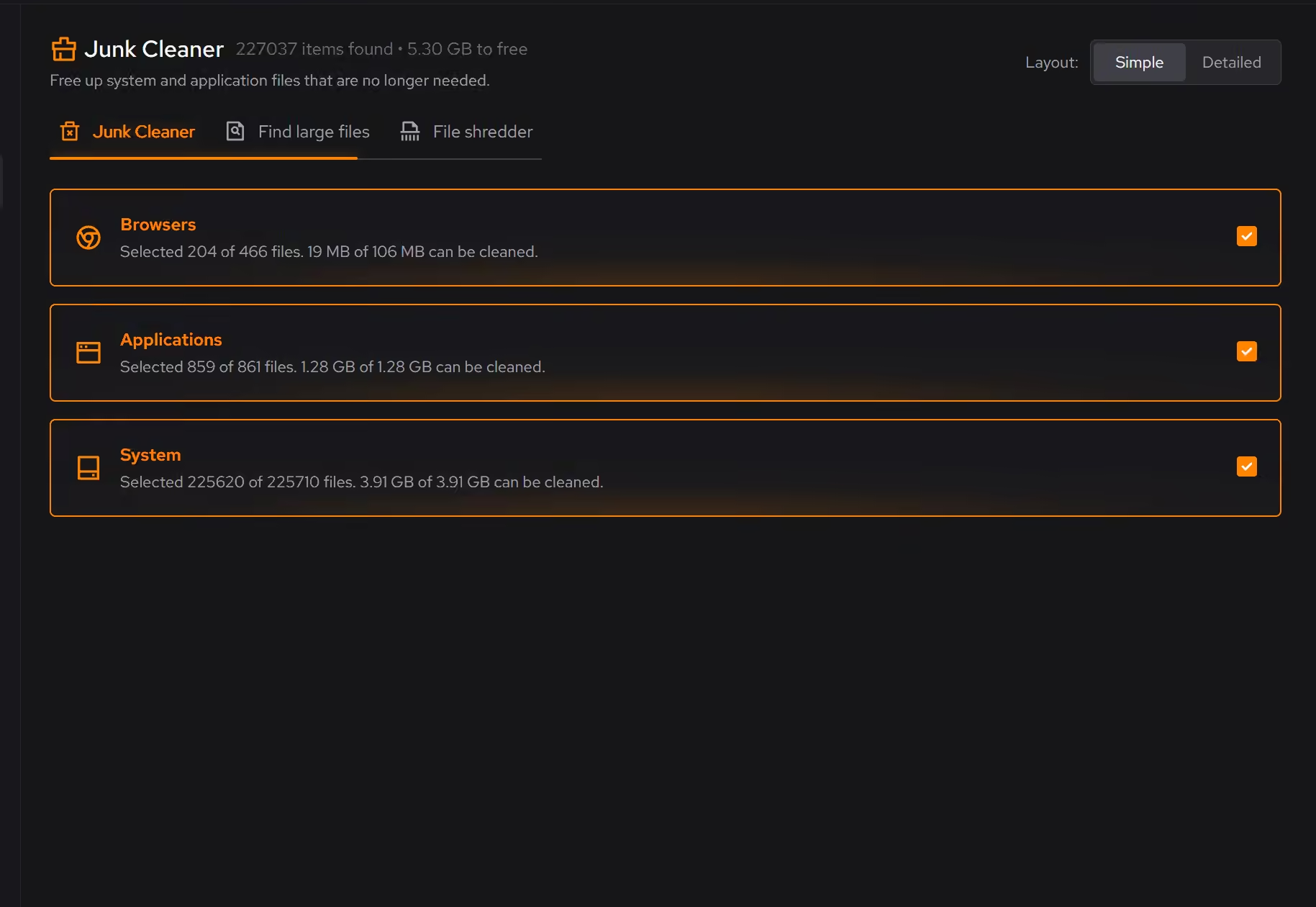
Give the startup back to the machine
Every impulse install wants to start with Windows. Booster lists startup apps, services, and scheduled tasks together, so the login queue shrinks back to what the household actually decided on.
In Booster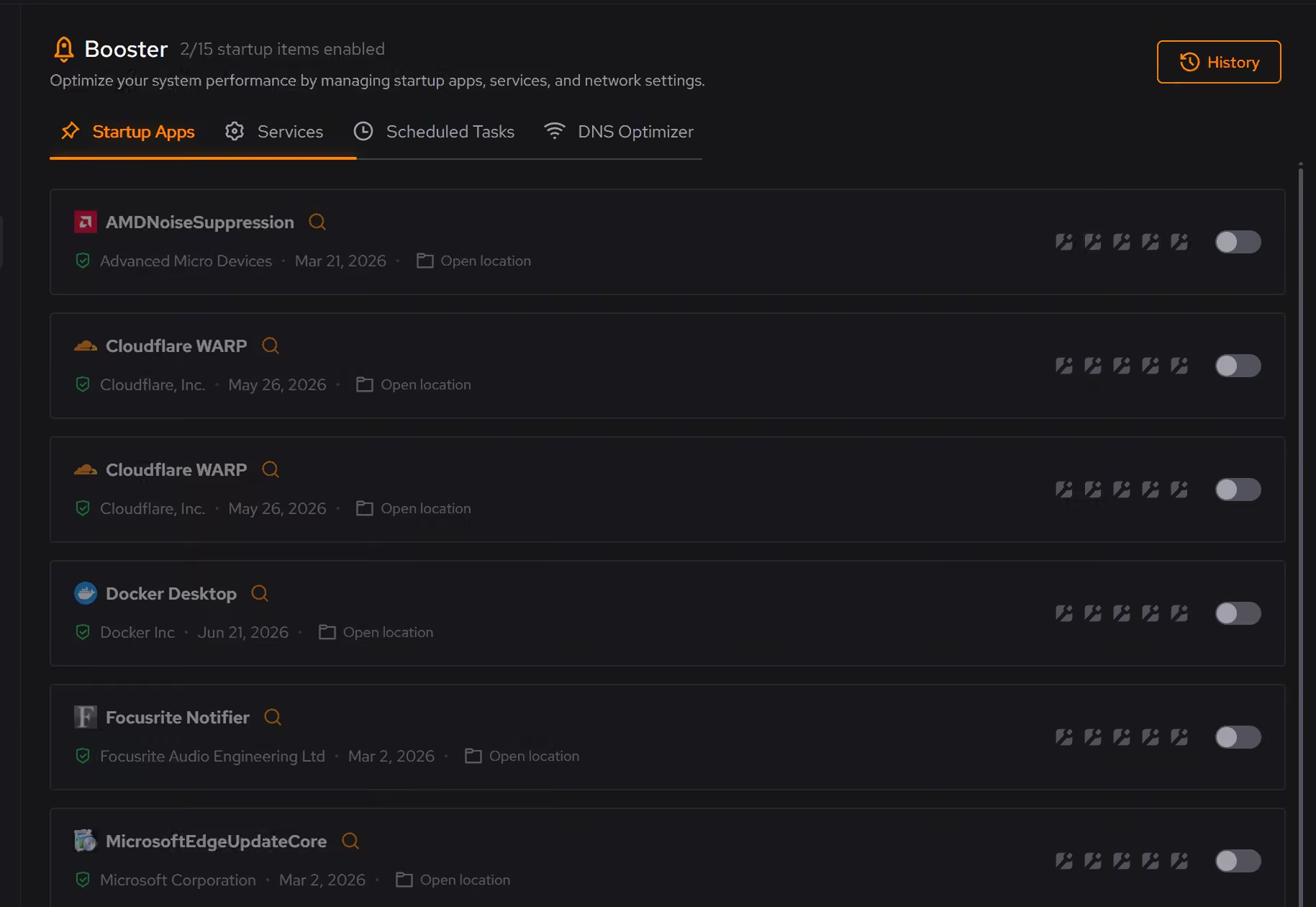
Free on Windows 10 and 11, no trial timer.
Download freeThe tweaks, by name. Each one explains itself before it runs.
Disable Content Delivery
Stops Windows from automatically installing suggested apps, showing app recommendations in the Start menu, and displaying tips and advertisements throughout the system.
Disable Background Apps
Prevents apps from running in the background when not actively in use. This reduces CPU and memory usage, extends battery life on laptops, and improves overall system responsiveness.
Disable Advertising ID
Prevents Windows from assigning you a unique advertising identifier used by apps and advertisers to track your activity and serve personalized ads across applications.
Every tweak above changes Windows settings, and applied changes land in a history. See how Optimizer works
Proof, then limits.
What you can check
eclean changes Windows. It does not modify Roblox or its installs.
In OptimizerDesktop programs, packaged Windows apps, and browser extensions share one inventory with install date and publisher.
In Uninstaller
Where eclean stops
eclean is maintenance, not supervision. It has no parental controls and does not monitor what anyone plays.
It does not modify Roblox. It manages the Windows the game runs on.
If eclean steps over a line here, tell us and we'll fix it.
What Pro adds here.
These are the additions the modules on this page gate. Pro covers up to 2 PCs, and Family covers up to 5.
Batch removal without limits, for clearing several programs in one pass
In Uninstaller
Still deciding? Fair questions, answered.
Is eclean safe to download?
Yes. The installer is a single signed file from our own release server, with no bundled extras. While our signing certificate is new, Windows SmartScreen may ask you to confirm the publisher, which reads ECLEAN LIMITED, the company that signs our Windows installer. What the app collects, and what it never touches, is documented in the trust center.
Is the free version actually useful?
Yes. The core of eclean, understanding your PC and keeping it tidy, is free without time limits or nagging. Pro adds depth for people who want more control, not the basics held hostage.
Can I use one license on several PCs?
A Pro license covers up to 2 PCs you personally use, so install eclean on your desktop and laptop with the same account. For a household with several people, the Family plan shares Pro across up to 5 PCs, each with their own account.