Ready for the school year. Clear the summer, keep the games.
The laptop heading back to school after a summer of games and downloads. Clear the clutter with a preview, quiet the startup, and review what got installed.
Free · Windows 10 and 11
Every change explained, with a route back.
The problem.
The laptop that spent the summer on games and videos is about to become a school machine again, and it shows. The drive is fuller than anyone can explain, the battery drains faster than in June, and it takes ages to settle after opening. Term starts on a date. The laptop has to be ready on it too.
Every August the same laptop changes jobs. For two months it ran games, streamed videos, and downloaded whatever the group chat recommended, and in that role it did fine. Now it has to open a dozen tabs of reading, hold a battery through a school day, and not take three minutes to settle when class has already started. The machine did not get worse over the summer. It got loaded.
Unloading it starts with the drive, because a nearly full disk slows everything else and coursework needs somewhere to land. The cleanup pass previews the routine clutter by category with the space it frees, and the large file finder puts size and modified date next to the summer's heaviest leftovers, which is usually all it takes to tell a keeper clip from a forgotten download. Nothing goes without being shown first, which matters on a laptop where last year's essays still live.
The startup queue took the summer's real damage. Games, launchers, and helper apps registered themselves at login one install at a time, and each one now costs boot time in the morning and battery through the day, since the background apps tweak notes the battery cost of exactly that kind of uninvited work. Booster shows the whole queue in one list, and pruning it is the single most noticeable change this page has to offer.
The software review closes the job. The inventory lists what arrived since June with publishers and install dates beside each entry, and the standard is simple. The games earned their place and can keep it. The free video converter with a publisher nobody recognizes did not, and removals check for the leftovers a normal uninstall forgets. The tweaks named further down finish quietly, keeping search local and stopping suggested installs before term adds its own noise.
If the laptop covers the whole household rather than one student, the same pass works machine by machine, and Family covers up to 5 PCs on one license. Either way, the goal is the same and it is checkable. A drive with room, a login that is quick, a battery that lasts the timetable, and a machine whose summer is fully behind it.
What eclean does here. In this order.
The summer, cleared with a preview
Months of downloads, clips, and leftovers gave the drive its mystery. Cleaner shows what will be removed and how much space returns before anything goes, and the large file finder sorts the rest by size and date, so coursework space is back before week one.
In Cleaner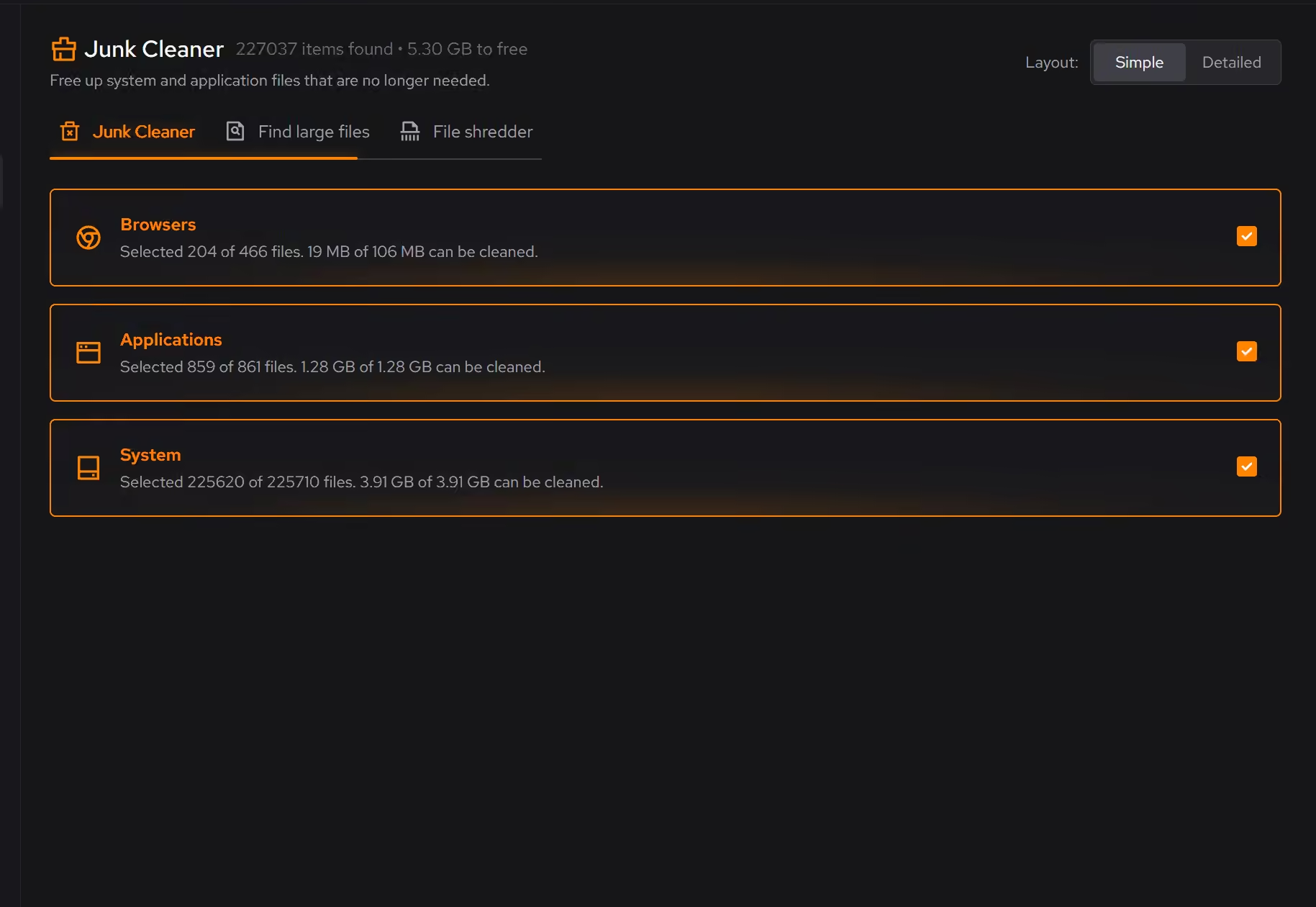
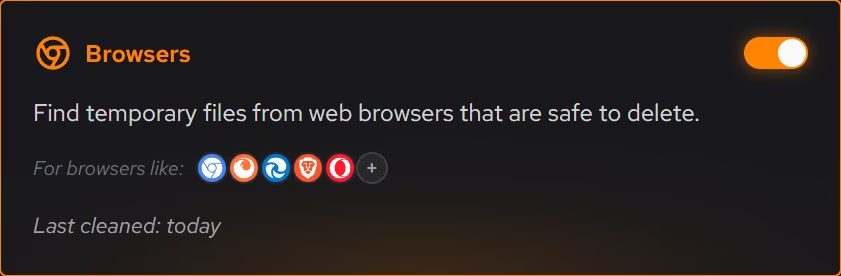
A startup that lasts a school day
Everything installed since June wants to launch at login, and a busy background spends battery the school day needs. Booster puts the whole startup queue in one list, so the laptop boots quick and idles quiet.
In Booster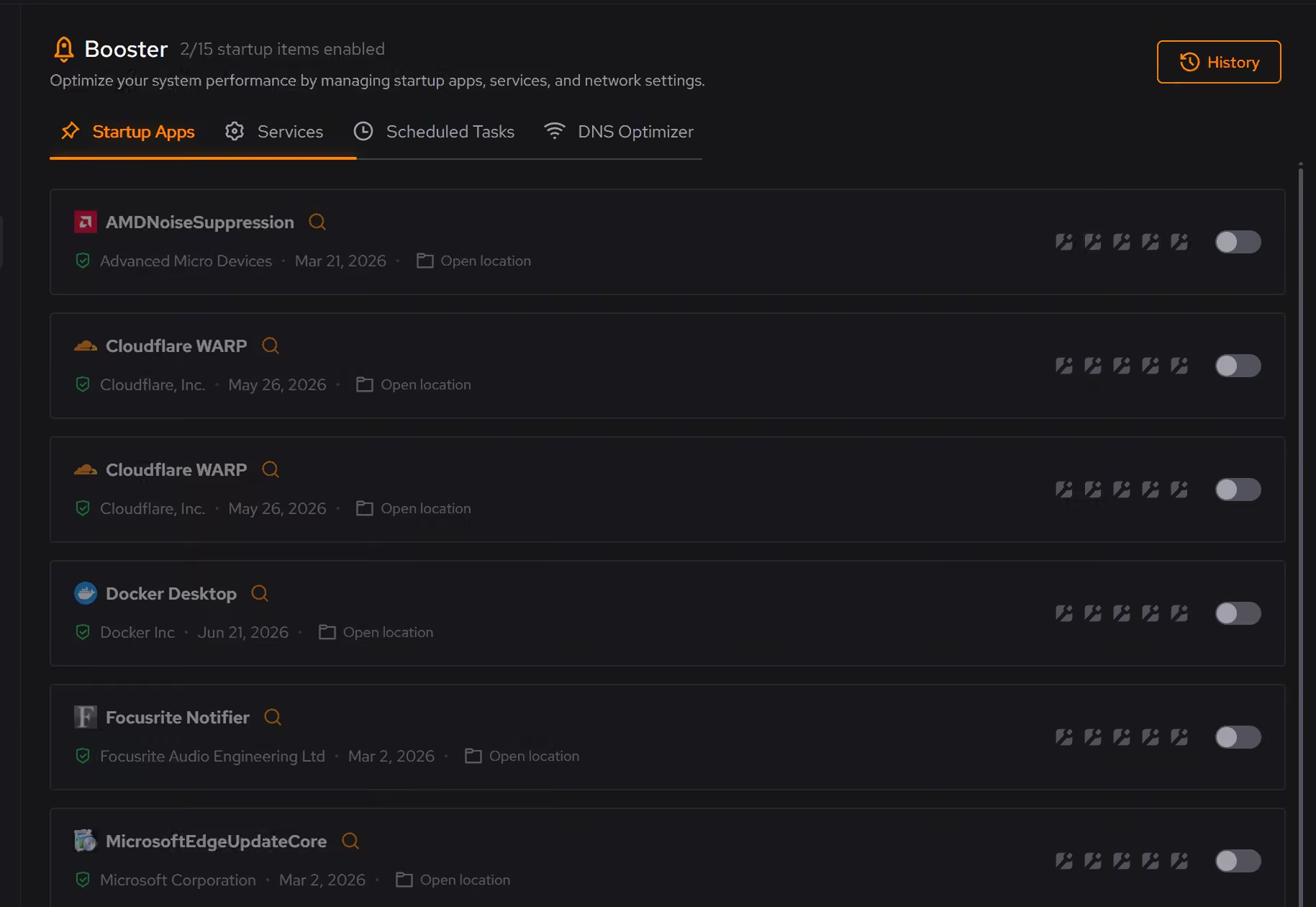
Review what the summer installed
The inventory lists programs, Windows apps, and browser extensions with install dates beside them, so the free tools and launchers that arrived over the break get a look. The games can stay. The sketchy download manager should not.
In Uninstaller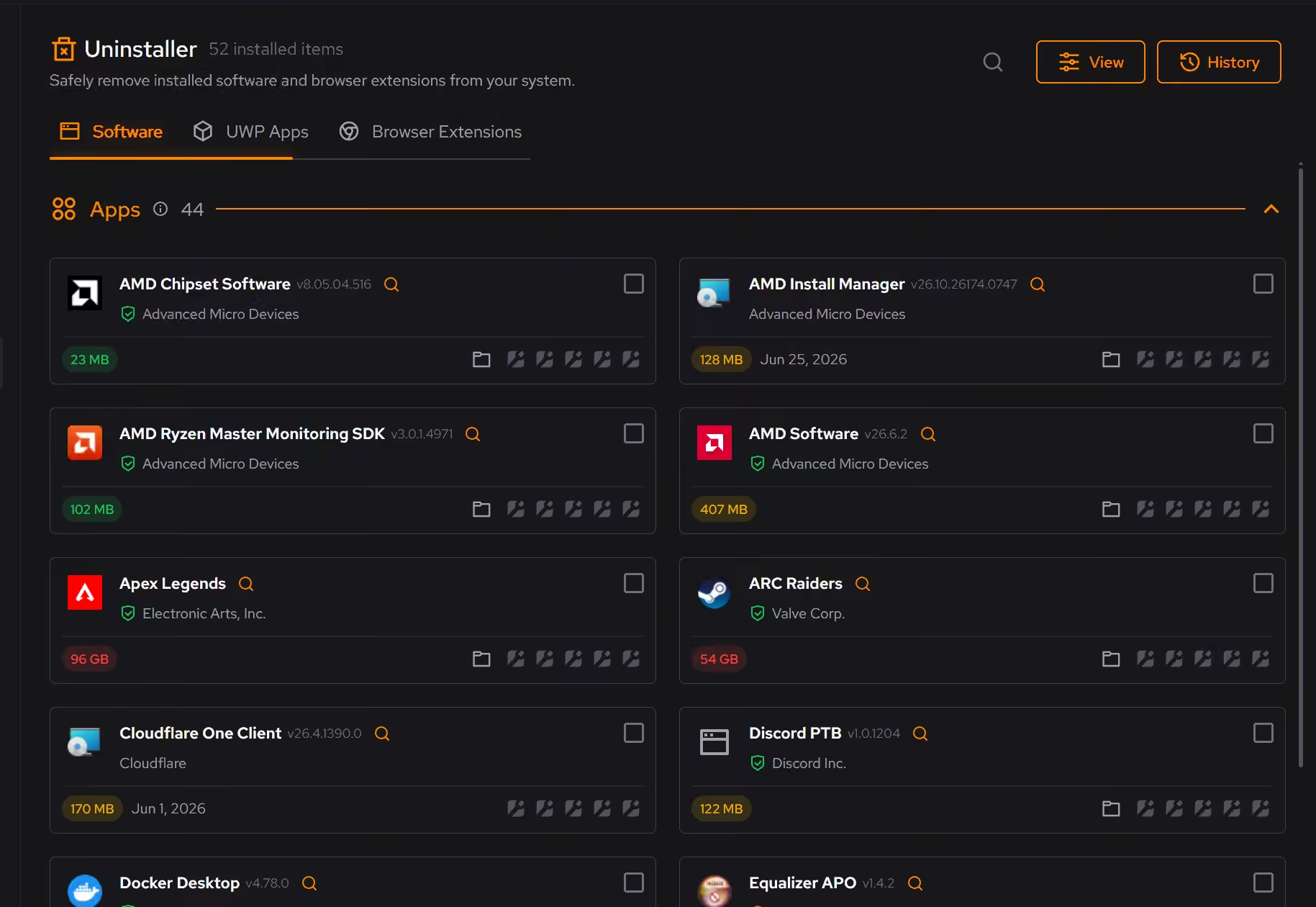
Free on Windows 10 and 11, no trial timer.
Download freeThe tweaks, by name. Each one explains itself before it runs.
Disable Background Apps
Prevents apps from running in the background when not actively in use. This reduces CPU and memory usage, extends battery life on laptops, and improves overall system responsiveness.
Disable Content Delivery
Stops Windows from automatically installing suggested apps, showing app recommendations in the Start menu, and displaying tips and advertisements throughout the system.
Limit Windows Search to Local Results
Keeps Windows Search focused on local results by turning off Bing web search, cloud results, and search suggestions. Local file search still works as normal.
Every tweak above changes Windows settings, and applied changes land in a history. See how Optimizer works
Proof, then limits.
What you can check
Clutter is grouped by category, and you see what will be removed and how much space it frees before anything happens.
In CleanerDesktop programs, packaged Windows apps, and browser extensions share one inventory with size, install date, and publisher.
In Uninstaller
Where eclean stops
eclean frees space, it does not back anything up. Save the coursework somewhere safe before cleaning.
It cannot add battery capacity or speed the hardware never had. It trims what the summer piled on and shows its work.
If eclean steps over a line here, tell us and we'll fix it.
Still deciding? Fair questions, answered.
Is the free version actually useful?
Yes. The core of eclean, understanding your PC and keeping it tidy, is free without time limits or nagging. Pro adds depth for people who want more control, not the basics held hostage.
What does my PC need to run it?
Very little. If your PC runs Windows 10 or 11 (64-bit), it runs eclean. The full spec sheet is one page long.
Can I use one license on several PCs?
A Pro license covers up to 2 PCs you personally use, so install eclean on your desktop and laptop with the same account. For a household with several people, the Family plan shares Pro across up to 5 PCs, each with their own account.